%7B.s%7Banimation%3Ab%201.5s%20ease-out%20both%7D.d%7Banimation-delay%3A.16s%7D%7D%40keyframes%20b%7B0%25%7Bfill%3A%23F4F6FA%7D18%25%7Bfill%3A%23FFE08A%7D34%25%2C70%25%7Bfill%3A%23FF8A1F%7D80%25%7Bfill%3A%23FFE08A%7D100%25%7Bfill%3A%23FF8A1F%7D%7D%3C%2Fstyle%3E%3Cg%20transform%3D%22translate(143%20428.93)%20scale(3.885906)%22%3E%3Cg%20transform%3D%22translate(0%202)%22%20fill%3D%22%23706EF0%22%3E%3Cpath%20d%3D%22M0%200%20H48%20A40%2040%200%200%201%2048%2080%20V100%20H0%20Z%22%2F%3E%3Cpath%20transform%3D%22translate(91.75%200)%22%20d%3D%22M0%200%20L48%200%20L48%2050%20L76%2050%20L76%20100%20L0%20100%20Z%22%2F%3E%3Cpath%20transform%3D%22translate(173%200)%22%20d%3D%22M0%20100%20L58%20-4%20L116%20100%20Z%22%2F%3E%3Cpath%20transform%3D%22translate(264.25%200)%22%20d%3D%22M0%200%20L104%200%20L76%2050%20L76%20100%20L28%20100%20L28%2050%20Z%22%2F%3E%3Cg%20transform%3D%22translate(375%200)%22%3E%3Cpath%20d%3D%22M0%200%20L50%2038%20L50%200%20L100%200%20L100%20100%20L0%20100%20Z%22%20fill%3D%22%23F4F6FA%22%2F%3E%3Crect%20class%3D%22s%22%20x%3D%2247%22%20y%3D%2263%22%20width%3D%2219%22%20height%3D%2230%22%2F%3E%3Crect%20class%3D%22s%20d%22%20x%3D%2274%22%20y%3D%2263%22%20width%3D%2219%22%20height%3D%2230%22%2F%3E%3C%2Fg%3E%3Cpath%20transform%3D%22translate(484.75%200)%22%20d%3D%22M0%200%20L48%200%20L48%2037%20L52%2037%20L52%200%20L100%200%20L100%20100%20L52%20100%20L52%2063%20L48%2063%20L48%20100%20L0%20100%20Z%22%2F%3E%3Cpath%20transform%3D%22translate(588.5%200)%22%20d%3D%22M0%2050%20A53%2053%200%201%200%20106%2050%20A53%2053%200%201%200%200%2050%20Z%22%2F%3E%3Cpath%20transform%3D%22translate(698.25%200)%22%20d%3D%22M25%200%20H102%20V50%20H77%20A25%2025%200%200%201%2077%20100%20H0%20V50%20H25%20A25%2025%200%200%201%2025%200%20Z%22%2F%3E%3Cpath%20transform%3D%22translate(804%200)%22%20d%3D%22M0%200%20L90%200%20L90%2050%20L69%2050%20L69%20100%20L21%20100%20L21%2050%20L0%2050%20Z%22%2F%3E%3C%2Fg%3E%3C%2Fg%3E%3C%2Fsvg%3E)


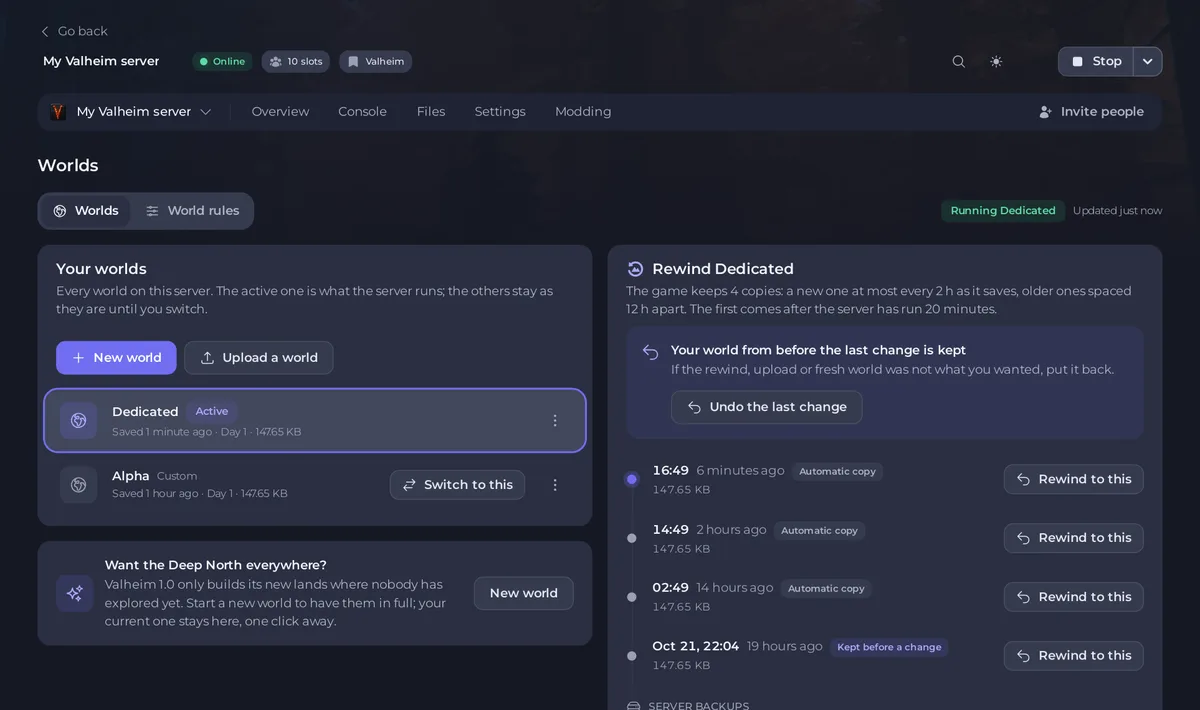
Click Worlds in the left menu. The page lists every world on your server, marks the one the server runs as Active, and lets you switch, start a new world, upload, download, delete and rewind a world to an earlier copy. Its second tab, World rules, sets the difficulty and other rules of the world the server runs.
Open the page
- Open your server in the panel.
- Click Worlds in the left menu. It sits just below Overview.
At the top right, a badge says Running and the world's name, Server offline, or the server's state, with how long ago the page was updated. The page refreshes by itself.
Your worlds
The Your worlds card lists every world, the active one first. Each row shows:
- The world's name, and Active on the one the server runs.
- When it was last saved, the in-game day, its size and how many players have played on it.
- A badge when something is special: Older format, converts on first start for a world from before Valheim 1.0, Incomplete when part of its last save is missing, Ignored by the game when the game cannot read it, or the preset the world has stored.
- Switch to this on every world that is not active.
- A menu, Actions for the world, with Switch to this, Show copies to rewind to, Download and Delete.
With more than six worlds, a Search worlds box appears. The buttons New world and Upload a world sit at the top of the card.
The Rewind timeline
The card on the right, Rewind and the world's name, shows what you can go back to for the world you picked: the game's own copies of it, worlds the panel kept before a change, and your server backups. Each has Rewind to this. See How to rewind your Valheim world to an earlier copy.
Want the Deep North everywhere?
Valheim 1.0 only builds its new lands where nobody has explored yet. The card with this title has a New world button to start a world that has them in full, while your current world stays on the server. See How to start a new world on your Valheim server.
The World rules tab
Click World rules at the top of the page for the preset, the five fine-tune rules and the four switches, with a table of what the world has stored now and what it will have after the next start. See How to set Valheim world modifiers and difficulty.
While a change runs
An upload, a rewind or a delete shows its steps at the top of the page, for example Checking the upload, Stopping and saving, Putting the world in place, Starting the server. You can leave this page: it carries on. When it finishes, a message says Done or That did not work with the reason. Only one world change runs at a time.
Everything you can do here
| Task | Guide |
|---|---|
| Switch the world the server runs | How to switch between Valheim worlds on your server |
| Start a new world | How to start a new world on your Valheim server |
| Upload a world from your PC | How to upload your own Valheim world |
| Bring an Xbox or Game Pass world | How to bring your Xbox or Game Pass Valheim world to your server |
| Download a world | How to download your Valheim world to your PC |
| Delete a world, or start fresh | How to delete a Valheim world or start fresh |
| Rewind a world | How to rewind your Valheim world to an earlier copy |
| Set difficulty and rules | How to set Valheim world modifiers and difficulty |
Who can use it
Seeing the page needs the Browse files permission. Each button needs its own: switching, new worlds and rules need Change startup; uploads need Restart and Create and upload; rewinds need Restart and Edit and rename; deletes need Delete and Restart; downloads need Read contents and Compress and extract; rewinding to a server backup needs the backup Restore permission. A button you cannot use is not shown. See How to invite friends and give them access to your server.





