%7B.s%7Banimation%3Ab%201.5s%20ease-out%20both%7D.d%7Banimation-delay%3A.16s%7D%7D%40keyframes%20b%7B0%25%7Bfill%3A%23F4F6FA%7D18%25%7Bfill%3A%23FFE08A%7D34%25%2C70%25%7Bfill%3A%23FF8A1F%7D80%25%7Bfill%3A%23FFE08A%7D100%25%7Bfill%3A%23FF8A1F%7D%7D%3C%2Fstyle%3E%3Cg%20transform%3D%22translate(143%20428.93)%20scale(3.885906)%22%3E%3Cg%20transform%3D%22translate(0%202)%22%20fill%3D%22%23706EF0%22%3E%3Cpath%20d%3D%22M0%200%20H48%20A40%2040%200%200%201%2048%2080%20V100%20H0%20Z%22%2F%3E%3Cpath%20transform%3D%22translate(91.75%200)%22%20d%3D%22M0%200%20L48%200%20L48%2050%20L76%2050%20L76%20100%20L0%20100%20Z%22%2F%3E%3Cpath%20transform%3D%22translate(173%200)%22%20d%3D%22M0%20100%20L58%20-4%20L116%20100%20Z%22%2F%3E%3Cpath%20transform%3D%22translate(264.25%200)%22%20d%3D%22M0%200%20L104%200%20L76%2050%20L76%20100%20L28%20100%20L28%2050%20Z%22%2F%3E%3Cg%20transform%3D%22translate(375%200)%22%3E%3Cpath%20d%3D%22M0%200%20L50%2038%20L50%200%20L100%200%20L100%20100%20L0%20100%20Z%22%20fill%3D%22%23F4F6FA%22%2F%3E%3Crect%20class%3D%22s%22%20x%3D%2247%22%20y%3D%2263%22%20width%3D%2219%22%20height%3D%2230%22%2F%3E%3Crect%20class%3D%22s%20d%22%20x%3D%2274%22%20y%3D%2263%22%20width%3D%2219%22%20height%3D%2230%22%2F%3E%3C%2Fg%3E%3Cpath%20transform%3D%22translate(484.75%200)%22%20d%3D%22M0%200%20L48%200%20L48%2037%20L52%2037%20L52%200%20L100%200%20L100%20100%20L52%20100%20L52%2063%20L48%2063%20L48%20100%20L0%20100%20Z%22%2F%3E%3Cpath%20transform%3D%22translate(588.5%200)%22%20d%3D%22M0%2050%20A53%2053%200%201%200%20106%2050%20A53%2053%200%201%200%200%2050%20Z%22%2F%3E%3Cpath%20transform%3D%22translate(698.25%200)%22%20d%3D%22M25%200%20H102%20V50%20H77%20A25%2025%200%200%201%2077%20100%20H0%20V50%20H25%20A25%2025%200%200%201%2025%200%20Z%22%2F%3E%3Cpath%20transform%3D%22translate(804%200)%22%20d%3D%22M0%200%20L90%200%20L90%2050%20L69%2050%20L69%20100%20L21%20100%20L21%2050%20L0%2050%20Z%22%2F%3E%3C%2Fg%3E%3C%2Fg%3E%3C%2Fsvg%3E)


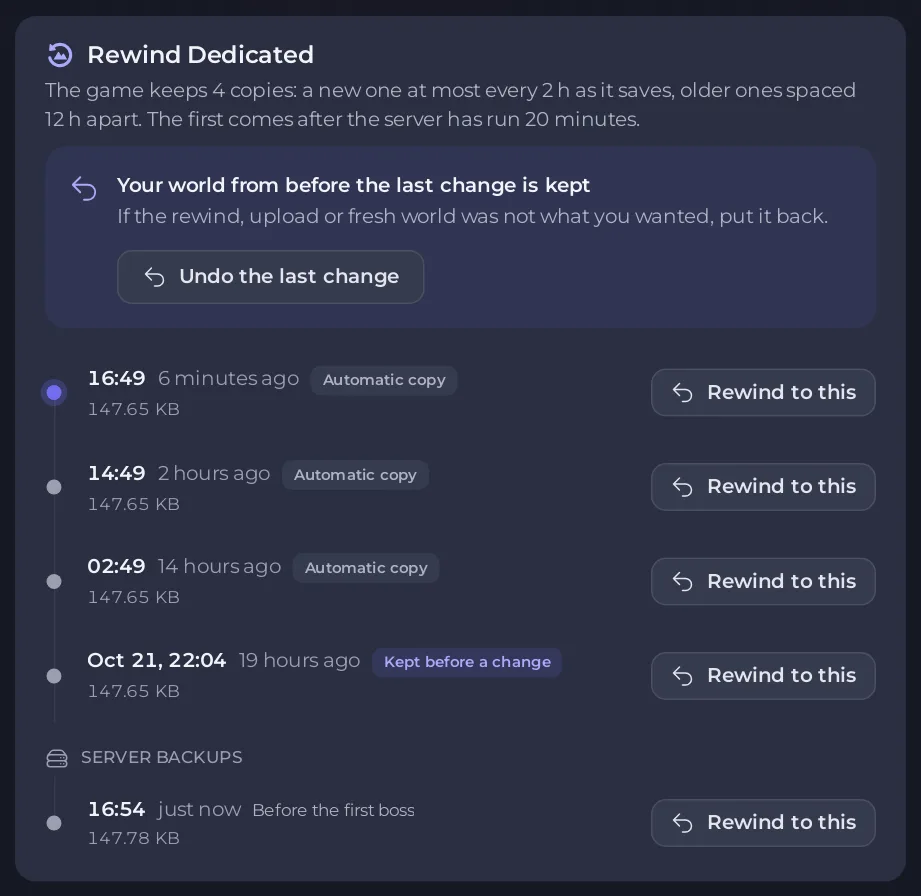
Open Worlds in the left menu, pick the world, and click Rewind to this on a copy in the Rewind timeline on the right. The panel stops the server if it runs that world, keeps the world as it is now so you can undo, puts the copy in place and starts the server again. Server backups are on the same timeline, and only the one world is taken out of them.
What you can rewind to
The timeline lists, newest first:
| On the timeline | What it is |
|---|---|
| Automatic copy | A copy the game makes as it saves while the server runs. |
| Kept before a change | The world as it was before a rewind, an upload over it or a Fresh World. The panel keeps the newest three per world. |
| Copy from before 1.0 | A copy in the older form the game used before Valheim 1.0. |
| Copy from the game | A copy the game kept itself. |
| Server backups | Your backups from the Backups page. |
The text under the card title says how many copies the game keeps and how often, from your settings. With the defaults the first copy comes after the server has run 20 minutes. If Backup Count in Settings is 1 or 0, the game keeps no copies: set it to 2 or more. See Valheim save and backup settings explained.
Rewind to a copy
- Open your server in the panel and click Worlds in the left menu.
- On Your worlds, click the world, or choose Show copies to rewind to in its menu. The right card becomes Rewind and the world's name.
- Find the copy by its time and click Rewind to this. A copy marked
incomplete, cannot be usedcannot be picked, and a copy without the button cannot be put back from this page. - The window Rewind the world to the copy's time lists what happens: the copy is set aside first, the server stops and saves if it runs this world, the world as it is now is kept, then the copy takes its place and the server starts again.
- Click Rewind.
The page shows the steps, then The world is back to that copy. Your world from before is kept, so you can undo this. Players are disconnected for about a minute if it was the world the server runs.
Characters are kept on each player's own computer, so a rewind never changes them.
Undo the last change
After a rewind, an upload over a world or a Fresh World, the timeline shows Your world from before the last change is kept with Undo the last change. Click it, then Undo in the window.
Rewind to a server backup
- On the same timeline, under Server backups, click Rewind to this on the backup.
- The window Rewind the world to a server backup says the panel reads the backup and takes out only that world's folder. Other worlds and files stay as they are.
- Click Rewind to this. The window shows
Reading the backupwith a file count, thenPutting the world back. - When it says
Done., the world is back as it was in that backup. Undo is offered in the same window.

You can close the window with Close, it carries on. If the server was stopped, the window says the world goes back the next time the server starts.
This needs the backup Restore permission. To put back the whole server instead, see How to restore your Valheim world from a backup.
If the rewind did not work
The page says That did not work with the reason, for example that the copy is no longer there (the game replaces its copies as it saves) or is incomplete. Your world was not changed. Refresh the page and pick another copy.





