

To start a The Bus server on PlayNHost, click Start at the top of your server's page and wait for the badge to say Online. Then open the Console tab and copy the server GUID from the line Server can be reached with the GUID: players join with that ID. Before you share it, set your own Admin Password.
How do I start it?
- Open your server in the panel. The badge next to the name says Offline.
- Click Start. The badge changes to Starting.
- Click the Console tab to watch the server start.
- Wait for the badge to say Online. The panel shows Online once the Console prints a line containing
LogLoad: (Engine Initialization). - Look near the end of the start output for
Server can be reached with the GUID:followed by an ID. That ID is how players find your server.
The developer's guide does not say whether the GUID stays the same after a restart, so copy it again from the latest start before you share it.
The developer's dedicated server guide describes that GUID line and says players paste the ID into the add server window in the game. The full steps for players: How to join your The Bus server.
How long does the first start take?
Plan on a few minutes. Your server installs The Bus Dedicated Server from Steam when it is created, and with Auto Update on (the default), every start first checks Steam for a newer server build and downloads it. In PlayNHost's own test, a new The Bus server installed and passed its start check in about 3 minutes. As long as new lines keep appearing in the Console, the server is still working: do not click Kill.
What does a new The Bus server already have?
- Server Name:
The Bus Server. Change it under Settings: How to change your The Bus server settings. - Maximum Players: the player count of your plan. The panel writes it into the game's
ServerSettings.cfg, so it is a real cap. - Server Password: empty, so anyone with the GUID can join.
- Show In Server List: off, so the server is not in the game's public server list.
- Admin Password: a starting value you did not choose. Replace it with your own before anything else, because anyone who knows it gets full admin rights: How to set the admin password on your The Bus server.
- Auto Update: on, so the server keeps up with The Bus updates.
TheBus/Settings/ServerSettings.cfgwith Berlin as the start map, sunny weather and the standard operating plan and vehicle fleet. You change those in the game's Admin Menu or under Settings: How to change the map, weather and operating plan of your The Bus server.- An Automatic backup schedule that backs up your settings and saves every night when your plan has backup slots.
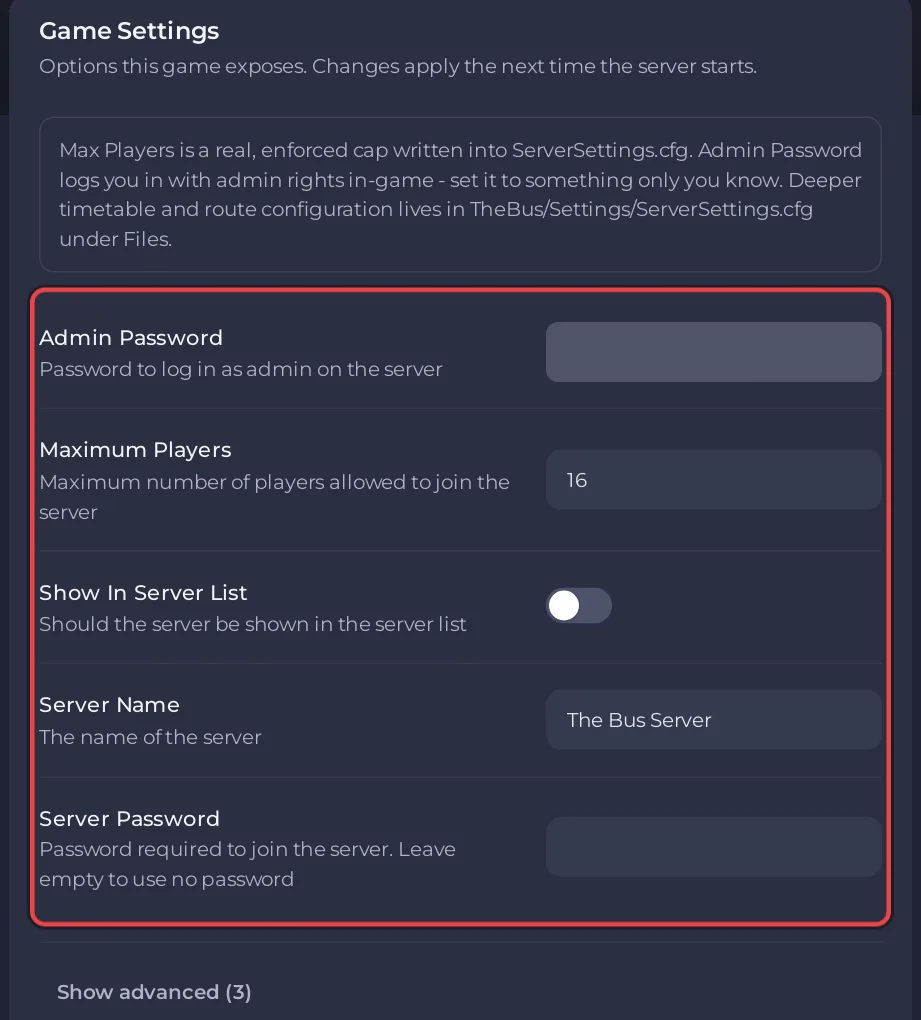
PlayNHost creates ServerSettings.cfg during the install, before the first start. Without it, The Bus would write its own defaults on the first start, with an empty admin password and a 10 player limit, and your panel settings would only apply from the second start.
Can I type commands in the Console?
No. The Console shows what the server prints, but text you type there does not reach The Bus on a Linux server. The developer's guide says: "On Linux there is currently no way to run commands from the console." You run the server from the panel's Settings and from the Admin Menu in the game's pause menu.
What should I do next?
If the badge never reaches Online, see The Bus server problems and fixes and How to fix a server that will not start.


