

To become owner of a The Bus server on PlayNHost, join the server once, stop it, open TheBus/Saved/PlayerData.json under Files, change your rank to Owner, save and start the server again. On a Linux server like yours this file edit replaces running the owner command in the server console, which the developer's guide says only works on Windows. Admin rights come from the Admin Password.
What ranks does The Bus have?
The developer's dedicated server guide lists four permission levels for players:
| Rank | How a player gets it |
|---|---|
| owner | Set in PlayerData.json on a Linux server, as below |
| admin | Opening the Admin Menu with the Admin Password: the guide says such players "are automatically granted admin permissions" |
| moderator | Given with the mod command |
| user | Every other player |
The guide says players are promoted or demoted with the owner, admin, mod and user commands "ingame or from the console". The console route does not exist on Linux, so on PlayNHost you use the game, the Admin Menu and the file below.
How do I make myself owner?
- Join your server once in The Bus, so the server has a record of you: How to join your The Bus server.
- In the panel, click Stop and wait for the badge to say Offline.
- Click the Files tab and open
TheBus, thenSaved. - Click
PlayerData.jsonto open it in the editor. - Find your own entry and change your rank to
Owner. Change only the rank and keep every quote, comma and bracket as it was. - Click Save content.
- Click Start. When the badge says Online, join again: you are the owner.
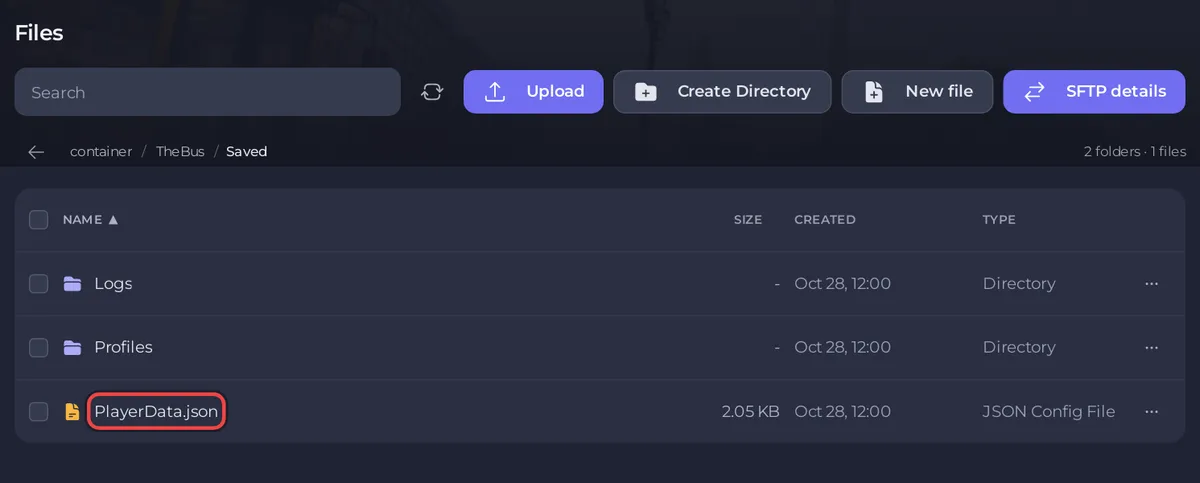
The developer's guide gives these Linux steps: "go to /TheBusDedicatedServer/TheBus/Saved/PlayerData.json and manually change your rank to "Owner" and restart." On PlayNHost the server folder is the top of Files, so the path is TheBus/Saved/PlayerData.json.
If you do not find PlayerData.json, or your entry in it, join the server once more and start again from step 2.
How do I give someone admin?
Two ways:
- Give them the Admin Password. When they open the Admin Menu in the game's pause menu and type it, they become admin. The guide says "admins are not asked for password again when entering the admin menu", so a later password change alone may not take admin away from them.
- Promote them in the game as owner, with the
adminormodcommand the developer's guide names. The guide does not describe where to type it, so if a command does not work for you, use the Admin Password or set their rank inPlayerData.jsonthe same way as your own.
To take admin away from someone, demote them with the user command the guide names, or change their rank in PlayerData.json with the server stopped, spelled the way the file spells other players' ranks. Then set a new Admin Password, so the old password no longer opens the Admin Menu: How to set the admin password on your The Bus server.
What can admins do?
The Admin Menu, in the game's pause menu, is where the server is run: the guide says it configures "everything from Server Name to the Map and Operating Plan used on the server". PlayNHost's own note for The Bus adds that routes, weather, the map and bans live there. The panel's Settings still decide five values at every start, so see How to change your The Bus server settings.
Can I give a friend access to the panel instead?
Yes. Panel access lets a friend start, stop and configure the server from the panel, which is separate from their rank in the game: How to invite friends and give them access.


