

To invite friends to your The Bus server on PlayNHost, send them the server GUID from the Console line Server can be reached with the GUID and, if you set one, the Server Password. They paste the GUID into the add server window in The Bus. To let a friend manage the server too, invite them under Team & Roles.
What do I send my friends?
- Open your server in the panel and make sure the badge says Online.
- Click the Console tab and copy the ID after
Server can be reached with the GUID:. - If your server has a join password, copy it from Server Password under Settings, Game Settings.
- Send both to your friends, with this line: "In The Bus, open the add server window, paste the ID and join."
The developer's guide does not say whether the GUID stays the same after a restart. If a friend saved a GUID from an earlier start and cannot find the server, send the one from the latest start.
Do not send the Server Address from the Overview page: The Bus finds servers by ID, not by IP address. Full steps for players: How to join your The Bus server.
What do my friends need?
- The Bus on PC, in their own Steam library. Multiplayer is not available on PlayStation 5 or Xbox Series X|S: Can PlayStation or Xbox players join a The Bus server?
- The same DLCs as the others, to use DLC content together.
- Any mod on your server that is flagged for client and server: How to add mods to your The Bus server.
- A free slot: the server takes up to Maximum Players at once.
Should I set a password first?
If you share the GUID beyond your group, yes. Without a Server Password, anyone who has the GUID can join. Steps: How to set a password on your The Bus server.
How do I let a friend help run the server?
There are two kinds of access, and they are separate:
- In the game. Give them the Admin Password, or promote them as owner: How to become owner or admin on your The Bus server.
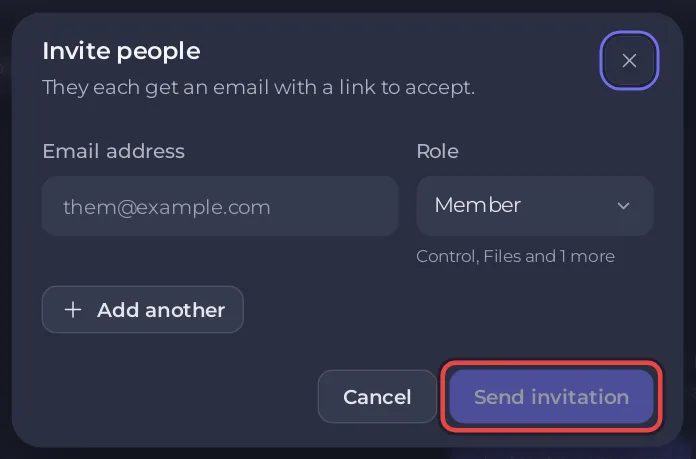
- In the panel. Click Team & Roles in the left menu, then Invite someone (or Invite people at the top of the server page), type their Email address, pick a Role and click Send invitation. They can then start, stop or configure the server, as far as the role allows.
More about roles and what each one allows: How to invite friends and give them access.


