

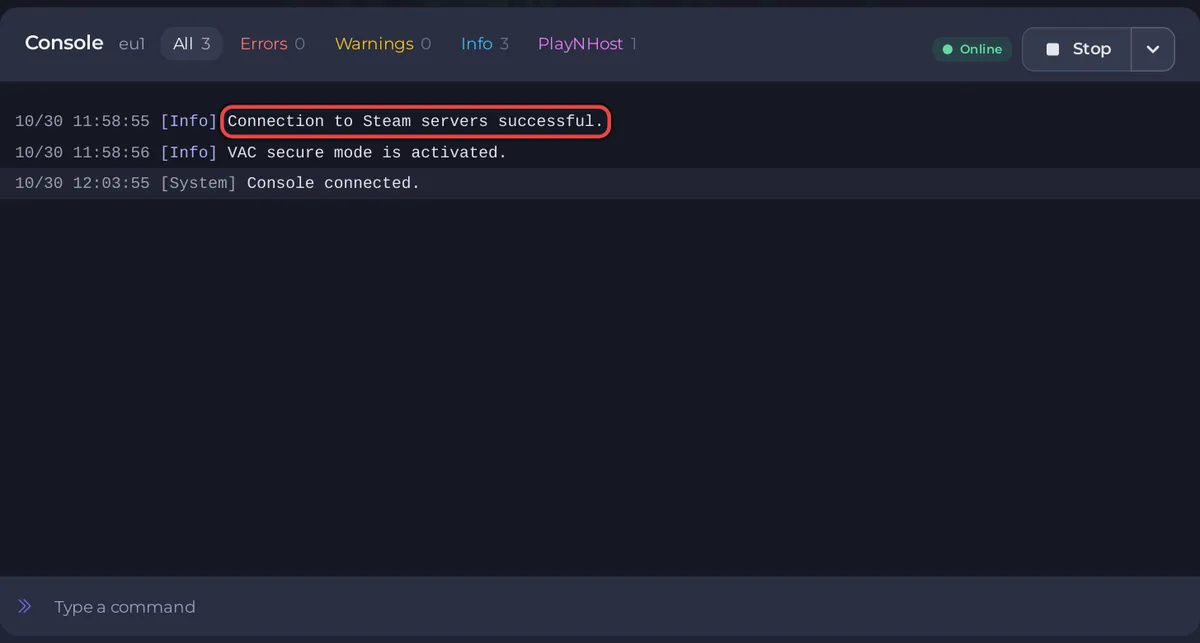
To start a new Sven Co-op server on PlayNHost, wait for the install to finish, then click Start and watch the Console. The server is ready for players when the Console prints Connection to Steam servers successful. and the badge turns Online. A new server loads the map svencoop1.
Start it
- Open your server in the panel. While the game is still downloading, the page says Running Installer. It updates by itself when the install is done, usually within a few minutes.
- Click Start. The badge changes from Offline to Starting.
- Open the Console tab and watch the server load its first map.
- Wait for the line
Connection to Steam servers successful.The badge changes to Online at that moment, and players can join.
What does the install do?
The install downloads the Sven Co-op Dedicated Server (Steam app 276060) from Steam with an anonymous login, so nobody needs a Steam account or a copy of the game. The download is about 2.7 GB. PlayNHost retries the Steam download up to three times if Steam answers with an error, and only calls the install finished when Steam has written its record of the installed app.
If the page says Installation failed instead, the installer did not finish. Click Open a ticket and support sorts it out.
How long does the first start take?
The install and the first start usually take a few minutes together. Later starts do not download the game again, so they are shorter. Each start also checks Steam for a newer Sven Co-op build and installs it first, so a start right after a game update takes longer: How to update your Sven Co-op server.
What does a new server contain?
| Setting | Value on a new server | Where to change it |
|---|---|---|
| Map | svencoop1 (the Sven Co-op series) | Settings, Game Settings, Default Map |
| Player limit | The slots of your plan | Settings, Game Settings, Max Players, or the pencil on Slots on Overview |
| Name in the server list | Sven Co-op server | Settings, Game Settings, Server Name |
| Join password | None | Settings, Game Settings, Password |
| Region | 255 (International) | Settings, Game Settings, Region |
The game files are in the server's main folder under Files. The game's own folder is svencoop, with the server settings file svencoop/server.cfg. Custom maps go in svencoop_addon, which the Sven Co-op wiki names as the place for anything that is not part of the official game.
A Sven Co-op server has no world save: each map starts fresh when it loads. svencoop1 is the first of the two maps in the Sven Co-op series, and the official map list says a map "will progress onto additional maps in its own way if it has them".
What should you do next?
- Give the server its own name and its server list region: How to change the name, password and region of your Sven Co-op server.
- Join it yourself: How to join your Sven Co-op server.
- Pick a different starting map or campaign: How to change the map on your Sven Co-op server.
- Make yourself admin: How to become admin on your Sven Co-op server.
If the badge never turns Online, see Sven Co-op server problems and fixes. The general guide How to start, stop, restart and force stop your server explains every power button.


