

To back up a Sven Co-op server on PlayNHost, click Backups in the left menu and click Start backup. If your plan includes backups, the server also takes an Automatic backup every night. A Sven Co-op backup holds the whole server folder: your custom maps, server.cfg, admins.txt and the ban lists, plus the game files.
What does a backup hold?
Everything in the server's folder, as it is on the Files tab:
svencoop_addon: the custom maps and content you uploaded.svencoop/server.cfg: your server settings.svencoop/admins.txt,svencoop/banned.cfgandsvencoop/listip.cfg: admins and bans.svencoop/mapcycle.txtandsvencoop/mapvote.cfg: the map cycle and the vote list.- The Sven Co-op game files themselves.
There is no world save on a Sven Co-op server: each map starts fresh, so a backup is about your files and settings, not a world. Game Settings such as Server Name and Max Players live in the panel, not in the backup.
Make a backup
- Open your server in the panel and click Backups in the left menu.
- In the Create backup panel, keep Files as the Type and Now under When.
- Give it a Name if you like, for example
Before new maps. Left blank, it is named after the date and time. - Click Start backup. The backup appears in the list when it is done.
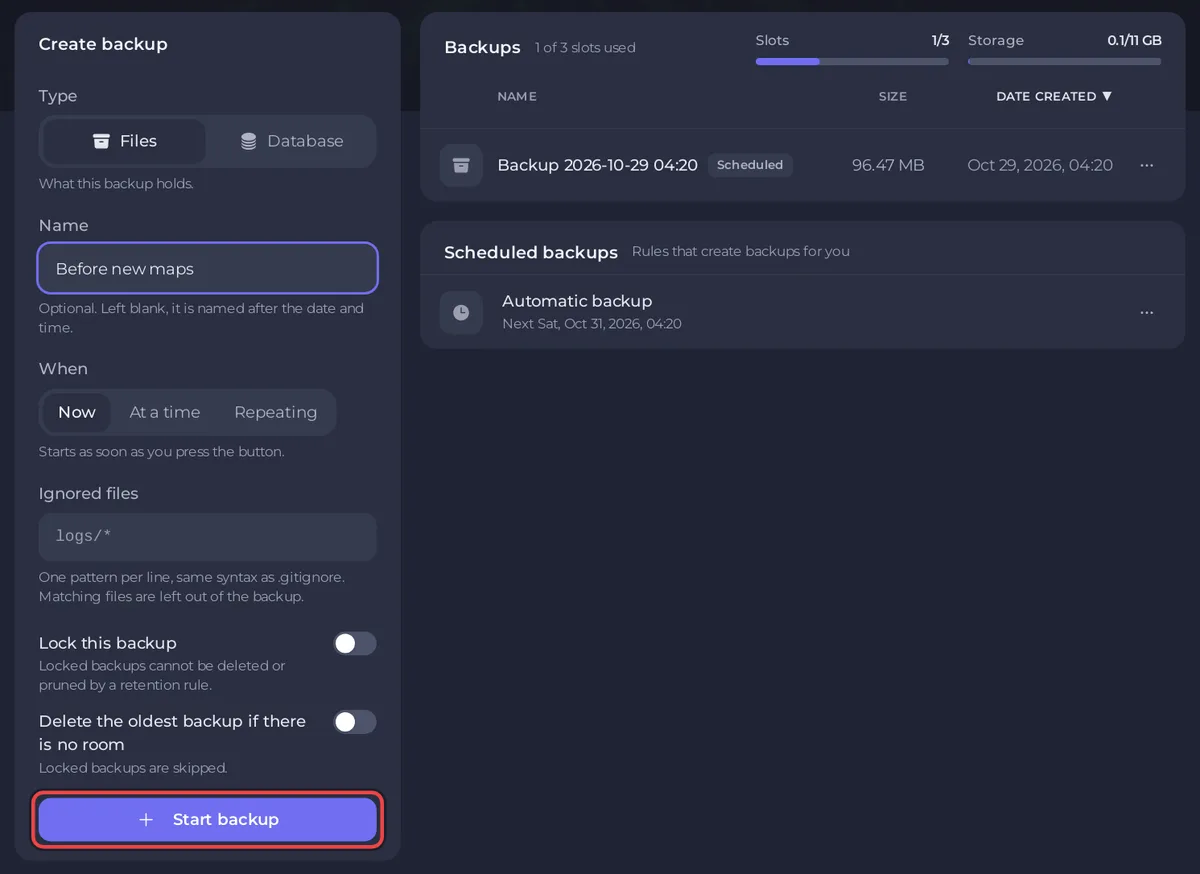
Take one before you add many maps, edit server.cfg or delete files. The server can keep running while it backs up.
How does the nightly backup work?
If your plan includes backups, a new server gets the Automatic backup schedule: Takes a full backup of your server every night. Once your backup allowance is full the oldest one makes room for the newest, so you always have your most recent saves. Lock a backup to keep it out of that rotation. It runs at night panel time, at a time spread per server. To change its time or how many it keeps, open Scheduled backups on the Backups page and click Edit.
Download a copy
Open the menu on your backup's row and choose Download to keep a copy on your computer.
Restore a backup
A restore puts the server back the way it was when the backup was taken. Anything changed since then is replaced.
- Open the menu on the backup's row and choose Restore to server.
- Leave Delete files that are not in the backup on, unless you are recovering a single file.
- Click Restore backup. The server stops while the files are replaced, and players are disconnected.
- Start the server when it is done.
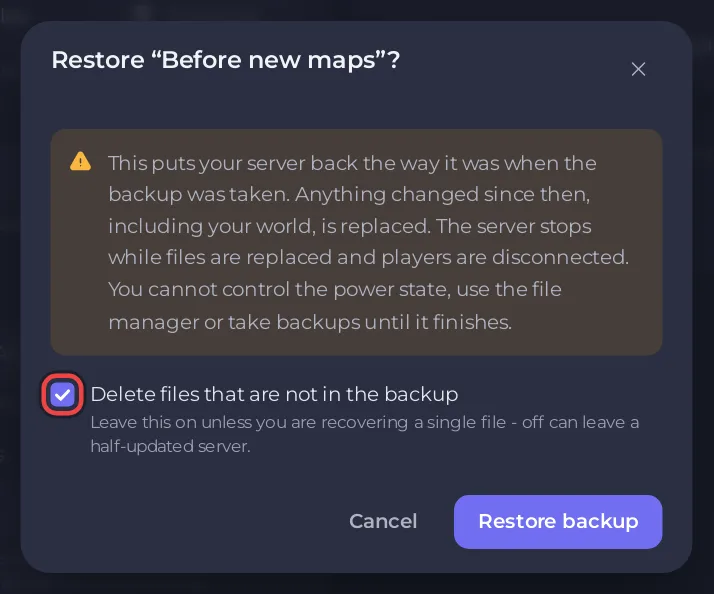
To bring back only one file, such as admins.txt, download the backup and upload that file on the Files tab instead: How to restore only some files or one area of your map from a backup.
How do I move my files from another Sven Co-op server?
Upload them on the Files tab: custom maps into svencoop_addon as described in How to add custom maps to your Sven Co-op server, and your old server.cfg, admins.txt and banned.cfg into svencoop. Then set Server Name, Password and Region again in Game Settings, because the panel writes those three lines into server.cfg at every start: How to change the name, password and region of your Sven Co-op server.
Good to know
- Use Lock on a backup you want to keep out of the nightly rotation.
- Your plan sets how many backups you can keep. When every slot is in use, delete an old backup or let the nightly rotation replace the oldest.
- More on scheduling, locking and limits: How to create, download and restore backups.


