

A Satisfactory dedicated server uses two ports: the game port, which carries game traffic over UDP and the server's HTTPS API over TCP, and a Reliable Messaging Port over TCP. On PlayNHost both are assigned and open for you. Players type only the game port, from the Play with friends card.
Which ports does a Satisfactory server use?
| Port | Protocol | Default | On your PlayNHost server | Where you see it |
|---|---|---|---|---|
| Game port: game traffic | UDP | 7777 | The Primary port | IP and Port on the Play with friends card, and Ports & Network |
| Game port: server traffic and the HTTPS API | TCP | 7777 (same number) | The same Primary port | IP and Port on the Play with friends card, and Ports & Network |
| Reliable Messaging Port: game traffic | TCP | 8888 | A port of its own | Reliable Messaging Port in Game Settings |
Coffee Stain's own patch notes say the same. Since 1.0 the server uses port 7777 for both UDP and TCP, and the 1.1 notes added the Reliable Messaging Port, which "must be open" on TCP, 8888 by default. The 1.2 patch notes announce no change to the ports. The Official Satisfactory Wiki lists the same three entries and adds that 15000 and 15777, the ports of older guides, are no longer used since 1.0.
Reliable Messaging Port is marked Read only in Game Settings. The panel starts the server with both of your port numbers every time, so it always listens on the ports the panel shows.
What is the HTTPS API on the game port?
The HTTPS API is Coffee Stain's management interface for dedicated servers. It answers at /api/v1 on the game port, over TCP, and it is always encrypted. A server without a certificate of its own makes a self-signed one, so the game asks players to confirm the certificate the first time they add the server in the Server Manager. That prompt is expected. The details are on the wiki's HTTPS API page, linked from its Dedicated servers page.
On PlayNHost the panel uses this API for you from inside the server: it claims the server with your admin password, sends your settings, saves before every stop and passes the commands you type in the Console. You do not need to set anything up for it.
Why are my Satisfactory ports usually not 7777 and 8888?
Each PlayNHost server gets its own ports from the machine it runs on, so many servers can share one IP address. 7777 and 8888 are the defaults for a server you run yourself. Your server's numbers are usually different, so players must type the port the panel shows. The wiki says players need the IP and "the standard port if it differs from 7777", and that "the game takes care of communicating the correct reliable messaging port".
You cannot change either port. The game also names its settings file after the game port, ServerSettings. followed by the port and .sav, so on your server that file carries your own game port number.
Where do I find the IP and ports in the panel?
- Open your server in the panel. On the Overview page, find the Play with friends card.
- Copy the IP row and the Port row with the copy icons next to them. The game asks for them in two fields.
- For the full list, click Ports & Network in the left menu. Under All ports, the port with the Primary badge, described as The port players connect to, is the game port.
- To recognise the second port, click Settings in the left menu, then Game Settings, and compare its number with Reliable Messaging Port.
The Server Address row of the server card on Overview holds the IP and the game port together as IP:port, for example 203.0.113.10:25600.
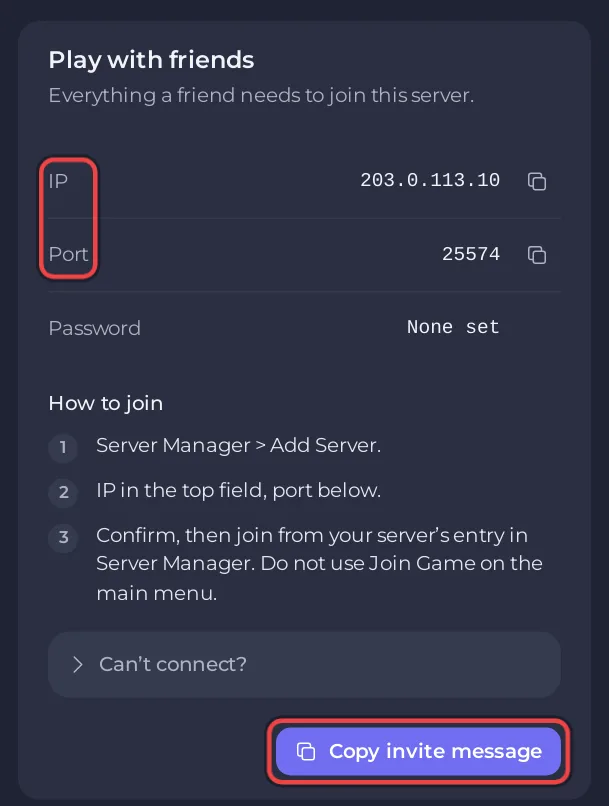
How do players connect to a Satisfactory server on PlayNHost?
Players open Server Manager from the main menu, choose Add Server, put the IP in the top field and the port below, confirm, then join from your server's entry in the Server Manager. They never use Join Game on the main menu, and they never type the Reliable Messaging Port. The full steps are in How to join your Satisfactory server.
Do I need to open ports on my router or firewall?
No. The machine your Satisfactory server runs on accepts connections from the internet on the ports the panel gives to servers, for both TCP and UDP, and both Satisfactory ports are among them. The panel says so under All ports: Every port accepts TCP and UDP. That covers the game port's UDP and TCP sides and the Reliable Messaging Port. Your players' home routers let outgoing connections through, so they do not open anything either.
The port forwarding and firewall commands on the wiki are for a server you run at home. With a hosted server they are not your job.
Can I change which port is the primary, or remove one?
Keep the game port as Primary, and leave both ports in place. Make primary in a row's ... menu moves only the game port, while Reliable Messaging Port stays where it is, so the game port would then have the same number as the Reliable Messaging Port. Both use TCP, and Coffee Stain says a server whose reliable port cannot be used fails to initialize.
The menu can also offer Remove port on the Reliable Messaging Port's row. Do not use it: the server would still be started on that number, players would hang on the loading screen, and a removed port goes back to the machine, where another server can get it.
Common Satisfactory port problems and fixes
Players connect but stay on the loading screen
First wait for the Console to show [PlayNHost] Ready., because players can only get in once the world has loaded. The wiki says a Reliable Messaging Port that cannot be reached also leaves players "perpetually stuck on the 'loading' screen". On PlayNHost that port is assigned and open, so this is rare. If players still hang although the world is loaded, open a ticket with the number in Reliable Messaging Port. The other causes are in Players are stuck on the loading screen of your Satisfactory server.
The server cannot be added in the Server Manager
- Copy the IP and the Port again from Play with friends. The Reliable Messaging Port and numbers from guides for home servers, such as 7777 or 15777, do not add your server unless the panel shows them as its Port.
- Check that the badge says Online and the Console shows
[PlayNHost] Ready. - Confirm the certificate prompt when the game shows it.
- School, work and public networks can block game ports. Ask the player to try another network.
Players see Encryption token missing
The player used Join Game on the main menu. Add the server in the Server Manager instead: Players get Encryption token missing on your Satisfactory server.
The Console says the management API did not answer
[PlayNHost] The server's management API did not answer; the panel cannot save before stops this run. means the game's HTTPS API never answered the panel's checks, made from inside the server, in the minutes after the game started, or the game stopped before it did. It is not a firewall problem. Restart the server once. If the line comes back, open a ticket with the Console lines around it. More about the panel's link to the game: How to use the Console on your Satisfactory server.
Good to know
- Other errors are in Satisfactory server problems and fixes.
- The Ports & Network page itself is explained in How to find your server's ports and IP address.


