

 MINECRAFT HOSTING
 GAME SERVERS
 Game Panel
Everything about your server's network address is on one page: Ports & Network.
Find your address and ports
- Open your server in the panel.
- Click Ports & Network in the left menu.
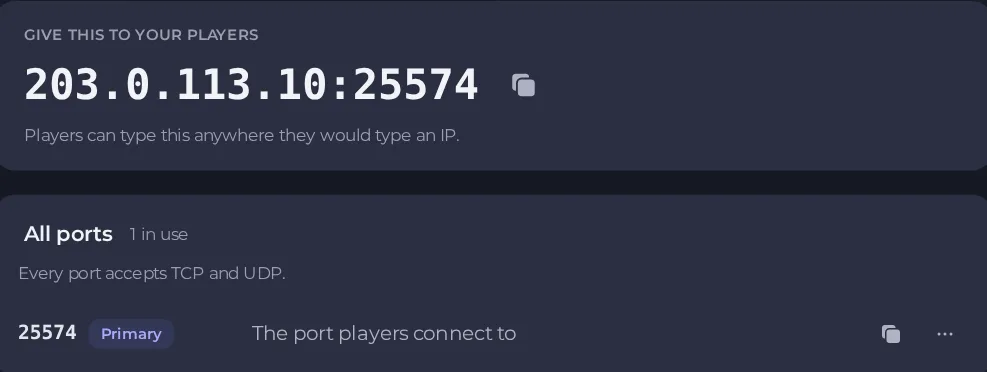
At the top, Give this to your players shows the full address as address:port, with a copy button. Players can type it anywhere they would type an IP address.
Below, All ports lists every port your server has and how many are in use. The Primary port is the one players connect to. Each port accepts both TCP and UDP traffic, so you do not need to choose between them.
You do not need to forward any ports on your own router.
Manage your ports
The All ports list shows how many ports you use out of how many you may have, for example "1 of 3 ports used". Each port has a ... menu with these actions:
- Rename gives a port a label you will recognise, for example "Query" or "Voice".
- Make primary chooses which port players connect to.
- Remove port frees a port you no longer need.
Use Add a port to add one if you are below your limit. Port numbers are assigned by the machine: you can name a port, but you cannot choose its number.
Some games use a second port for queries, voice or a web page. The ports a game needs are set up for you, and your game's own guide in this knowledge base says which one players use.
What a dedicated IP does
By default your server shares an IP address with other servers and is told apart by its port. A dedicated IP is an address that only your server uses. Because the game's default port is then implied, players join with the address alone, with no port to type.
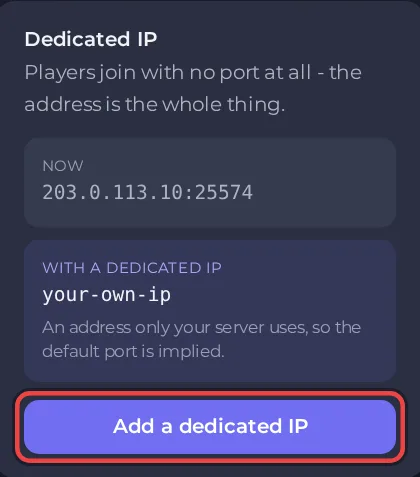
It is useful when:
- you want an address that is easy to remember and share
- a game or tool works best on its default port
- you run a community server and want a clean address in the server list
Add or assign a dedicated IP
Click Add a dedicated IP on Ports & Network. What happens next depends on your plan.
- Your plan does not include one. The window says to add one from My plan, with a link. There you find Dedicated IP under configurable options and click Change. Option changes are prorated and billed on the same cycle as your plan, and an invoice is created for you to pay. See How to change your plan or billing cycle.
- Your plan already includes one. The window is called Choose what your address carries, and you click Assign. There is no charge.
After a dedicated IP is assigned, your address changes. The window tells you to give your players the new address, that the old one has stopped working, and to restart the server so it listens on the new address. See How to join your server.
Good to know
- Changing your plan's options is only possible for the plan owner.
- Copy the address from the panel each time it may have changed, rather than from an old message.





