

To join a Quake Live server on PlayNHost, copy the Server Address from the server's Overview page, open the in-game console in Quake Live and type /connect followed by that address. A server whose Server Type is Internet can also be found in the game's server list.
Join with /connect
- Open your server in the panel. The badge must say Online. If it says Offline, click Start and wait: How to start your Quake Live server for the first time.
- On the server card, click Join, or the copy icon next to Server Address. Both copy the address, which looks like
203.0.113.10:27960with your own IP and port. - Start Quake Live from Steam and wait for the main menu.
- Open the in-game console.
- Type
/connect, a space, then paste the address, and press Enter. For example/connect 203.0.113.10:27960.
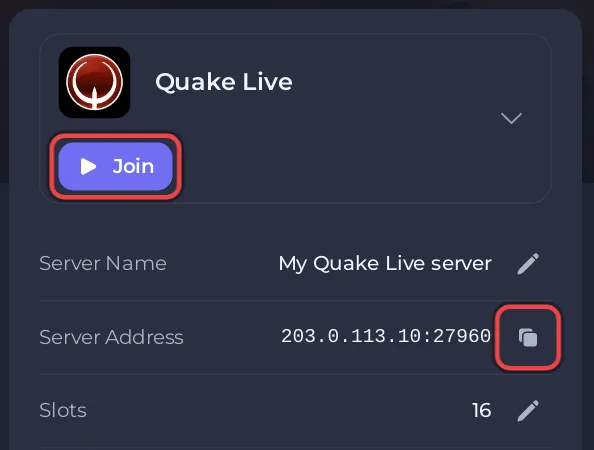
PlayNHost's ready email for Quake Live says the same: anyone with Steam and the join address can connect with /connect from the in-game console. No id Software or Bethesda account is needed.
The port is part of the address. Type the whole address, colon and port included, exactly as the panel shows it.
Find it in the server list
With Server Type set to 2 (Internet), which is the default, the server lists itself publicly, under the name in Server Name. Players can then pick it from the game's server list instead of typing the address. LAN (1) and Offline (0) are not listed. See How to list your Quake Live server in the server browser.
Typing the address with /connect does not depend on the list, so it works even when you cannot find the server in the list.
What if the server has a password?
When Server Password is set, the server stops everyone who connects without it. Give your players the password together with the address. To set or remove it: How to change your Quake Live server name and password.
Who can join?
Each player needs Quake Live on Steam, on a Windows PC. The server itself needs nothing from your Steam account. Details: Which players can join your Quake Live server?
If you cannot join
Check that the badge says Online, that the address includes the port, and that the player count is not at your Slots limit. The full list of causes: Players cannot join your Quake Live server. To send the address to friends, see How to invite friends to your Quake Live server.


