

To change the player slots of a Quake Live server on PlayNHost, click the pencil on the Slots row of the server card on Overview, set the number in Edit Player Slots and click Update. You can pick any number from 1 up to the limit your plan includes. A running server restarts to apply it.
How do I change the slots?
- Open your server in the panel. The Overview page opens.
- On the server card, click the pencil next to Slots.
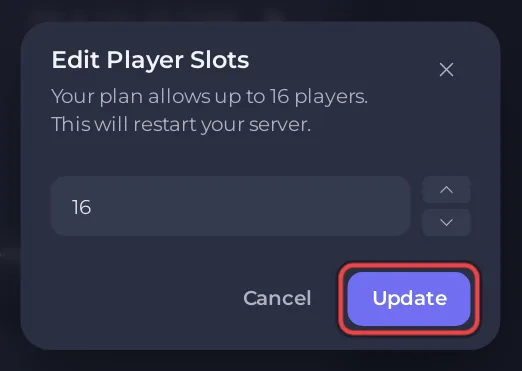
- In Edit Player Slots, type the number or use the arrows. The dialog names your plan's limit and says "This will restart your server."
- Click Update. If the server is running, the panel restarts it; if it is stopped, the new number applies at the next start. The Slots row shows the new number.
The new number goes into Max Players under Game Settings on the Settings tab, which is Quake Live's sv_maxclients. That field is Read only there on purpose: the Slots pencil is the place to change it.
Why is there no pencil on the Slots row?
The pencil shows only for people with the Rename server permission. If a friend invited you to their server, ask them for that permission under Team & Roles: How to invite friends and give them access.
Can I go above my plan's limit?
No. The panel refuses a number above the limit your plan includes, and Max Players takes 32 at most. Your plan and its limits are on My plan in the left menu. Plan sizes: How many players can a Quake Live server have?
Why lower the slots?
A smaller number keeps a match to the size you want, for example a Duel server with a handful of slots. Players past the limit are refused by Quake Live. If players cannot join because the server is full, see Players cannot join your Quake Live server.


