

To invite friends to a Quake Live server on PlayNHost, click Join on the server's Overview page to copy the Server Address, then send it to them with the Server Password if you set one. They type /connect and the address in Quake Live's in-game console. To let a friend help run the server, invite them with Invite people, under Team & Roles.
How do I send the address to friends?
- Open your server in the panel and check that the badge says Online.
- Click Join on the server card. It copies the address, for example
203.0.113.10:27960. - Paste it into your message to your friends, with the port.
- If you set a Server Password, add it to the same message. You find it on the Settings tab, under Game Settings.
- Tell them to open the in-game console in Quake Live and type
/connectfollowed by the address.
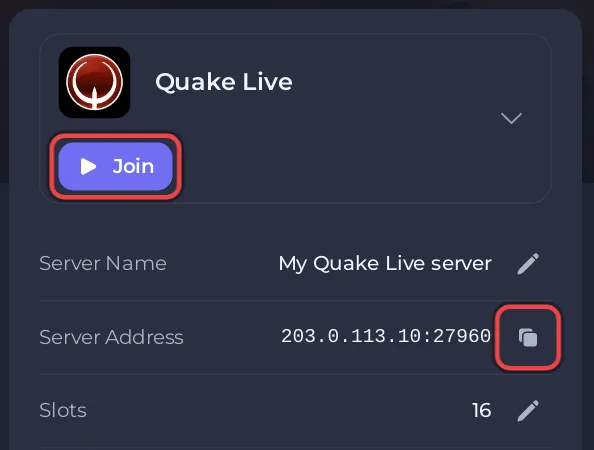
A message like this works:
Quake Live server: /connect 203.0.113.10:27960
Password: (your password)
With Server Type 2 (Internet), the default, your friends can also find the server by its Server Name in Quake Live's server list. Each friend needs Quake Live on Steam on a Windows PC: Which players can join your Quake Live server?
How do I let a friend help run the server?
Give them access to the panel, so they can start the server, use the Console or change settings without your login.
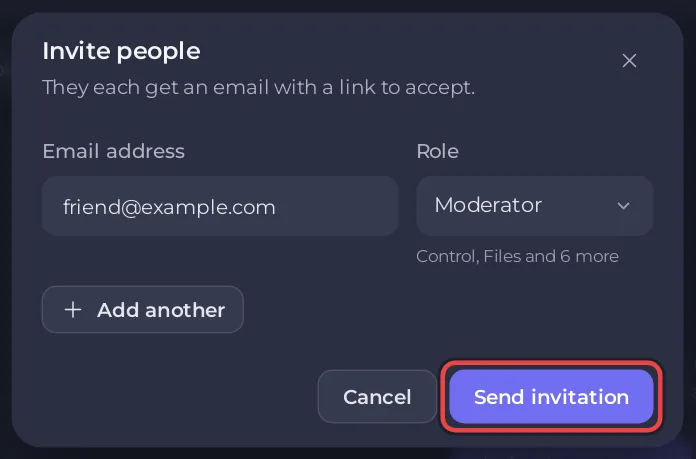
- On a computer, click Invite people in the bar at the top of any page of your server. The panel opens Team & Roles with the Invite people dialog. On a server nobody else has access to yet, Team & Roles in the left menu also shows an Invite someone button.
- Type their Email address and pick a Role. The line under Role sums up what that role can reach.
- Click Send invitation. They get an email with a link to accept.
Roles, custom permissions and removing someone: How to invite friends and give them access.
Questions people ask
Do my friends need a PlayNHost account to play? No. Players only need Quake Live on Steam and the address. A PlayNHost account is for people you invite to the panel.
Can I change the address? The address is your server's IP and port, set by PlayNHost. Ports and the address are listed on Ports & Network in the left menu: How to find and change your server's ports and IP address.
Can I keep the server to my friends only? Yes, set a Server Password: How to change your Quake Live server name and password.
If a friend cannot get in: Players cannot join your Quake Live server.


