

To move a SA-MP or open.mp server to PlayNHost, upload its gamemodes, filterscripts, scriptfiles and plugins folders under Files, then copy your settings from server.cfg into config.json. open.mp runs SA-MP gamemodes and most SA-MP plugins, so a SA-MP 0.3.7 server usually moves without changes to its scripts.
What should I copy from the old server?
| Copy | Why |
|---|---|
gamemodes (the .amx files) | Your gamemode. The .pwn source is optional |
filterscripts | Scripts that run beside the gamemode |
scriptfiles | Accounts, stats and other saved data of most gamemodes |
plugins | Plugins, as Linux .so files. A Windows server has .dll files: download the Linux builds of the same plugins |
npcmodes | Only if your gamemode uses NPC recordings |
samp.ban | Your SA-MP bans. open.mp reads it at start and copies its bans into bans.json. Delete samp.ban after the first start, or bans you lift come back at the next start |
server.cfg or config.json | Keep it on your PC and copy the settings across by hand, as shown below |
Do not copy the old server program (samp03svr, samp-server.exe or omp-server) or the components folder of another open.mp version: your PlayNHost server already has open.mp installed. Some plugins need an open.mp build, and YSF is not needed on open.mp: How to add plugins to your open.mp server.
If your gamemode uses a MySQL database, export it from the old host as well: How to use databases with your server.
Upload the files
- Open your server in the panel and take a backup first: Backups, then Start backup.
- Stop the server.
- On your PC, put the folders from the table, and
samp.banif you have one, in one.zipfile, with the folders at the top level of the zip. Leaveserver.cfgout. - Click Files in the left menu, click Upload and choose the zip.
- Tick the zip's box and click Unzip. Your folders now sit next to
config.jsonandomp-server. - Delete the zip.
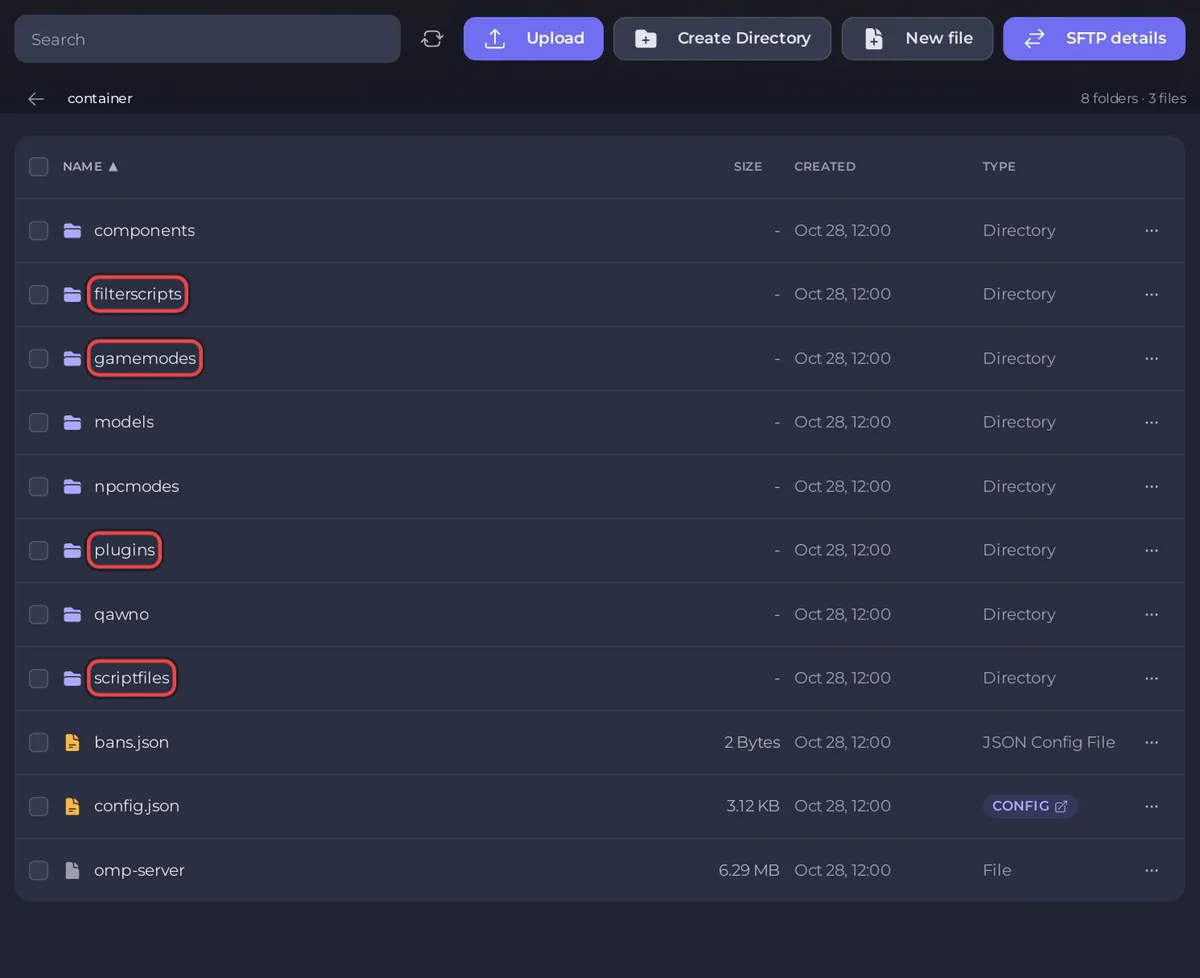
For many files, SFTP is faster: How to connect to your server files with SFTP.
Copy your server.cfg settings into config.json
Do not upload server.cfg to your PlayNHost server. open.mp reads server.cfg after config.json and its lines win, so an old port 7777 line moves the server off its own port and players cannot connect, and its rcon_password line replaces the RCON Password from Game Settings. Copy the values by hand instead.
open.mp's server.cfg and config.json guides describe the same settings under these names:
| server.cfg line | Where it goes on PlayNHost |
|---|---|
hostname My Server | Name in the config.json settings |
password and a password | Password in the config.json settings |
weburl, language, announce, query | Website, Language, Announce, Enable query in the config.json settings |
mapname, gamemodetext | Map and Mode under Game in the config.json settings |
gamemode0 mymode 1 | "main_scripts": ["mymode 1"] in config.json under Files |
filterscripts admin anticheat | "side_scripts": ["filterscripts/admin", "filterscripts/anticheat"] |
plugins streamer.so mysql.so | "legacy_plugins": ["streamer", "mysql"] |
rcon_password | RCON Password under Settings, Game Settings |
maxplayers | The Slots row on Overview, up to your plan's limit |
port | Nothing: the panel sets your server's own port |
The config.json settings are under Settings, Config files, config.json: open.mp config.json settings reference. The three lists in the pawn part are edited in the file under Files, then Save content.
If your old server already ran open.mp, you can upload its config.json in place of the new one, as long as it is valid JSON. The panel still writes your server's port, the RCON Password and the player limit into it at every start, so log in with the RCON Password from Game Settings, not the old one.
Check the first start
- Start the server and click Console.
- Look for
Loading plugin:for each plugin, your gamemode's start lines, andLegacy Network started on port. - Join with the address from Overview: How to join your open.mp server.
If a line says Could not find: or Could not load plugin:, see open.mp server problems and fixes. The general guide for moving: How to move your existing server to PlayNHost.


