

To change an open.mp server's settings on PlayNHost, open Settings, click config.json under Config files, change the rows and click Save & restart. The editor shows each top-level option of config.json as a switch, number or text box and always writes valid JSON. The gamemode, filterscript and plugin lists are edited in the file itself under Files.
Open the config.json settings
- Open your server in the panel and click Settings in the left menu.
- In the list on the left, under Config files, click
config.json. The card says "The settings in config.json, without editing the file by hand." - Change what you need. The card counts your changes and says "The server must restart to apply them."
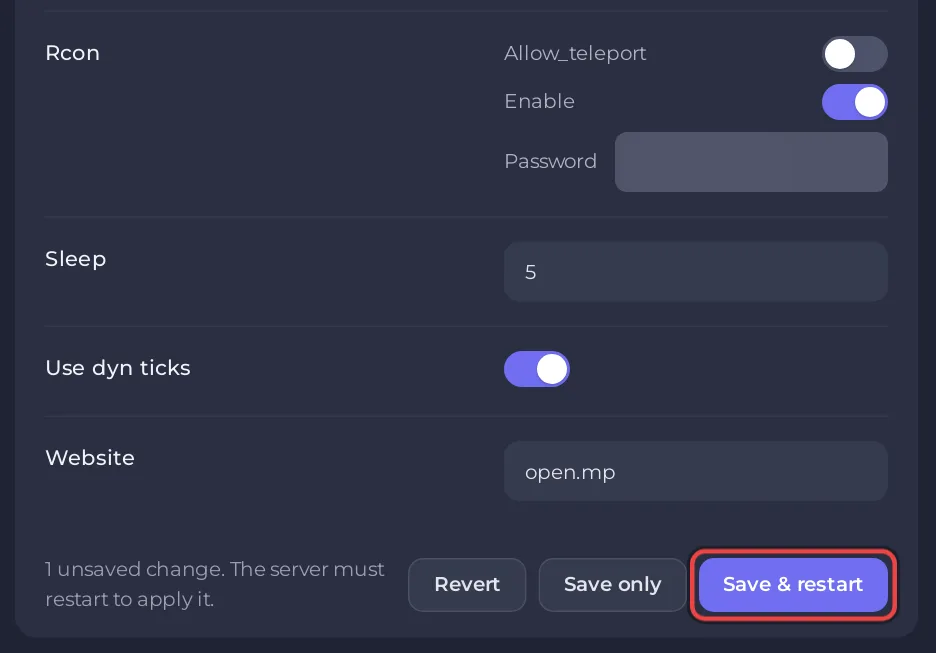
- Click Save & restart to apply them now, or Save only to apply them at the next start. Revert throws your changes away.
In Files, config.json has a Config badge that opens the same card. Clicking the file name opens the text editor instead.
What does each option do?
The descriptions come from open.mp's config.json guide for open.mp 1.6; the defaults are those of a new PlayNHost server.
| Row | Default | What it does |
|---|---|---|
| Name | open.mp server | The name in the launcher's server list and when players connect |
| Password | empty | Join password. Empty means anyone with the address can join |
| Announce | on | Asks open.mp to list your server on its internet list |
| Enable query | on | Shows your server's details in the server browser. Players can still join with it off |
| Language | empty | The language shown in the server browser, which players can filter by |
| Website | open.mp | The website shown for your server |
| Discord, Invite | empty | Your Discord invite link, shown in the open.mp launcher |
| Logo | empty | Link to your logo picture, shown in the open.mp launcher |
| Banners, Light and Dark | empty | Links to your banner pictures, shown in the open.mp launcher |
| Chat input filter | on | Turn off to allow characters such as % in chat |
| Max bots | 0 | How many player slots NPCs may use |
| Game | Gameplay options, see below | |
| Logging | What goes into log.txt, such as chat and deaths |
The Game options
Game opens a group of options, each with its own row:
- Weather (
10) and Time (12): the weather and hour the server starts with, shown in the browser. - Mode and Map: the gamemode and map text in the browser. Most gamemodes set their own mode text, which wins.
- Use_nametags: names and health bars above players.
- Use_zone_names: area names such as "Vinewood" on screen.
- Use_stunt_bonuses: money for stunts in vehicles.
- Chat_radius and Use_chat_radius: limit chat to nearby players.
- Vehicle_respawn_time: in milliseconds,
10000is 10 seconds.
A gamemode can change many of these from its own script, so a setting here may have no effect with some gamemodes.
What does the panel set for me?
Before every start, the panel writes three things into config.json. Do not change them in the file or in this card, because they are replaced at the next start:
| In config.json | Comes from |
|---|---|
network.port | Your server's own port. Never change it |
rcon.password, rcon.enable | RCON Password under Settings, Game Settings; remote RCON is always on |
max_players | The Slots row on Overview, up to your plan's limit. It is not shown in this card |
Network and Rcon still appear as groups in the card, and the Rcon group shows the RCON Password as plain text, so anyone you let open this card can read it. Leave Network as it is: a wrong value there can stop players from connecting. Change the admin password under Game Settings: How to become admin on your open.mp server.
What can I only change in the file?
The pawn part holds three lists the card cannot show: main_scripts (gamemodes), side_scripts (filterscripts) and legacy_plugins (plugins). Edit them in Files: click config.json, change the line, click Save content and restart. See How to change the gamemode on your open.mp server and How to add plugins to your open.mp server.
If the file is broken after a hand edit, the Console shows Error while parsing config file and open.mp starts on its built-in defaults, including port 7777 instead of your server's own port: open.mp server problems and fixes.
Can I use server.cfg instead?
No. open.mp still reads a SA-MP server.cfg, but its config.json guide recommends config.json, and on PlayNHost the panel manages config.json. Do not put a server.cfg in your server folder: open.mp reads it after config.json and its lines win, so a port line moves the server off its own port and players cannot connect. Copy your old settings across by hand: How to move your SA-MP server to open.mp.


