Lag on a Minecraft server comes in three kinds, with different fixes. Measure first on the Server health card, profile the lag for a minute to see what causes it, then change one thing at a time.
| What players see | Kind of lag | Where to look |
|---|---|---|
| Blocks come back after breaking, mobs jump around, everything slows for everyone | Server lag: the server cannot finish its work in time | This guide |
| High ping and delayed hits, but the game runs smoothly | Network lag: the distance between player and server | Where your server runs and how location works |
| Low frames per second for one player only | Client lag: that player's own computer | The player's own settings |
How the server counts time
The game runs at 20 ticks per second, one tick every 50 milliseconds. The server keeps 20 ticks per second (TPS) only if each tick takes 50 milliseconds or less. When it falls behind, TPS drops, and that is what players feel. The Minecraft Wiki names the usual causes: hoppers, redstone making many block updates, large numbers of mobs, and a high random tick speed.
The Minecraft Wiki's server requirements ask for a CPU with good single-core performance. The steps below lower the work each tick has to do.
Step 1: measure
- On Overview, look at the Server health card while players are online. An empty server always looks healthy. A verdict of Some lag or Heavy lag confirms server lag.
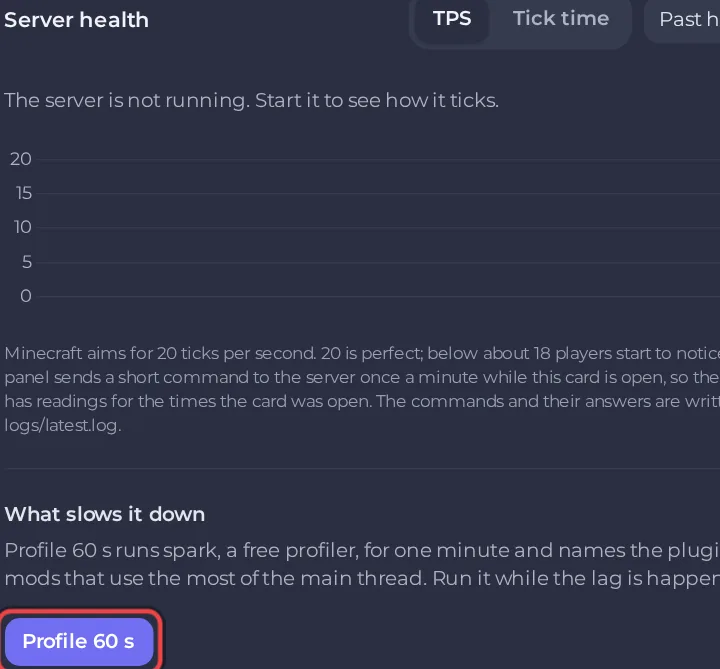
- While the lag is happening, click Profile 60 s under What slows it down. After a minute the card names the plugins or mods that took the most time, and what Minecraft itself used. See How to check your Minecraft server health with TPS and the spark profile.
- Look at the CPU tab of the Usage card at the same time: How to read your server's usage graphs.
Change one thing at a time, restart, and measure again, so you know what helped.
Step 2: if a plugin or mod is named
- Update it. Old versions are a frequent cause: How to update plugins and mods on your Minecraft server.
- Check its own settings for tasks that scan the world, such as large cleanups or claims checks, and make them run less often.
- If you do not need it, switch it off or remove it: How to switch off or uninstall a plugin or mod on your Minecraft server.
Step 3: lower the cost of the world
These settings help on every server type. Open Settings, then Server Properties (Java).
| Setting | Default | What it changes | What it costs you |
|---|---|---|---|
| View distance | 10 | How many chunks players can see | Players see less far |
| Simulation distance | 10 | How far from a player mobs, crops and machines keep running | Farms stop when nobody is near |
| Entity view range | 100 | How far away entities are sent to players, as a percentage of normal | Mobs appear closer to the player |
| World border radius | the whole world | How far players can travel | Players cannot explore past it |
On smaller plans, a Performance for your plan card at the top of the same page sizes View distance and Simulation distance for your plan's memory. It shows each setting Now and After. Click Apply, then restart: it Takes effect the next time the server starts. Undo puts back what was there before.
Exploring new land makes the server generate it, which is heavy work. Pregenerate the area around spawn ahead of time: How to pregenerate your Minecraft world.
Step 4: mobs, items and hoppers (Paper, Purpur, Spigot)
Paper and its forks have more settings, in Settings under Bukkit Settings, Spigot Settings, and on Paper and Purpur Paper's World Settings. They appear once the server has started once. Click Save only, then restart. The defaults below are from the Paper documentation.
| Page and setting | Default | What it changes | What it costs you |
|---|---|---|---|
Bukkit Settings, spawn-limits | 70 monsters, 10 animals | The mob cap for each kind of mob | Fewer mobs, mob farms make less |
Bukkit Settings, ticks-per monster-spawns and animal-spawns | 1 and 400 | Ticks between spawn attempts | Mobs arrive more slowly |
Spigot Settings, entity-activation-range | 32 animals, 32 monsters, 32 villagers, 16 misc | How near a player an entity must be to act at full speed | Far mobs slow down, farms far from you slow down |
Spigot Settings, merge-radius item and exp | 0.5, and -1 (off) | How near dropped items and experience orbs merge into one | Items stack together more eagerly |
Spigot Settings, hopper-transfer and hopper-amount | 8 ticks, 1 item | How often and how much a hopper moves | Hopper clocks and sorters change speed |
Paper's World Settings, environment.optimize-explosions | false | Caches entity lookups during explosions | TNT lags less |
Paper's World Settings, misc.redstone-implementation | VANILLA | The redstone engine. Eigencraft and Alternate Current are faster | Some redstone dust behaves differently |
Paper's World Settings, hopper.disable-move-event | false | Stops telling plugins about hopper moves | Plugins that watch hoppers stop working |
Paper's World Settings, chunks.entity-per-chunk-save-limit | experience_orb: -1 (no limit) | Caps how many of one entity type are saved per chunk | The extra entities are not saved |
Copying a long list of settings from a video or a forum is a common way to break farms. Change a setting when the profile points at what it controls.
Step 5: the world itself
A single big build can be enough: a huge mob farm, a long redstone clock, thousands of items on the ground, or animals packed into one small pen. The profile shows it as Minecraft itself using most of the time, often on entities. Rebuild it smaller, spread it out, or switch it off when nobody uses it.