A ticket bot gives members a button. Pressing it opens a private channel that only that member and your staff can see. This guide builds a small one in discord.js and runs it on a Node.js bot server. If you would rather not write code, the ready-made Discord Tickets bot does this and more (claims, transcripts, a web dashboard): How to host Discord Tickets.
What you need
- A bot and its token: How to create a Discord bot and get its token.
- Only the
Guildsintent. No privileged intent is needed. - The bot needs Manage Channels on top of the usual View Channels, Send Messages and Read Message History.
- The ID of your staff role: in Discord switch on Developer Mode (Settings, Advanced), then open Server Settings, Roles, right-click the role and choose Copy Role ID.
The code
package.json
{
  "name": "ticket-bot",
  "private": true,
  "main": "index.js",
  "dependencies": {
    "discord.js": "^14"
  }
}
index.js
const {
  Client, Events, GatewayIntentBits, ChannelType, PermissionFlagsBits, MessageFlags,
  ActionRowBuilder, ButtonBuilder, ButtonStyle, SlashCommandBuilder, REST, Routes,
} = require('discord.js');

const STAFF_ROLE_ID = process.env.STAFF_ROLE_ID;
const client = new Client({ intents: [GatewayIntentBits.Guilds] });

const commands = [
  new SlashCommandBuilder()
    .setName('ticketpanel')
    .setDescription('Post the button that opens a ticket')
    .setDefaultMemberPermissions(PermissionFlagsBits.ManageGuild)
    .toJSON(),
];

const canTalk = [
  PermissionFlagsBits.ViewChannel,
  PermissionFlagsBits.SendMessages,
  PermissionFlagsBits.ReadMessageHistory,
];

client.once(Events.ClientReady, async () => {
  await new REST().setToken(process.env.DISCORD_TOKEN)
    .put(Routes.applicationCommands(client.user.id), { body: commands });
  console.log(`Logged in as ${client.user.tag}`);
});

client.on(Events.InteractionCreate, async (interaction) => {
  if (interaction.isChatInputCommand() && interaction.commandName === 'ticketpanel') {
    const row = new ActionRowBuilder().addComponents(
      new ButtonBuilder().setCustomId('open_ticket').setLabel('Open a ticket').setStyle(ButtonStyle.Primary),
    );
    await interaction.channel.send({ content: 'Need help? Press the button to open a private ticket.', components: [row] });
    return interaction.reply({ content: 'Posted.', flags: MessageFlags.Ephemeral });
  }

  if (interaction.isButton() && interaction.customId === 'open_ticket') {
    const name = `ticket-${interaction.user.id}`;
    const existing = interaction.guild.channels.cache.find((c) => c.name === name);
    if (existing) {
      return interaction.reply({ content: `You already have a ticket: ${existing}`, flags: MessageFlags.Ephemeral });
    }

    const channel = await interaction.guild.channels.create({
      name,
      type: ChannelType.GuildText,
      permissionOverwrites: [
        { id: interaction.guild.roles.everyone.id, deny: [PermissionFlagsBits.ViewChannel] },
        { id: interaction.user.id, allow: canTalk },
        { id: STAFF_ROLE_ID, allow: canTalk },
        { id: client.user.id, allow: [...canTalk, PermissionFlagsBits.ManageChannels] },
      ],
    });

    const close = new ActionRowBuilder().addComponents(
      new ButtonBuilder().setCustomId('close_ticket').setLabel('Close ticket').setStyle(ButtonStyle.Danger),
    );
    await channel.send({ content: `Hello ${interaction.user}, a member of staff will be with you soon.`, components: [close] });
    return interaction.reply({ content: `Your ticket: ${channel}`, flags: MessageFlags.Ephemeral });
  }

  if (interaction.isButton() && interaction.customId === 'close_ticket') {
    await interaction.reply('This ticket closes in 5 seconds.');
    setTimeout(() => interaction.channel.delete().catch(console.error), 5000);
  }
});

client.login(process.env.DISCORD_TOKEN);
The bot reads its token from DISCORD_TOKEN, which the panel sets for you, and the staff role from STAFF_ROLE_ID, which you add below. Nothing secret sits in the files.
Run it on your bot server
- Make sure the server runs Node.js Bot: on Overview, the Set up your bot card, step What runs, says "This bot runs Node.js Bot."
- Paste the token on the Bot tab, under Discord.
- Upload
index.jsandpackage.jsonto the top folder in Files.index.jsis already the Entry file under Bot, Code. - On the Bot tab, click Environment. Under Add a variable, type
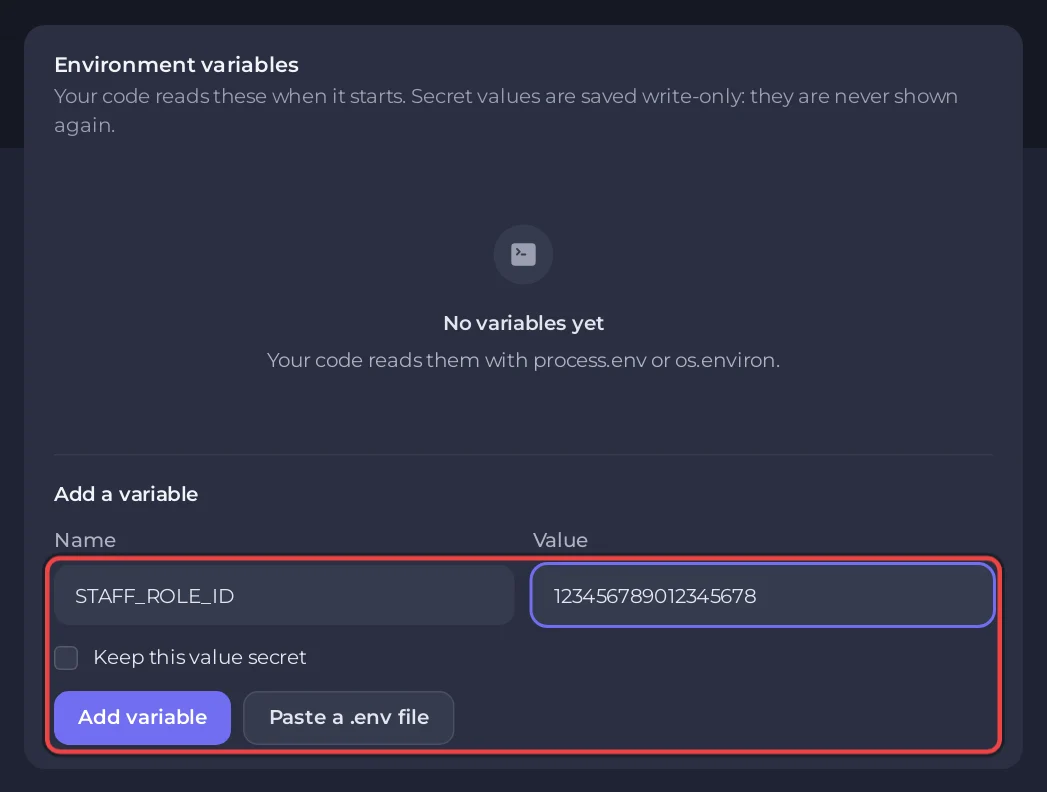
STAFF_ROLE_IDas the Name, paste the role ID as the Value, and press Add variable. - Under Discord, Invite link, press Edit, tick Manage Channels, press Save permissions, then Add to a Discord server. If the bot is already in your server, inviting it again with the new link updates its permissions.
- Open Console and press Start. The server installs discord.js from
package.json, then you seeLogged in as YourBot#1234. - In the channel where members should open tickets, type
/ticketpanel. Slash commands can take a few minutes to appear the first time.
More on Node.js bots: How to host a Node.js Discord bot. More on variables: How to set environment variables and secrets for your Discord bot.
If something fails
Missing Permissionswhen a member presses the button: the bot lacks Manage Channels, or a role above it blocks it. Re-invite it with the edited link, or give its role Manage Channels in your server settings.- Staff cannot see tickets:
STAFF_ROLE_IDis missing or wrong. Check it under Environment, then restart the bot. /ticketpaneldoes not show: only members with Manage Server see it. Otherwise see Discord bot online but not responding.
Next steps
- Anyone in a ticket can press Close ticket. To let only staff close it, check
interaction.member.roles.cache.has(STAFF_ROLE_ID)first. - Save a transcript before deleting the channel: fetch the messages with
channel.messages.fetch()and write them to a file or a database: How to use a database with your Discord bot. - Put new tickets in a category by adding
parent: '<category ID>'tochannels.create.