

To change the game rules of your ARK: Survival Ascended server, open the Settings tab and click Game User Settings or Game Rules (Game.ini) under Config files. Change the values, then save. Stop the server before you save Game User Settings, because ARK writes that file back when it shuts down and would undo your change.
Edit Game User Settings
- Open your server in the panel and click Stop. Wait for Offline.
- Click the Settings tab. Under Config files in the left card, click Game User Settings.
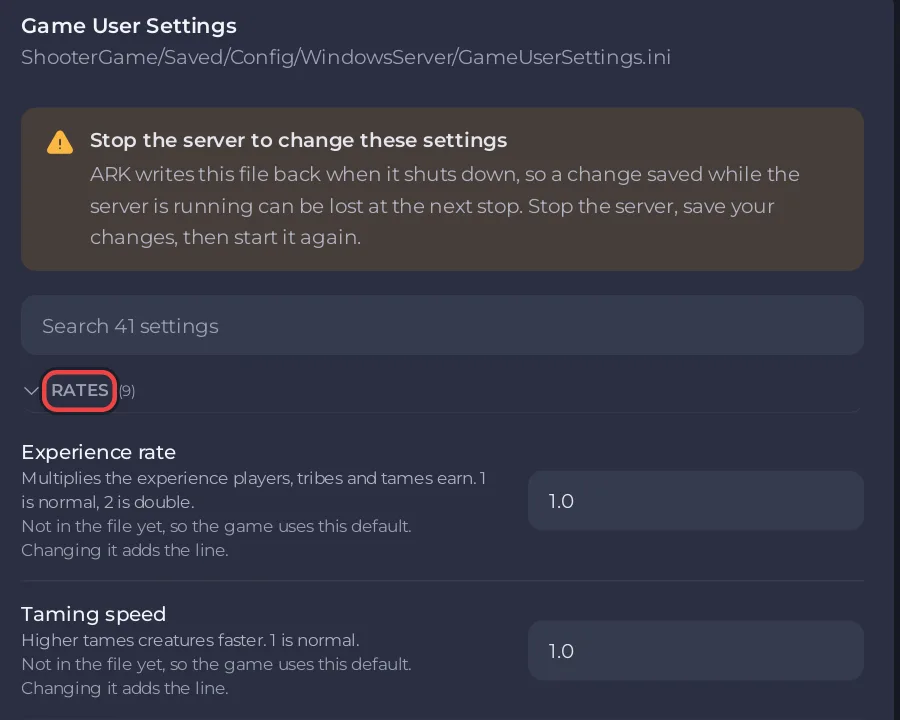
- Change the settings you want. Each group, such as Rates or Difficulty, opens and closes with its heading. The search box finds a setting by name. The page counts your changes, for example
1 unsaved change. - Click Save & start. The server saves the file and starts with your settings. Or click Save only to start it later.
While the server is running, the page shows Stop the server to change these settings with the reason: ARK writes this file back when it shuts down, so a change saved while the server is running can be lost at the next stop. Stop the server, save your changes, then start it again. The save buttons stay greyed out until the server is Offline.
A setting marked Not in the file yet, so the game uses this default. Changing it adds the line. is at ARK's default. Changing it writes the line into the file.
Edit Game Rules (Game.ini)
- On the Settings tab, click Game Rules (Game.ini) under Config files.
- Change the settings. The editor lists the panel's labelled settings first, then any other lines already in your
Game.ini. - Click Save & restart, or Save only to apply them at the next start.
The panel has no stop rule for Game.ini: you can save it while the server runs, and Save & restart makes the game read it. If you prefer to follow the ARK wiki, which says to close the game before you change its INI files, stop the server first and use Save only.
If Game Rules (Game.ini) is not in the list
A new server has no Game.ini until something writes it, and the panel lists only files that exist. Create it once:
- Click the Files tab and open
ShooterGame, thenSaved, thenConfig, thenWindowsServer. - Click New file and name it
Game.ini. - Type this as the first line, then save the file:
[/script/shootergame.shootergamemode]- Go back to the Settings tab. Game Rules (Game.ini) is now under Config files, with every setting at its default.
What is in each file
| File | Groups | Guide |
|---|---|---|
| Game User Settings | Rates | Rates |
| Difficulty | Difficulty | |
| Survival and combat | Damage, hunger and thirst | |
| Rules | Tribe size and tame limits | |
| Structures | Structures and decay | |
| Interface and chat | Chat, crosshair and map | |
| Transfers between servers | Settings reference | |
| Game Rules (Game.ini) | Breeding | Breeding and imprinting |
| Farming and decay | Crops and spoiling | |
| Experience | Rates | |
| Rules | Tribe size and tame limits |
Good to know
- The labels and defaults come from the server configuration page of the ARK wiki.
- Server name, passwords, player limit, PvE and ports are not in these editors: they are on the start line, which wins over the files. Set them in Game Settings.
- Revert throws away changes you have not saved. Other lines in the files stay as they are, and you can still edit the whole file under Files.
- To see the editors, a role needs View startup and Read contents; to save, also Edit and rename.
- Changes did not stick? Your ARK: Survival Ascended Game User Settings will not save.


