

What players see on screen and how chat reaches them is set in the Interface and chat group of Game User Settings on your ARK: Survival Ascended server. Stop the server, switch the options on or off, and click Save & start.
Change the options
- Open your server in the panel and click Stop. Wait for Offline.
- Click the Settings tab, then Game User Settings under Config files.
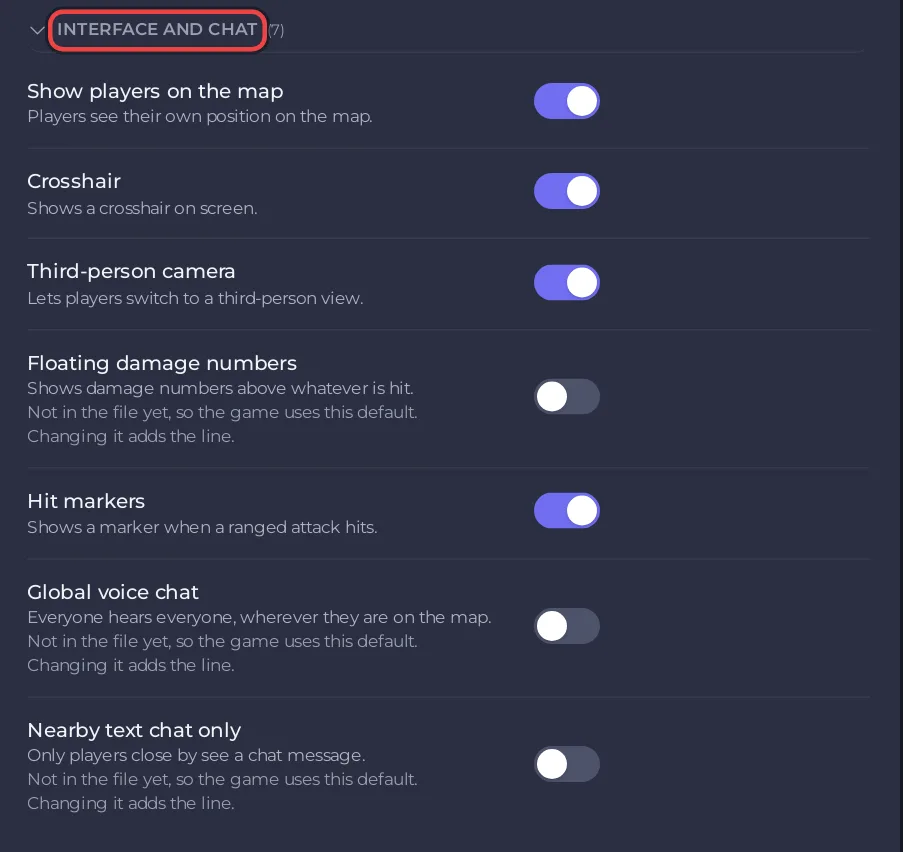
- Open the Interface and chat group and flip the switches.
- Click Save & start.
The Interface and chat group
| Setting | What the panel says | Default |
|---|---|---|
| Show players on the map | Players see their own position on the map. | on |
| Crosshair | Shows a crosshair on screen. | on |
| Third-person camera | Lets players switch to a third-person view. | on |
| Floating damage numbers | Shows damage numbers above whatever is hit. | off |
| Hit markers | Shows a marker when a ranged attack hits. | on |
| Global voice chat | Everyone hears everyone, wherever they are on the map. | off |
| Nearby text chat only | Only players close by see a chat message. | off |
Examples
- A hardcore feel: switch off Crosshair, Third-person camera and Show players on the map.
- A friendly group server: switch on Global voice chat so everyone can talk across the map.
Good to know
- To send a message to everyone from the panel: How to send a message to every player on your ARK: Survival Ascended server.
- Every group of the editor: How to edit GameUserSettings.ini and Game.ini on your ARK: Survival Ascended server.
- The labels and defaults follow the ARK wiki.


