%7B.s%7Banimation%3Ab%201.5s%20ease-out%20both%7D.d%7Banimation-delay%3A.16s%7D%7D%40keyframes%20b%7B0%25%7Bfill%3A%23F4F6FA%7D18%25%7Bfill%3A%23FFE08A%7D34%25%2C70%25%7Bfill%3A%23FF8A1F%7D80%25%7Bfill%3A%23FFE08A%7D100%25%7Bfill%3A%23FF8A1F%7D%7D%3C%2Fstyle%3E%3Cg%20transform%3D%22translate(143%20428.93)%20scale(3.885906)%22%3E%3Cg%20transform%3D%22translate(0%202)%22%20fill%3D%22%23706EF0%22%3E%3Cpath%20d%3D%22M0%200%20H48%20A40%2040%200%200%201%2048%2080%20V100%20H0%20Z%22%2F%3E%3Cpath%20transform%3D%22translate(91.75%200)%22%20d%3D%22M0%200%20L48%200%20L48%2050%20L76%2050%20L76%20100%20L0%20100%20Z%22%2F%3E%3Cpath%20transform%3D%22translate(173%200)%22%20d%3D%22M0%20100%20L58%20-4%20L116%20100%20Z%22%2F%3E%3Cpath%20transform%3D%22translate(264.25%200)%22%20d%3D%22M0%200%20L104%200%20L76%2050%20L76%20100%20L28%20100%20L28%2050%20Z%22%2F%3E%3Cg%20transform%3D%22translate(375%200)%22%3E%3Cpath%20d%3D%22M0%200%20L50%2038%20L50%200%20L100%200%20L100%20100%20L0%20100%20Z%22%20fill%3D%22%23F4F6FA%22%2F%3E%3Crect%20class%3D%22s%22%20x%3D%2247%22%20y%3D%2263%22%20width%3D%2219%22%20height%3D%2230%22%2F%3E%3Crect%20class%3D%22s%20d%22%20x%3D%2274%22%20y%3D%2263%22%20width%3D%2219%22%20height%3D%2230%22%2F%3E%3C%2Fg%3E%3Cpath%20transform%3D%22translate(484.75%200)%22%20d%3D%22M0%200%20L48%200%20L48%2037%20L52%2037%20L52%200%20L100%200%20L100%20100%20L52%20100%20L52%2063%20L48%2063%20L48%20100%20L0%20100%20Z%22%2F%3E%3Cpath%20transform%3D%22translate(588.5%200)%22%20d%3D%22M0%2050%20A53%2053%200%201%200%20106%2050%20A53%2053%200%201%200%200%2050%20Z%22%2F%3E%3Cpath%20transform%3D%22translate(698.25%200)%22%20d%3D%22M25%200%20H102%20V50%20H77%20A25%2025%200%200%201%2077%20100%20H0%20V50%20H25%20A25%2025%200%200%201%2025%200%20Z%22%2F%3E%3Cpath%20transform%3D%22translate(804%200)%22%20d%3D%22M0%200%20L90%200%20L90%2050%20L69%2050%20L69%20100%20L21%20100%20L21%2050%20L0%2050%20Z%22%2F%3E%3C%2Fg%3E%3C%2Fg%3E%3C%2Fsvg%3E)


Sandbox settings are the rules of your Project Zomboid world: how fast zombies move, how much loot there is, how long a day lasts and when the power goes out. The panel shows the sandbox file as a form called Sandbox Settings, with the game's own explanation next to each of its 112 options, so you do not have to edit a Lua file.
Open the editor
- Open your server in the panel and click the Settings tab.
- In the card on the left, under Config files, click Sandbox Settings. The file name is shown at the top and is named after your Server Name.
- If it is not listed, start the server once so the game writes its files. On a server running Build 41, the entry opens with a message that the file is from a different build, because the editor only reads Build 42 files: Project Zomboid Sandbox Settings says the file is from a different build.
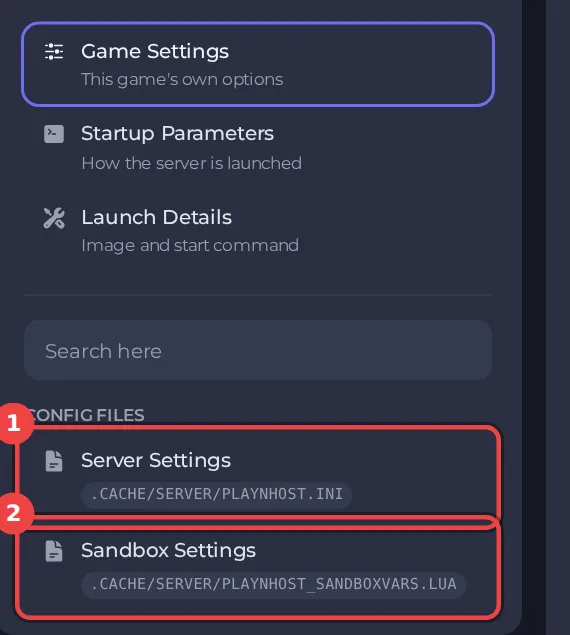
Stop the server before you save
The game rewrites this file when an admin changes sandbox options in game, so a change saved while the server is running can be lost. The editor keeps its save buttons switched off until the server is stopped and shows Stop the server to change these settings.
- Click Stop.
- Change your options. The box at the top searches every option.
- Click Save only, or Save & start. Revert discards your edits.
Back up first if the world has players' progress in it: How to back up and restore your Project Zomboid world.
Start from a preset
Above the list, Start from a preset applies Apocalypse, Outbreak, Rising or Extinction: How to choose a sandbox preset for your Project Zomboid server.
The seven groups
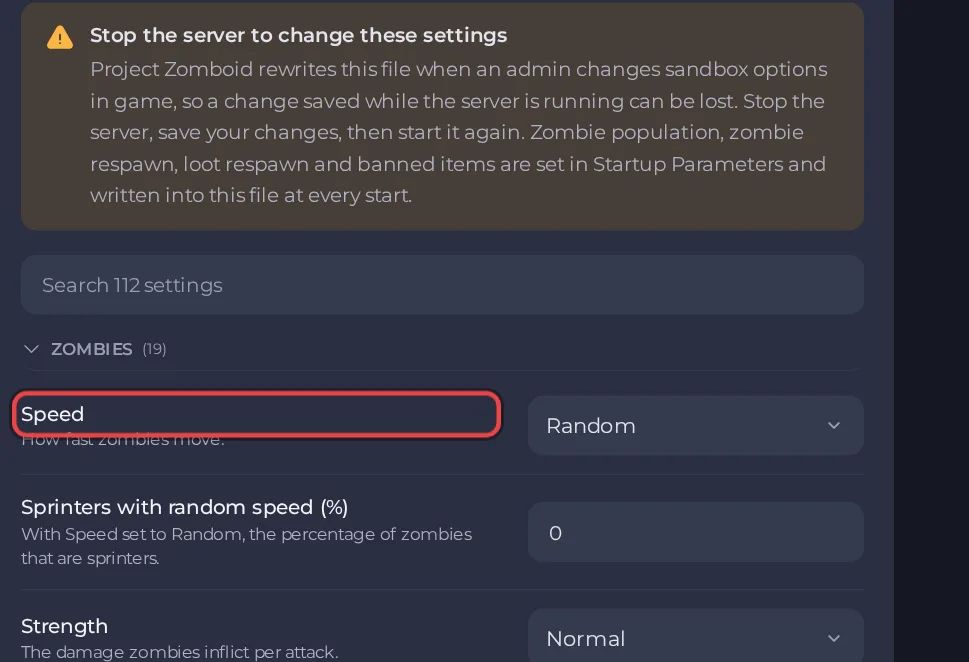
| Group | Examples | Guide |
|---|---|---|
| Zombies | Speed, Strength, Toughness, Sight, Hearing, infection, what zombies can break | Zombies |
| Time | Day length, Start month, Start time, Night length | Time |
| World | Water shutoff, Power shutoff, Temperature, Rain, Overgrowth speed, Locked houses, Fish | World |
| Loot | One multiplier per category, such as Perishable food, Guns, Ammunition and Tools, each from 0 to 4 | Loot |
| Character | Experience rate, Free trait points, Starter kit, Broken bones | Character |
| Vehicles | Vehicles, How many vehicles, Starting fuel, Fuel consumption | Vehicles |
| Map | Mini-map, World map, Whole map revealed, Maps need light | Map |
Pick a value from a list or type a number. A number outside the range the game allows shows "This value is outside the range the file allows." under that option, and the save buttons stay off until you fix it.
Settings that live on the Game Settings page
Four sandbox values are written into the file by the panel every time the server starts, so they are not in this editor. Change them under Settings, then Game Settings:
- Zombie Population (1 Insane, 2 Very High, 3 High, 4 Normal, 5 Low, 6 None)
- Zombie Respawn (1 High, 2 Normal, 3 Low, 4 None)
- Loot Respawn (hours) (0 means loot never respawns)
- Banned Item IDs (item type IDs that never spawn as loot, for example
Base.Pistol,Base.Katana)
Editing these four in the file does not stick: How to change zombie population, respawn and loot respawn on your Project Zomboid server.
What the editor does not offer
The editor writes numbers and on or off values only. Text lists, the per-skill experience rates, the animal and firearm tuning and the loot rarity factors are still in the file under Files, in .cache/Server, in the file ending in _SandboxVars.lua. Edit it only with the server stopped, and keep a backup.
For the server's own rules, such as the join password, see How to change Project Zomboid server settings in the panel.





