%7B.s%7Banimation%3Ab%201.5s%20ease-out%20both%7D.d%7Banimation-delay%3A.16s%7D%7D%40keyframes%20b%7B0%25%7Bfill%3A%23F4F6FA%7D18%25%7Bfill%3A%23FFE08A%7D34%25%2C70%25%7Bfill%3A%23FF8A1F%7D80%25%7Bfill%3A%23FFE08A%7D100%25%7Bfill%3A%23FF8A1F%7D%7D%3C%2Fstyle%3E%3Cg%20transform%3D%22translate(143%20428.93)%20scale(3.885906)%22%3E%3Cg%20transform%3D%22translate(0%202)%22%20fill%3D%22%23706EF0%22%3E%3Cpath%20d%3D%22M0%200%20H48%20A40%2040%200%200%201%2048%2080%20V100%20H0%20Z%22%2F%3E%3Cpath%20transform%3D%22translate(91.75%200)%22%20d%3D%22M0%200%20L48%200%20L48%2050%20L76%2050%20L76%20100%20L0%20100%20Z%22%2F%3E%3Cpath%20transform%3D%22translate(173%200)%22%20d%3D%22M0%20100%20L58%20-4%20L116%20100%20Z%22%2F%3E%3Cpath%20transform%3D%22translate(264.25%200)%22%20d%3D%22M0%200%20L104%200%20L76%2050%20L76%20100%20L28%20100%20L28%2050%20Z%22%2F%3E%3Cg%20transform%3D%22translate(375%200)%22%3E%3Cpath%20d%3D%22M0%200%20L50%2038%20L50%200%20L100%200%20L100%20100%20L0%20100%20Z%22%20fill%3D%22%23F4F6FA%22%2F%3E%3Crect%20class%3D%22s%22%20x%3D%2247%22%20y%3D%2263%22%20width%3D%2219%22%20height%3D%2230%22%2F%3E%3Crect%20class%3D%22s%20d%22%20x%3D%2274%22%20y%3D%2263%22%20width%3D%2219%22%20height%3D%2230%22%2F%3E%3C%2Fg%3E%3Cpath%20transform%3D%22translate(484.75%200)%22%20d%3D%22M0%200%20L48%200%20L48%2037%20L52%2037%20L52%200%20L100%200%20L100%20100%20L52%20100%20L52%2063%20L48%2063%20L48%20100%20L0%20100%20Z%22%2F%3E%3Cpath%20transform%3D%22translate(588.5%200)%22%20d%3D%22M0%2050%20A53%2053%200%201%200%20106%2050%20A53%2053%200%201%200%200%2050%20Z%22%2F%3E%3Cpath%20transform%3D%22translate(698.25%200)%22%20d%3D%22M25%200%20H102%20V50%20H77%20A25%2025%200%200%201%2077%20100%20H0%20V50%20H25%20A25%2025%200%200%201%2025%200%20Z%22%2F%3E%3Cpath%20transform%3D%22translate(804%200)%22%20d%3D%22M0%200%20L90%200%20L90%2050%20L69%2050%20L69%20100%20L21%20100%20L21%2050%20L0%2050%20Z%22%2F%3E%3C%2Fg%3E%3C%2Fg%3E%3C%2Fsvg%3E)


To add a mod, put its Steam Workshop address in Workshop items, put its mod name in Enabled mods, and restart. Both lists are needed. The first downloads the mod, the second switches it on. A mod that is only in the first list sits on the disk and does nothing.
Before you start
- Take a backup: How to back up and restore your Project Zomboid world.
- Check that the mod is made for your build. Mods for Build 41 do not load on Build 42 and the other way round: Project Zomboid mods and Build 42: what to know.
Steps
- Open your server in the panel and click the Workshop tab.
- In Workshop items, paste the mod's Steam Workshop address, or the number at the end of it, and click Add. You can also use Browse to search the Workshop. Click Save.
- The row shows the mod's name, picture and size. If it has a badge such as Not found, Wrong game or Outdated, read it before you go on.
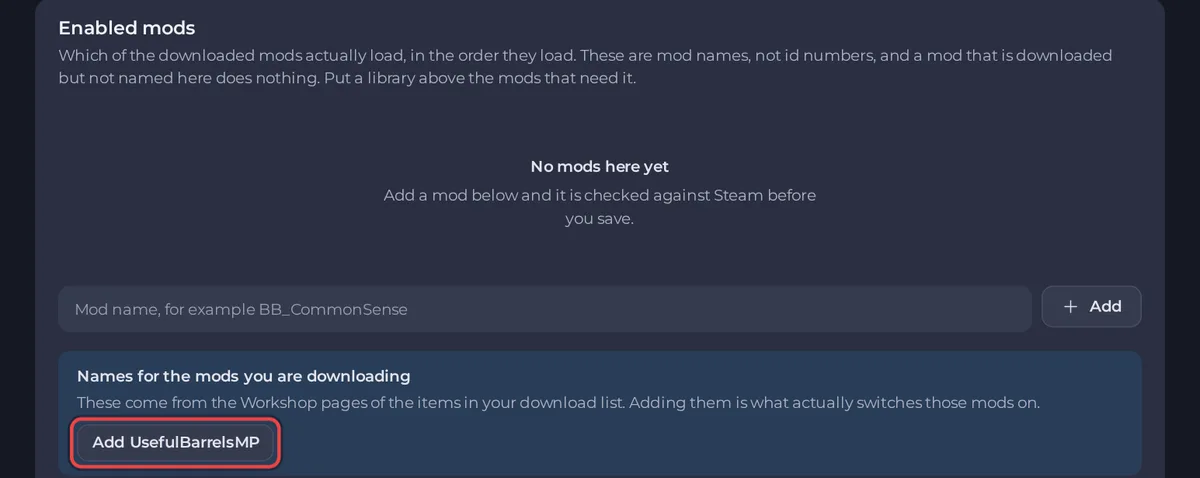
- In Enabled mods, the box Names for the mods you are downloading offers the mod's name once the item is saved. Click the name's button, or Add all if there are several. Then click Save under Enabled mods.
- A yellow notice says Saved, and not applied yet. Click Restart to apply. The start takes longer, because the server downloads the mod.
- When the badge says Online, read Did they load? (last start) at the bottom of the tab: How to check that your Project Zomboid mods loaded.
If a name is not offered, find the Mod ID yourself: How to find the Mod ID of a Project Zomboid mod.
The lists must agree
If one list has mods and the other is empty, the page says These two lists do not agree. Mods that download but are not enabled stay off. Mods that are enabled but not downloaded cannot load. The warning only checks for an empty list, so when both lists have entries, check yourself that every mod is in both, or read Did they load? (last start) after the restart.
What the Console shows
At the start the Console prints [playnhost] Workshop Items requested: ..., [playnhost] Workshop Items verified and applied: ... and [playnhost] Mods=.... An item that cannot be downloaded is dropped with pnh-workshop-check: WARNING item <number> failed to download (removed, private, or a typo), so that it cannot crash the server. When only one of the two lists is filled, the Console also prints a WARNING line saying so.
Players
Players need the same mods. They download them when they join. When you update or add a mod, tell them: How to invite friends to your Project Zomboid server.
Nothing happens? Your Project Zomboid mods do nothing.





