

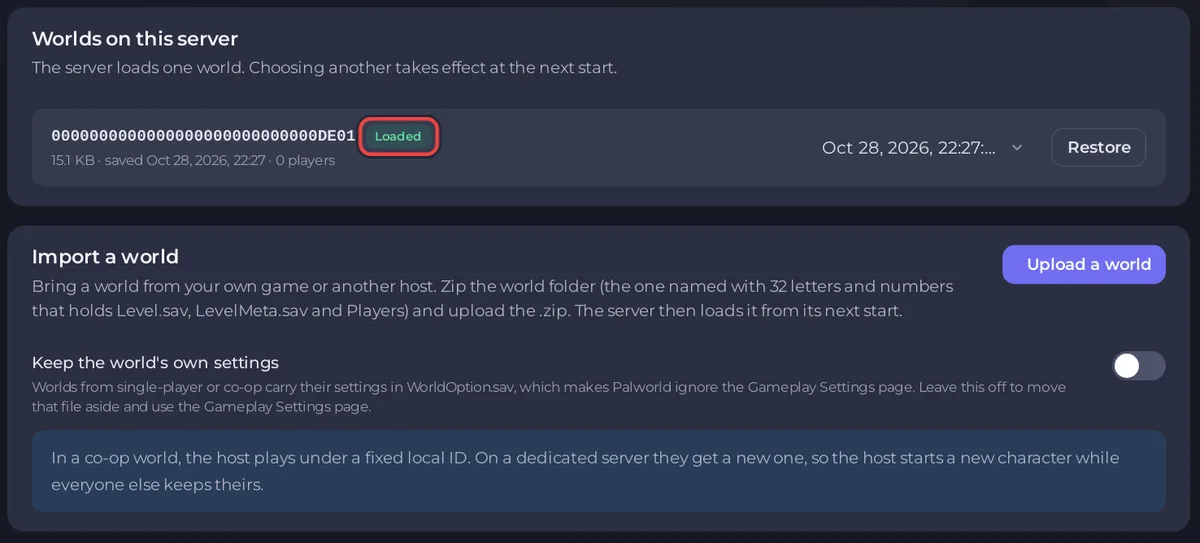
The Worlds page, in the left menu of a PlayNHost Palworld server, lists every world on the server and marks the one that loads with Loaded. From it you switch worlds with Load this world, bring in your own with Upload a world, and go back to a Palworld snapshot with Restore. Every change needs the server stopped.
Stop the server first
While the server runs, the page shows: "Stop the server to change worlds. Palworld writes the whole world back when it stops, over any change made while it runs." The buttons stay greyed out until the badge says Offline: How to stop your Palworld server without losing progress.
Worlds on this server
"The server loads one world. Choosing another takes effect at the next start." Each world shows:
- its ID, the folder name of 32 letters and numbers that Palworld gives every world,
- Loaded on the world the server starts with,
- Own settings when the world carries a
WorldOption.sav, which makes Palworld ignore Gameplay Settings: Palworld Gameplay Settings changes do nothing, - the size of its
Level.sav, when it was last saved and how many players have a character in it, separated by dots: the size,savedand the date, then for example3 players.
A new server shows No world yet until its first start. Palworld writes its world within a minute of that start.
What you can do here
| Button | What it does | Guide |
|---|---|---|
| Load this world | Makes the server start with another world on it. The current one stays on the server, untouched. | How to switch between Palworld worlds on your server |
| Snapshot list and Restore | Puts the world back to one of the copies Palworld keeps by itself. The current world is packed into a file first. | How to roll back your Palworld world to a snapshot |
| Upload a world under Import a world | Brings in a world from your own game or another host, as a .zip. | How to upload your own Palworld world |
Who can use the Worlds page, and what is logged?
- Each action is written in the Activity log, for example "Made the world ... the one the server loads".
- The page needs file permissions: reading files to see it, and creating, changing and deleting files to import or restore.
- Snapshots live on the same disk as the world. Keep real backups too: How to back up and restore your Palworld world.
- To start over with a new world, use the World Reset task: How to reset your Palworld world and start fresh.


