

 MINECRAFT HOSTING
 GAME SERVERS
 Game Panel
Whether you can add mods, and how, depends on the game. The Modding tab always tells you what applies to your server, so start there.
Open the Modding tab
- Open your server in the panel.
- Look at the tab row. If your game supports add-ons you will see a Modding tab, and for games that use the Steam Workshop a Workshop tab. Games without add-ons may show neither.
- Click the tab.
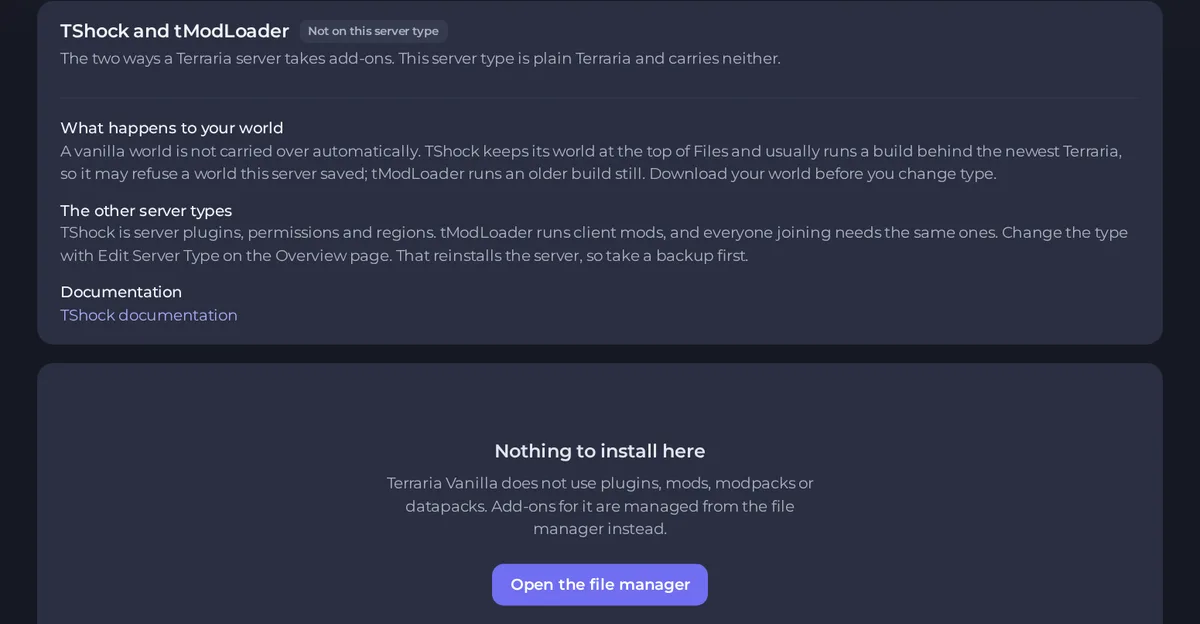
What you see depends on the game and server type. Some have installers or frameworks, some have a Steam Workshop list, and some say that nothing can be installed and point you to the file manager. On some games a plain vanilla server has nothing to install in the tab, and says so. Minecraft is different: a Vanilla server runs no plugins or mods, but the tab still offers Modpacks, Worlds and Datapacks.
The three kinds of add-on
1. A framework. Some games need a loader before any plugin can run. Examples are Oxide or Carbon for Rust, Metamod and SourceMod for Source games such as Counter-Strike, and BepInEx for many Unity games. The framework has to be switched on first. If it is not, plugins you add sit in the folder and do nothing, with no error. Where a game uses a framework, the Modding tab names it and shows how it is turned on.
2. Steam Workshop items. Games that support the Workshop let you list the items you want, and the server downloads them. Each game wants the list written differently. ARK uses numbers separated by commas, Project Zomboid uses semicolons, DayZ puts an @ before each number. The Workshop tab writes the list in the format your game expects, so use it rather than typing the setting by hand.
3. Files you upload. Plugins and mods that come as files go in the right folder of your server. See How to upload, edit and manage your server files. For large mod folders use SFTP. See How to connect to your server files with SFTP.
Add a mod safely
- Back up first. See How to create, download and restore backups.
- Check the version. The mod, the framework and the game must agree. A mod built for an older game version is the most common cause of crashes.
- Add one thing at a time. If something breaks, you know what caused it.
- Restart the server so the change takes effect. See How to start, stop, restart and force-stop your server.
- Watch the console while it starts and look for your mod's name, and for Errors and Warnings. See How to use the console and run commands.
Downloaded does not mean loaded
A mod can be on the server and still not run. The usual reasons:
- the framework it needs is not switched on
- the mod is in the wrong folder
- the list of Workshop items is in the wrong format
- the mod is for a different game version
- the change needs a reinstall to apply: when the panel says Applies on reinstall next to a setting, a restart is not enough or a new world
A mod that loaded shows up in the console during startup. If you do not see it there, it did not load.
Players need the same mods
For mods that change the game itself, everyone who joins needs the same ones. Plugins that run only on the server need nothing on the players' side. The game's guide in this knowledge base says which applies.
Change to a modded server type
Some games have separate server types for modded play, for example plugin servers and mod loaders. Change type with Edit Server Type on the Overview page. See How to change your server type or game version.
If the server stops after adding a mod
Remove the newest mod, or restore your backup, then start again. See How to fix a server that will not start.





