

 MINECRAFT HOSTING
 GAME SERVERS
 Game Panel
The Files tab is your server's own folder, shown in your browser. Worlds, mods, plugins and configuration files all live here, and you can work with them without installing anything.
Open the file manager
- Open your server in the panel.
- Click the Files tab.
At the top you will find a Search box, a refresh button and four buttons: Upload, Create Directory, New file and SFTP details.

Below is the list of files and folders, with their Name, Size, Created date and Type. Click a folder to open it. The arrow at the top left of the list takes you up one level.
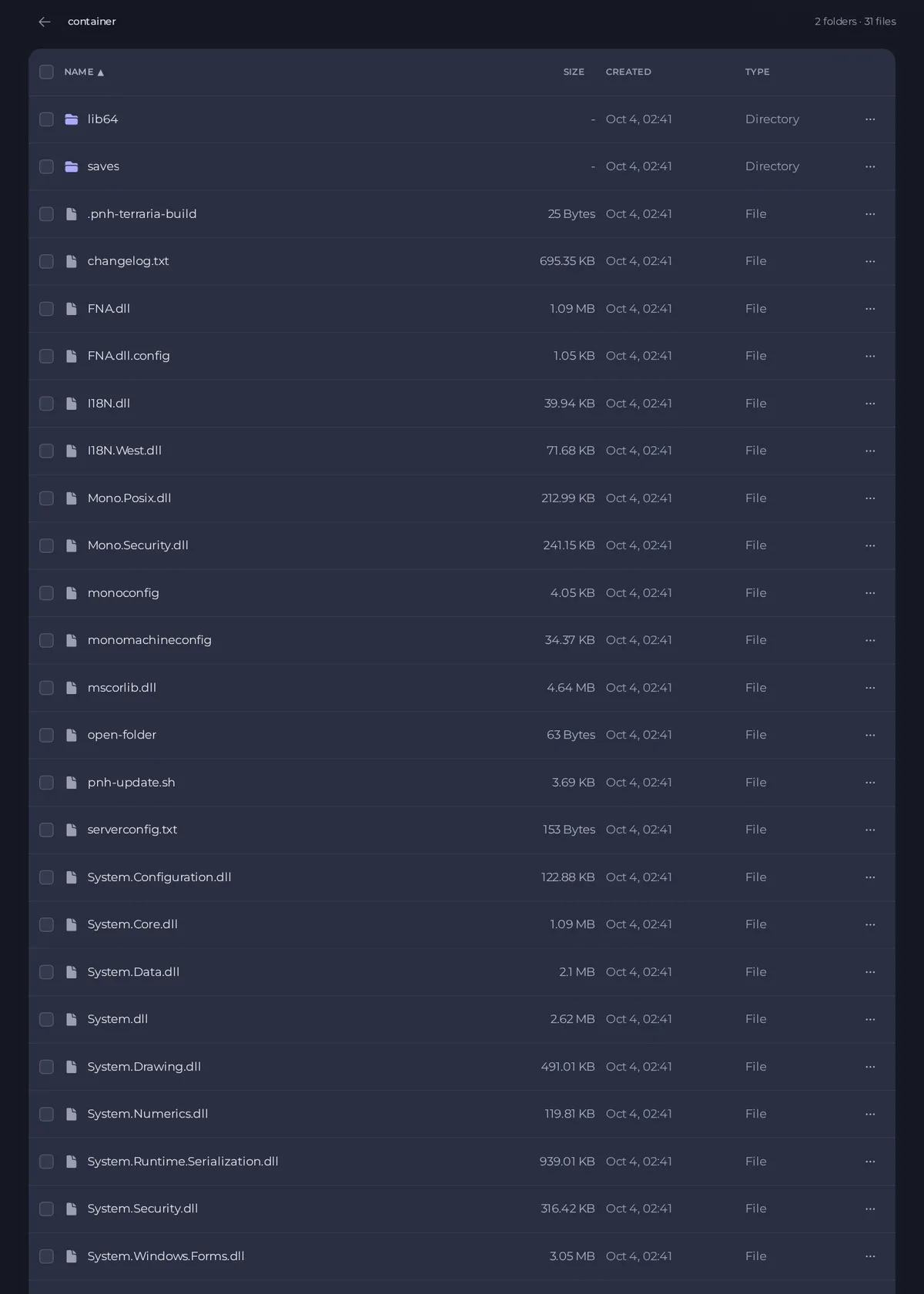
Upload files
- Open the folder you want the files to go in.
- Click Upload and choose the files, or drag them onto the page.
- Wait until the upload finishes before you leave the page.
For one or two files, the browser is quick. For a large world, a whole mod folder or many files, use SFTP instead, which is steadier. See How to connect to your server files with SFTP.
Stop the server before replacing world files. A running game can overwrite or corrupt files you upload.
Create a folder or a file
- Create Directory asks for a name and makes a new folder in the folder you are in.
- New file opens an empty editor. Type the content, then click Create file and give it a name and path.
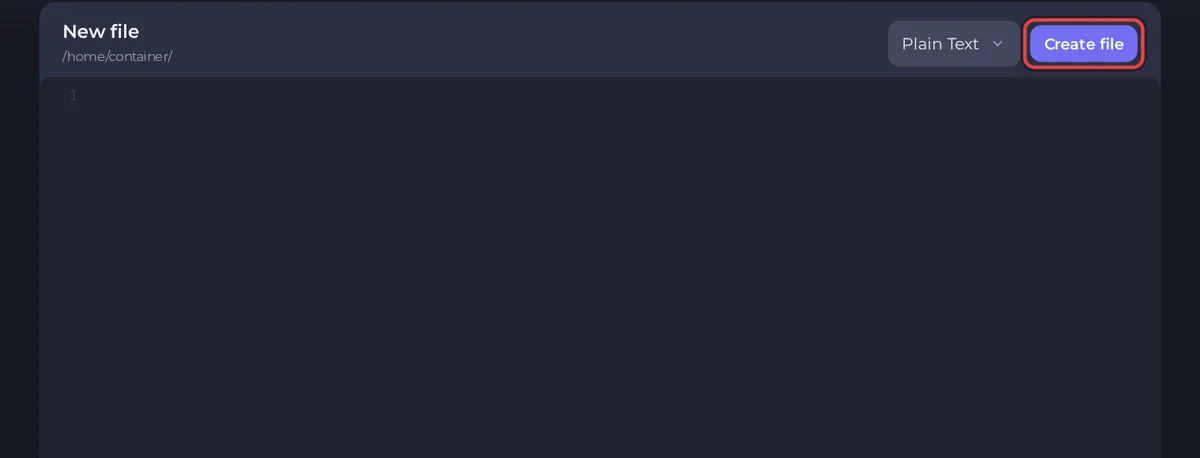
Edit a file
- Click a text file, such as a configuration file, to open it in the editor. The path is in the header, and the bottom line shows the cursor position, the encoding and the size.
- Make your changes. Use the Syntax mode menu at the top if you want colouring for a file type.
- Click Save content. The button reads Saved and is greyed out when there is nothing to save.
Many games rewrite their configuration files from your Settings each time the server starts. If a value you edit by hand keeps changing back, change it in Settings instead. See How to change your server settings.
Work with one file or folder
Click the ... menu at the end of a row.
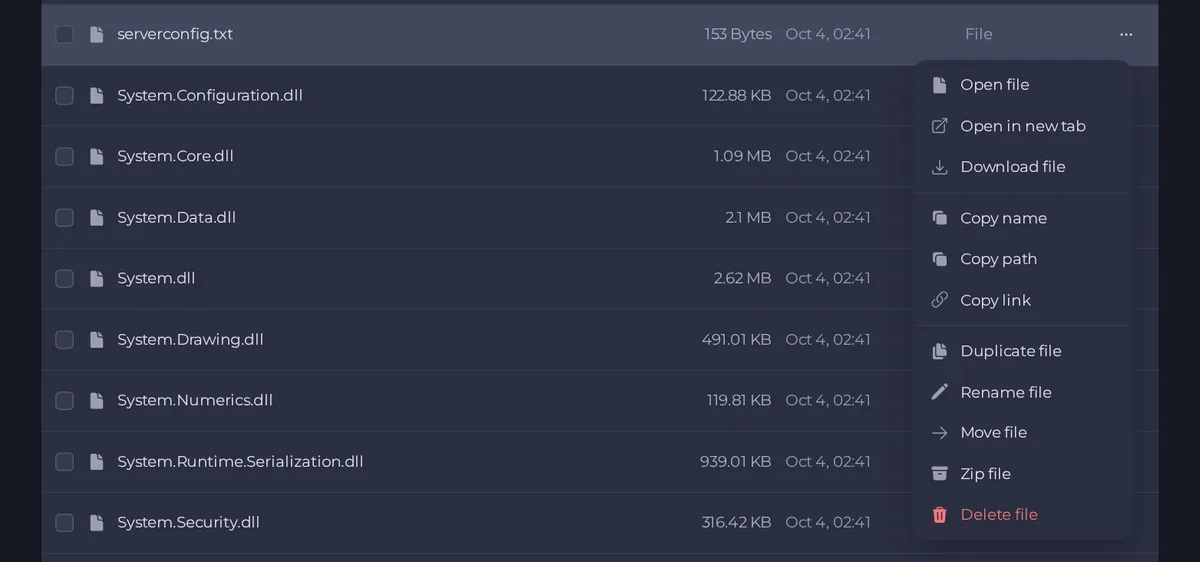
- Open file and Open in new tab show the file.
- Download file saves a copy to your computer.
- Copy name, Copy path and Copy link copy that detail to your clipboard.
- Duplicate file makes a copy next to it.
- Rename file and Move file change its name or its folder.
- Zip file packs it into an archive. To unpack an archive, tick its box and click Unzip in the bar that appears.
- Delete file removes it. You are asked to confirm.
Work with many files at once
Tick the boxes at the left of the rows, or the box in the header to select everything in the folder. A bar appears with the number selected and the actions that apply to them all: Move, Archive, Duplicate, Download and Delete. Duplicate and Download are hidden when a folder is selected, and when you select a single archive, Archive becomes Unzip. Delete is set apart on the far side, because it cannot be undone.
Safe habits
- Back up first before deleting or replacing anything important. See How to create, download and restore backups.
- Keep original files on your computer until you know the server works.
- Do not delete files you do not recognise in the server's main folder. They belong to the game.
- People you invite can only use Files if their role allows it. See How to invite friends and give them access.





