

 MINECRAFT HOSTING
 GAME SERVERS
 Game Panel
Your invoices live on the Billing page of the panel. It shows what you pay for, what is due and what renews next.
Open the Billing page
- Sign in to the panel.
- Click Billing in the top menu.
The page has three parts: Servers and plans, Invoices, and Next payment on the right.
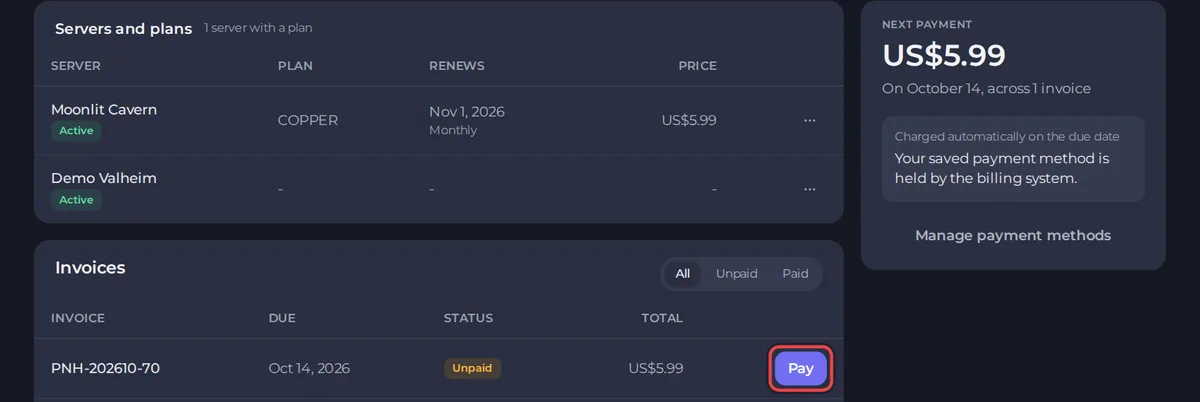
Servers and plans
This table lists each server with its plan, the date it Renews, the billing cycle and the Price. The ... menu at the end of a row offers Change plan and Cancel this plan. See How to change your plan or billing cycle.
Find an invoice
Under Invoices, use All, Unpaid and Paid to filter the list. Each row shows the invoice number, the due date, a status badge and the total. Unpaid invoices have a Pay button. Paid ones have View.
Pay an unpaid invoice
- Click Pay on the invoice.
- In the payment window, a saved payment method is already selected under Your saved methods. To use something else, click Use another method, which shows Apple Pay and Google Pay where your device offers them, and the card fields. If you have account credit, an Apply credit button lets you use it.
- Click the Pay button with the amount on it.
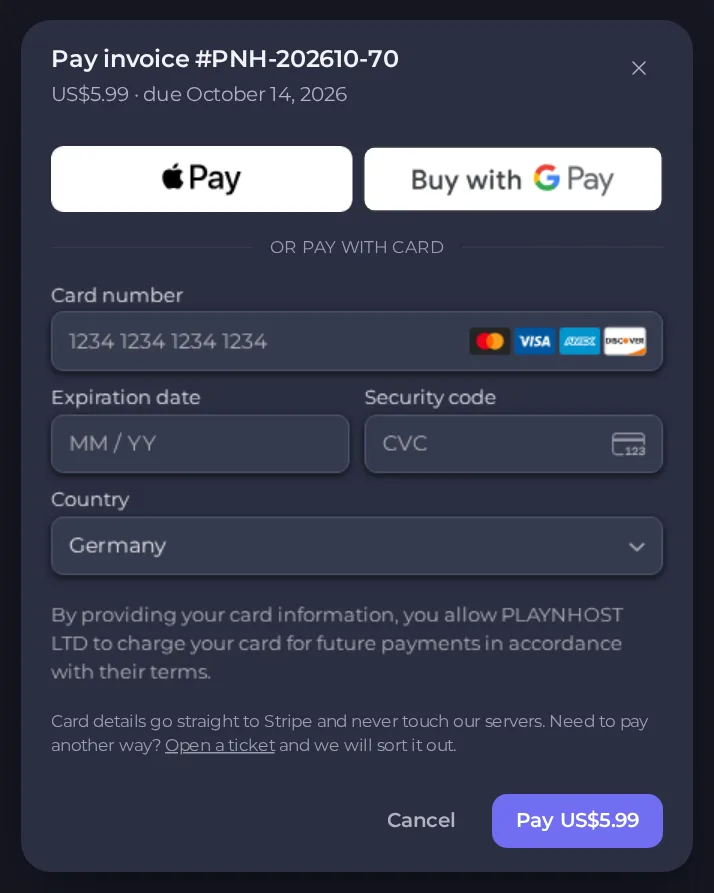
Card details go straight to our payment provider, Stripe, and never touch our servers. The invoice shows as Paid as soon as the payment is confirmed. If it does not change after a few minutes, refresh the page. If you want to pay another way, open a ticket. See How to open a support ticket.
Paying on time keeps your server running. See What happens if an invoice is overdue.
Open or download a paid invoice
- Click View on a paid invoice.
- The window shows the invoice number, the date it was issued, when it was due and when it was paid. Below that you see what you bought, with each option listed, the subtotal, the total and the payments made against it.
- Click Download PDF. It opens the invoice as a PDF in a new browser tab, where you can save it. Click Close when you are done.
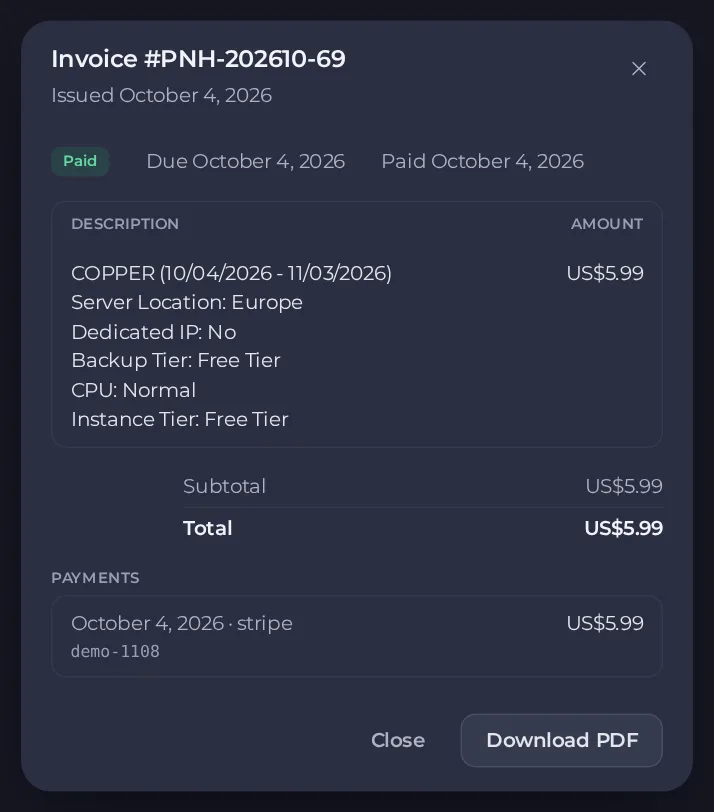
Keep your PDFs if you need them for your records. Company name and address on an invoice come from your billing details. See How to update your billing details.
Next payment
The card on the right shows the amount of the next charge and its date. It reads Overdue when something is late. To see which payment method will be used, open Account, then Payment methods. See How payment methods and automatic renewals work.
Good to know
- You are emailed when an invoice is created and when a payment arrives. You can control the panel notifications but not the invoice emails themselves. See How to manage notifications and preferences.
- Only the owner of a plan sees its invoices. People you invite to a server cannot.





