

 MINECRAFT HOSTING
 GAME SERVERS
 Game Panel
Your billing details decide what is printed on your invoices. Fill them in before you need an invoice for your company or your accountant.
Open Billing details
- Open the panel and click Account in the top menu.
- In the left menu, under Billing, click Billing details.
Change them
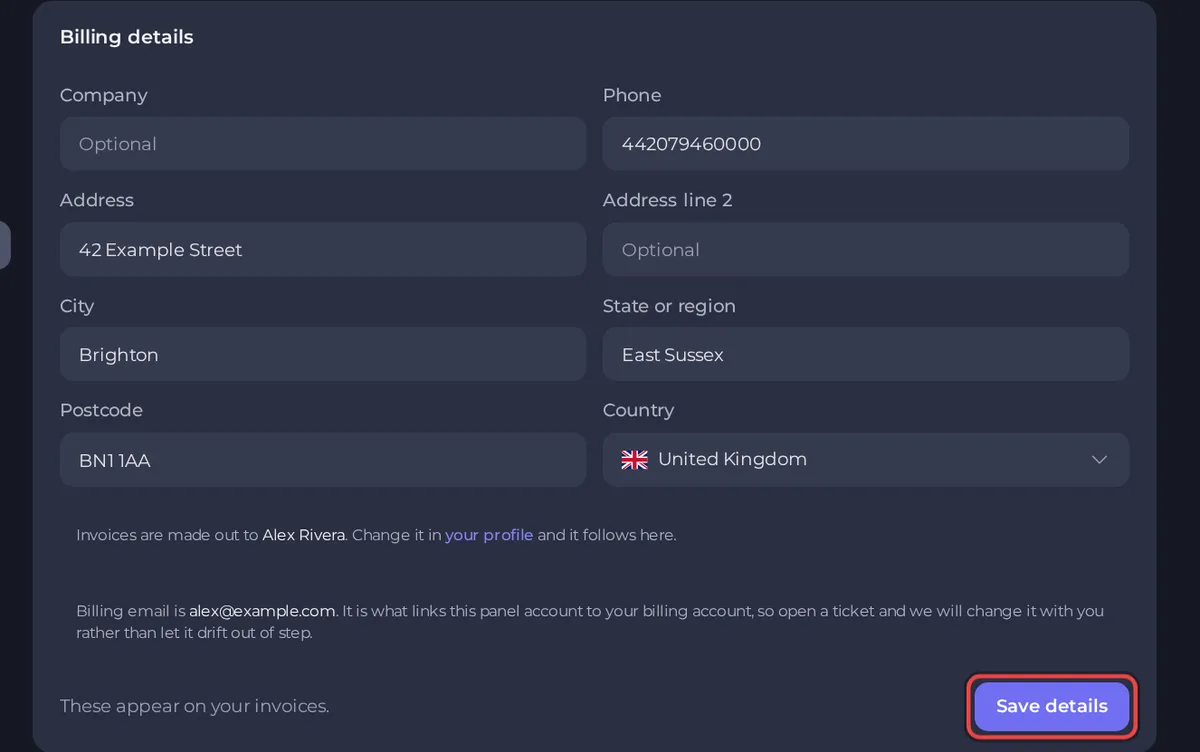
Fill in the fields you need. Address, city, postcode and country are required. Company, address line 2, state and phone are optional:
- Company, if you buy as a business
- Phone
- Address and Address line 2
- City, State or region and Postcode
- Country
- Click Save details.
These details appear on your invoices.
The name on your invoices
The form tells you who invoices are made out to. It is the name from your profile, and the form says so: change it in your profile and it follows here. To change it, open Profile under You in the same menu and edit your first and last name. See How to update your profile and email address.
The billing email
The form also shows your billing email. It is the address that links your panel account to your billing account, and it is where invoices are sent. We do not let it change from the form, because the two have to stay in step. If you need to change it, open a ticket and we will change it with you. See How to open a support ticket.
To let someone else, such as an accountant, receive invoices, ask in a ticket and we will set up a billing contact.
Good to know
- If an invoice that was already issued needs a correction, open a ticket with the invoice number.
- The email history page lists the billing emails we have sent you, if you cannot find an invoice email. See How to manage notifications and preferences.





