

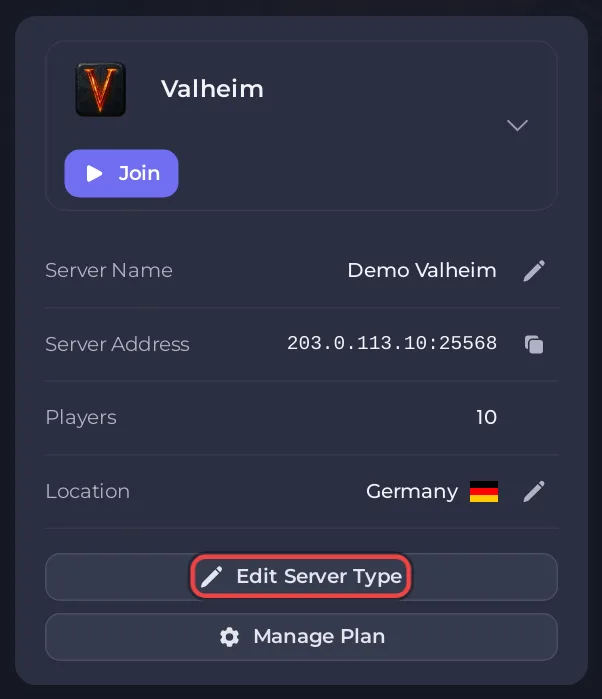
Click Edit Server Type on the Overview page, or Change server type to BepInEx on the Mods page of a plain Valheim server. Choose Valheim BepINex or Valheim Plus Mod, and untick Delete my existing files and start clean to keep your world. The server is reinstalled with the mod loader and starts again.
The start clean box is ticked by default, and ticked means your files, including your worlds, are deleted. Untick it to keep them. Take a backup either way: How to back up and restore your Valheim world.
Switch the type
- Open your server in the panel and click Overview.
- Click Edit Server Type under the server card. On a plain Valheim server you can also open the Modding tab and click Change server type to BepInEx. A window called Change server type opens.
- Under Choose a server type, pick Valheim BepINex (BepInEx on its own) or Valheim Plus Mod (BepInEx with the Valheim Plus mod). The window shows the current type above the list.
- Click Next step. The Version step says no version has to be chosen. Click Next step again.
- On Review your change, read the red box: This reinstalls your server.
- Untick Delete my existing files and start clean (recommended). The text changes to say your files are kept and the new type is installed over them.
- Keep Back up first (recommended). ticked. It makes a backup before anything moves. It is greyed out, with a reason, when your plan has no free backup slot. Free a slot on the Backups page first.
- Tick I understand this reinstalls my server and it may not start.
- Click Change server type.

The server goes offline while it installs. Once the install is done, the panel starts it again. If it stays Offline, click Start.
What is kept and what is reset
- Kept with your files: your worlds and their copies, the admin, ban and allow lists, your password, Server Name, World Name, Public Server, Enable Crossplay, PlayNHost Tools, the save settings and the world rules.
- Reset: Auto Update goes back on. Beta Branch, Beta Password and Verify Game Files are cleared.
- Crossplay: if it was on, it stays on. Console players can still join while every mod you add is marked Server only. See Console players cannot join your modded Valheim server.
Check it worked
- The Modding tab now shows the Mods page with Your mods, Browse Thunderstore, Profiles and the settings tab.
- The Console shows
Chainloader startup completeand, for Valheim Plus,ValheimPluslines. See How to check that your Valheim mods loaded. - The Worlds page still lists your worlds, with the same one Active.
Next: How to install a Valheim mod on your server.
Try it on a copy first
If the window offers Try it on a copy first, it copies your server, switches the copy, and leaves the original as it is. See How to make a copy of your server and try a change on it first.
Go back
Open the same window and pick Valheim, again with the start clean box unticked. See How to remove mods or go back to plain Valheim.
Only the server owner can apply the switch. Another account that sees Edit Server Type is refused when it applies the change, and the Mods page says Ask the server owner to change the server type to BepInEx. See How to change your server type or game version.





