%7B.s%7Banimation%3Ab%201.5s%20ease-out%20both%7D.d%7Banimation-delay%3A.16s%7D%7D%40keyframes%20b%7B0%25%7Bfill%3A%23F4F6FA%7D18%25%7Bfill%3A%23FFE08A%7D34%25%2C70%25%7Bfill%3A%23FF8A1F%7D80%25%7Bfill%3A%23FFE08A%7D100%25%7Bfill%3A%23FF8A1F%7D%7D%3C%2Fstyle%3E%3Cg%20transform%3D%22translate(143%20428.93)%20scale(3.885906)%22%3E%3Cg%20transform%3D%22translate(0%202)%22%20fill%3D%22%23706EF0%22%3E%3Cpath%20d%3D%22M0%200%20H48%20A40%2040%200%200%201%2048%2080%20V100%20H0%20Z%22%2F%3E%3Cpath%20transform%3D%22translate(91.75%200)%22%20d%3D%22M0%200%20L48%200%20L48%2050%20L76%2050%20L76%20100%20L0%20100%20Z%22%2F%3E%3Cpath%20transform%3D%22translate(173%200)%22%20d%3D%22M0%20100%20L58%20-4%20L116%20100%20Z%22%2F%3E%3Cpath%20transform%3D%22translate(264.25%200)%22%20d%3D%22M0%200%20L104%200%20L76%2050%20L76%20100%20L28%20100%20L28%2050%20Z%22%2F%3E%3Cg%20transform%3D%22translate(375%200)%22%3E%3Cpath%20d%3D%22M0%200%20L50%2038%20L50%200%20L100%200%20L100%20100%20L0%20100%20Z%22%20fill%3D%22%23F4F6FA%22%2F%3E%3Crect%20class%3D%22s%22%20x%3D%2247%22%20y%3D%2263%22%20width%3D%2219%22%20height%3D%2230%22%2F%3E%3Crect%20class%3D%22s%20d%22%20x%3D%2274%22%20y%3D%2263%22%20width%3D%2219%22%20height%3D%2230%22%2F%3E%3C%2Fg%3E%3Cpath%20transform%3D%22translate(484.75%200)%22%20d%3D%22M0%200%20L48%200%20L48%2037%20L52%2037%20L52%200%20L100%200%20L100%20100%20L52%20100%20L52%2063%20L48%2063%20L48%20100%20L0%20100%20Z%22%2F%3E%3Cpath%20transform%3D%22translate(588.5%200)%22%20d%3D%22M0%2050%20A53%2053%200%201%200%20106%2050%20A53%2053%200%201%200%200%2050%20Z%22%2F%3E%3Cpath%20transform%3D%22translate(698.25%200)%22%20d%3D%22M25%200%20H102%20V50%20H77%20A25%2025%200%200%201%2077%20100%20H0%20V50%20H25%20A25%2025%200%200%201%2025%200%20Z%22%2F%3E%3Cpath%20transform%3D%22translate(804%200)%22%20d%3D%22M0%200%20L90%200%20L90%2050%20L69%2050%20L69%20100%20L21%20100%20L21%2050%20L0%2050%20Z%22%2F%3E%3C%2Fg%3E%3C%2Fg%3E%3C%2Fsvg%3E)


Before you update a version, add a big mod or change the server type, you can make a copy of your server and try the change on the copy. Your original stays exactly as it was, and you can switch back to it whenever you like. A copy is a full copy of the setup, world included, saved as another instance.
Make a copy
- Open your server in the panel and click Instances in the left menu.
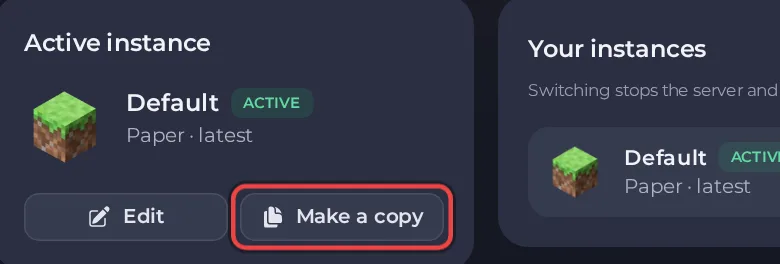
Find the Active instance card and click Make a copy. The button is only offered on the active instance once it is installed, and only when you have a free instance slot.
In the window Make a copy of your instance's name, give the copy a Name of the copy. The default is Copy of and the name.
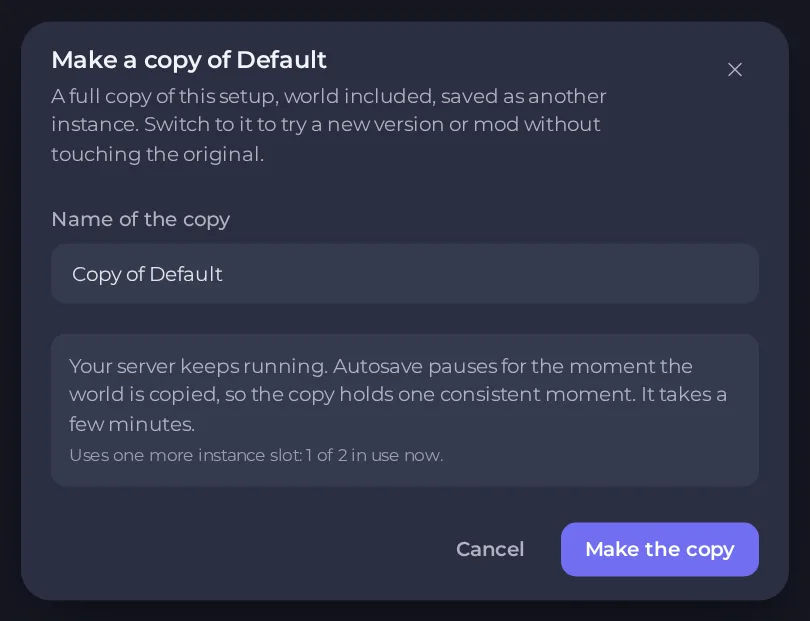
Read what the window says:
- Your server keeps running. Autosave pauses for the moment the world is copied, so the copy holds one consistent moment. It takes a few minutes.
- The copy uses one more instance slot, and the window shows how many of your slots are in use.
- Backups of the whole server include saved setups, so each one grows by up to the size shown once the copy exists. The window warns if a whole-server backup would no longer fit your backup space. You can back up one setup at a time from the Backups page to keep them small.
- Click Make the copy.
A progress card called Copying and the setup's name shows on the page, and the copy appears under Your instances when it is done. If you stop it, the copy is thrown away and your server is not changed.
You need permission to create instances and to archive files. A server that is very large is not copied by the panel (the limit is currently 30 GB, not counting stored instances), and you can start at most three copies an hour, because each one packs the whole server.
Try the change on the copy
- In Your instances, find the copy and click Switch to it. A window says your server will go offline. It stops and moves its files, which usually takes a minute or two and longer on a large world. Click Switch.
- Make your change on the copy: install the new version, add the mod, switch the server type. See How to change your server type or game version.
- Join and test it.
While you are on the copy, the Instances page says You are on the copy's name, a copy of the original, and that the original is kept exactly as it was.
Go back, or keep the copy
- It does not suit you: click Go back to the original's name. Your original is as you left it. Delete the copy with Delete this instance when you no longer need it, to free its slot.
- It works well: keep playing on the copy. Delete the original once you are happy, or keep it as a backup of how things were.
Try it from the change dialog
On some servers, the Change server type window offers Try it on a copy first under the warning. It copies your server, switches to the copy and installs the new type there, and your original stays exactly as it is to switch back to on the Instances page. For Minecraft, see How to change your Minecraft version or server type.
Good to know
- A copy is not a backup. Keep making backups: see How to create, download and restore backups.
- Instances in general, and how many your plan includes: How to use instances to switch between worlds on one server.
- Only one thing runs at a time on your server. If a switch, a copy or a world task is going, the window asks you to wait.
Looking for a place to run your next world? See our game server hosting.





