%7B.s%7Banimation%3Ab%201.5s%20ease-out%20both%7D.d%7Banimation-delay%3A.16s%7D%7D%40keyframes%20b%7B0%25%7Bfill%3A%23F4F6FA%7D18%25%7Bfill%3A%23FFE08A%7D34%25%2C70%25%7Bfill%3A%23FF8A1F%7D80%25%7Bfill%3A%23FFE08A%7D100%25%7Bfill%3A%23FF8A1F%7D%7D%3C%2Fstyle%3E%3Cg%20transform%3D%22translate(143%20428.93)%20scale(3.885906)%22%3E%3Cg%20transform%3D%22translate(0%202)%22%20fill%3D%22%23706EF0%22%3E%3Cpath%20d%3D%22M0%200%20H48%20A40%2040%200%200%201%2048%2080%20V100%20H0%20Z%22%2F%3E%3Cpath%20transform%3D%22translate(91.75%200)%22%20d%3D%22M0%200%20L48%200%20L48%2050%20L76%2050%20L76%20100%20L0%20100%20Z%22%2F%3E%3Cpath%20transform%3D%22translate(173%200)%22%20d%3D%22M0%20100%20L58%20-4%20L116%20100%20Z%22%2F%3E%3Cpath%20transform%3D%22translate(264.25%200)%22%20d%3D%22M0%200%20L104%200%20L76%2050%20L76%20100%20L28%20100%20L28%2050%20Z%22%2F%3E%3Cg%20transform%3D%22translate(375%200)%22%3E%3Cpath%20d%3D%22M0%200%20L50%2038%20L50%200%20L100%200%20L100%20100%20L0%20100%20Z%22%20fill%3D%22%23F4F6FA%22%2F%3E%3Crect%20class%3D%22s%22%20x%3D%2247%22%20y%3D%2263%22%20width%3D%2219%22%20height%3D%2230%22%2F%3E%3Crect%20class%3D%22s%20d%22%20x%3D%2274%22%20y%3D%2263%22%20width%3D%2219%22%20height%3D%2230%22%2F%3E%3C%2Fg%3E%3Cpath%20transform%3D%22translate(484.75%200)%22%20d%3D%22M0%200%20L48%200%20L48%2037%20L52%2037%20L52%200%20L100%200%20L100%20100%20L52%20100%20L52%2063%20L48%2063%20L48%20100%20L0%20100%20Z%22%2F%3E%3Cpath%20transform%3D%22translate(588.5%200)%22%20d%3D%22M0%2050%20A53%2053%200%201%200%20106%2050%20A53%2053%200%201%200%200%2050%20Z%22%2F%3E%3Cpath%20transform%3D%22translate(698.25%200)%22%20d%3D%22M25%200%20H102%20V50%20H77%20A25%2025%200%200%201%2077%20100%20H0%20V50%20H25%20A25%2025%200%200%201%2025%200%20Z%22%2F%3E%3Cpath%20transform%3D%22translate(804%200)%22%20d%3D%22M0%200%20L90%200%20L90%2050%20L69%2050%20L69%20100%20L21%20100%20L21%2050%20L0%2050%20Z%22%2F%3E%3C%2Fg%3E%3C%2Fg%3E%3C%2Fsvg%3E)


Check the Usage card first, then use the settings the panel gives you for lag. On Terraria Vanilla, Slow liquids helps around big water or lava builds and NPCStream smooths enemies that appear to skip. On tModLoader, fewer and lighter mods help most, because big mods need far more memory than the plain game.
Look at the usage first
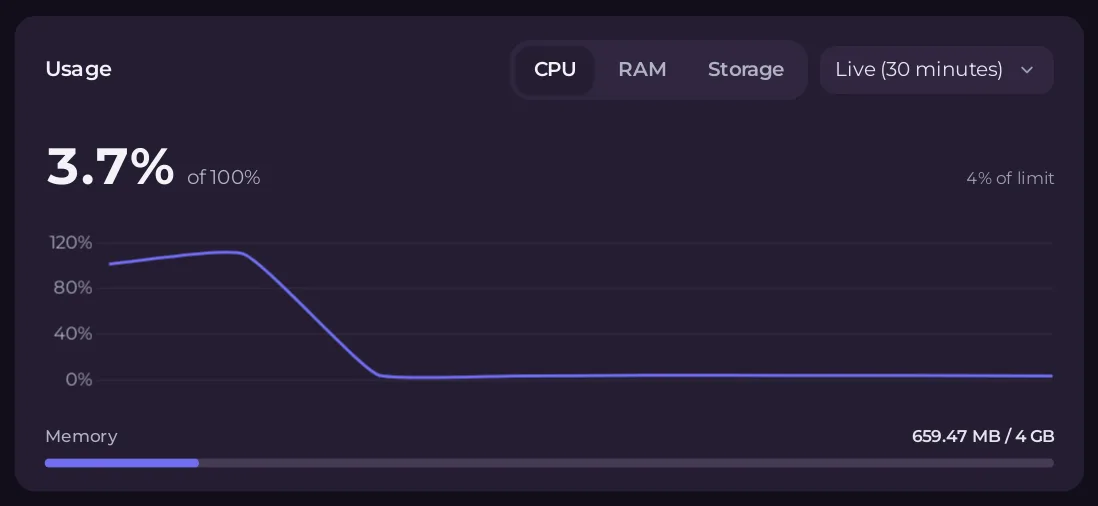
On Overview, the Usage card shows CPU, Memory and Disk. Read it while players are on: an empty server tells you little. See How to read your server's usage graphs.
Settings that help (Terraria Vanilla)
In Settings, Game Settings, then restart:
- Slow liquids: fewer liquids move at the same time, which can stop lag around big water or lava builds. Liquids then take longer to settle.
- NPCStream: reduces enemies appearing to skip across the screen, at the cost of extra bandwidth. Lower values are smoother,
0turns it off, which is the default.
In the Console, settle settles all water at once, for example after draining a lake.
On TShock
On the config.json page: Enemies per player and Enemy spawn delay set how many enemies spawn around each player. Fewer enemies means less work: How to change TShock settings on your Terraria server. Plugins add work too: remove the ones you do not use: How to upload or remove a TShock plugin.
On tModLoader
Big content mods need far more memory than the plain game: the panel says several GB for mods such as Calamity. Remove mods you do not play with: How to update or remove tModLoader mods on your server.
Habits
- World size: a large world takes longer to generate and uses more disk. Pick the size you need when you make a world.
- Restart now and then, at a quiet hour: How to schedule backups and restarts for your Terraria server.
- Keep the server on the newest version, which also gets the game's own fixes: How to update your Terraria server and hold a version.
Memory in detail: How much RAM does a Terraria server need?





