

Most Space Station 14 server problems on PlayNHost come from three things: the address was pasted without its port, a typing mistake in server_config.toml, or a server that was never set to advertise on the public hub. Each problem below starts with the most likely cause and its fix.
The server never reaches Online
The badge turns Online only when the Console prints the line that starts with Server Version and ends with -> Ready.
- Open the Console tab and read the last lines. If new lines still appear, the server is working: wait.
- If you see
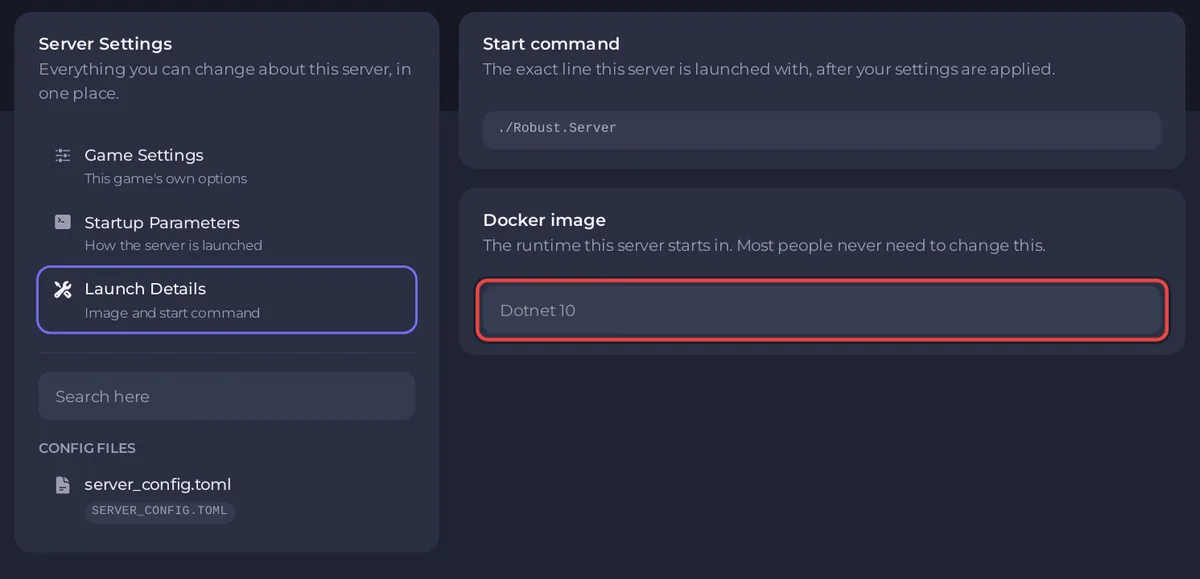
You must install or update .NET to run this application., open Settings and click Launch Details. Docker image should say Dotnet 10, the only runtime offered for Space Station 14: current builds need .NET 10. If it shows an older one with the note "This server's image was set by an administrator and cannot be changed here.", ask support through the website chat or a ticket to move it to Dotnet 10. - If the server stops right after you edited
server_config.toml, the file most likely has a typing mistake. Open it under Files and check your last change: text values need double quotes on both sides, and a comment needs its own line starting with#(the official guide warns that comments "NEED their own line"). If you cannot find the mistake, restore the file from a backup. - Server name under Settings, Game Settings cannot contain a double quote (
") or a backslash (\): the panel refuses both, because the name goes between double quotes inserver_config.toml. If an older name still has one, remove it there and start again.
The general checklist: How to fix a server that will not start.
The launcher says Failed to connect to server!
- Port missing. Paste the full Server Address from the Overview page, with the part after the colon. Without a port the launcher tries 1212, Space Station 14's default, which is not your server's port.
- Not ready yet. The badge must say Online and the Console must show the
-> Readyline. - Address typed by hand. Copy it with the copy icon next to Server Address instead.
The steps: How to join your Space Station 14 server.
Players see The server is full!
The server is full! is the game's message for its soft player cap, soft_max_players in server_config.toml, which admins do not count toward. The panel sets that line to Slots before every start, so the message means the players who are not admins have filled every slot. Raise Slots on the Overview page, up to your plan's cap: How to change the player limit on your Space Station 14 server.
A player sees Not whitelisted: You are not allowed to join this server.
The whitelist is on (enabled = true under [whitelist] in server_config.toml) and the player is not on it. This can happen to you too: a host from login_host_user is not a saved admin rank, so the whitelist applies to you until you have a rank or are on the list. Add the player with whitelistadd and their username, or turn the whitelist off: How to control who can join your Space Station 14 server.
The server is not in the launcher's Servers list
A new server does not advertise itself: the official config file ships with advertise = false under [hub]. Set it to true and restart: How to list your Space Station 14 server on the public hub. If the Console then shows Unable to contact status address, the hub could not reach the server from the internet. Check that the server is Online and that you did not change the [status] lines; if the message stays, open a support ticket.
My changes to server_config.toml were undone
Before every start, the panel rewrites six lines of server_config.toml from your settings: port, hostname, tickrate, max_connections, soft_max_players and mode. Change those in the panel instead:
| Line in the file | Where to change it |
|---|---|
hostname | Server name under Settings, Game Settings |
tickrate | Server tickrate under Settings, Game Settings |
mode | Authentication under Settings, Game Settings |
max_connections | Slots on the Overview page |
soft_max_players | Slots on the Overview page |
port | Fixed to your server's port |
Every other line stays as you saved it.
Authentication does nothing
The panel can only set Authentication if server_config.toml has a mode line under an [auth] header. PlayNHost adds it when the server is installed. If you replaced the file, with one from your PC or another host for example, add these two lines at the end of it and restart:
[auth]
mode = 1
I lost admin after a restart
The official guide calls promotehost temporary. For lasting admin, set login_host_user or give yourself a rank in the game's permissions panel: How to become admin on your Space Station 14 server.
A restart ended the round
That is normal. Space Station 14 plays in rounds, and a round lives in the server's memory. A stop or restart ends the round in progress. Saved data such as characters and playtime is kept in the server's database in the data folder. Plan restarts for a quiet hour: How to restart your Space Station 14 server every day.
Memory use keeps going up
PlayNHost measured about 700 MB on an empty Space Station 14 server in the first 90 seconds after a start. A full station uses more, and PlayNHost has not measured how use changes over many hours. Watch the RAM graph on the Overview page across a day; if it keeps rising, a restart at a quiet hour starts the server fresh. Lowering Server tickrate to 30 also lowers the load: How much RAM does a Space Station 14 server need?
Short answers to other questions: Space Station 14 server FAQ.


