

To join a Space Station 14 server on PlayNHost, copy the Server Address from the server's Overview page, open the Space Station 14 launcher, click Direct connect to server on the Home tab, paste the address with its port and click Connect. With the default settings, you must be signed in to a Space Station 14 account.
How do I join from the Space Station 14 launcher?
- Open your server in the panel. If the badge says Offline, click Start and wait until it says Online.
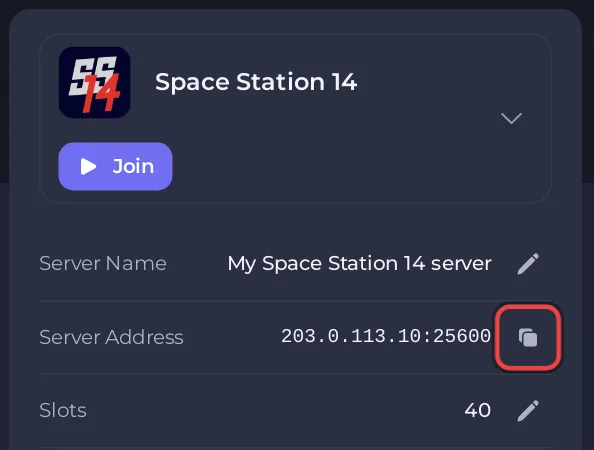
- On the Overview page, click the copy icon next to Server Address. It looks like
203.0.113.10:25600, with your own numbers. The Join button at the top of the card copies the same address. - Open the Space Station 14 launcher and click Log in with your Space Station 14 account. No account yet? Click Don't have an account? Register! on the same screen.
- On the Home tab, click Direct connect to server.
- In the Direct Connect window, paste the whole address, the part after the colon included.
- Click Connect. The launcher downloads the game files this server runs, then starts the game and puts you in the lobby.
The steps follow the launcher's own buttons and the official server hosting guide, which calls this "Direct Connect To Server".
Why must the port be in the address?
Space Station 14's default port is 1212. Your PlayNHost server has its own port, shown after the colon in Server Address. Without it, the launcher tries port 1212 and cannot find your server. The launcher also accepts the address written as ss14://203.0.113.10:25600.
How do I save the server so I do not type it again?
- On the launcher's Home tab, click Add favorite.
- In the Add Favorite Server window, type any name in Name: and paste the Server Address in Address:.
- Click Add. The server now shows under Favorite Servers on the Home tab.
Why is my server not in the launcher's Servers tab?
The Servers tab lists servers that advertise themselves to the public hub. A new server does not: the official config file ships with advertise = false. Direct connect and favorites work without it. To be listed, see How to list your Space Station 14 server on the public hub.
Do players need an account or the right game version?
- Account: with Authentication at
1, the default on PlayNHost, every player needs a free Space Station 14 account, made in the launcher or on spacestation14.com. To allow guests, see How to control who can join your Space Station 14 server. - Version: nobody has to match versions by hand. The server tells the launcher which game build it runs, and the launcher downloads that build before it connects.
- Platform: the launcher runs on Windows, Linux and macOS, and the Steam playtest is the same game. There is no console version.
What if the launcher says Failed to connect to server!?
Check that the badge says Online and the Console shows the -> Ready line, then check that you pasted the port. More causes: Space Station 14 server problems and fixes.


