

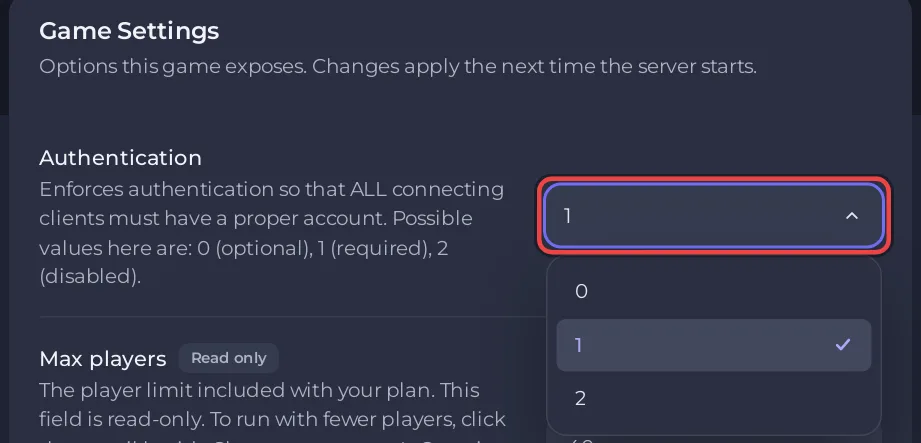
To control who can join a Space Station 14 server on PlayNHost, use Authentication under Settings, Game Settings: 1 requires a Space Station 14 account, 0 also lets guests in, 2 turns account checks off. To allow only chosen players, turn on the whitelist in server_config.toml and add each player by username. Space Station 14 has no join password.
How do I change Authentication?
- Open your server in the panel and click the Settings tab.
- Click Game Settings.
- Open the dropdown next to Authentication and pick
0,1or2. It saves as soon as you pick. - When the panel says "Saved. The server must restart before these take effect.", click Restart now.
| Value | Meaning in the game's own words | Who can join |
|---|---|---|
0 | optional | Players with an account, and guests without one |
1 | required (the PlayNHost default) | Only players signed in to a Space Station 14 account |
2 | disabled | Anyone, under any username they type, with no account check at all |
The official hosting guide describes 1 as "Enforces authentication so that ALL connecting clients must have a proper account. Otherwise, guest logins are allowed."
Which Authentication value should I use?
Keep 1. Space Station 14 is free, so anyone can download it, and an account check proves that a player really owns the username they connect with. With 1, login_host_user admin is also safe, because nobody else can connect under your username: How to become admin on your Space Station 14 server.
Avoid 2. With account checks off, the engine takes whatever username a player types, so anyone can join under your name or an admin's, and login_host_user would hand them full control. With 0, players without an account join with guest@ in front of their name, so they cannot take an account's name.
How do I let only my friends in?
Turn on the whitelist. The official config file says "If this is true, only players on the whitelist will be able to connect to the server" and "Use the whitelistadd and whitelistremove commands to manage the whitelist." Add the names first, yourself included, then switch the whitelist on.
- Join the server as host: How to become admin on your Space Station 14 server.
- In the game's own console, add yourself and each friend with
whitelistaddand their Space Station 14 username, for examplewhitelistadd FriendName. The game answersFriendName added to the whitelist. - In the panel, click the Files tab, then click
server_config.toml. - Find the
[whitelist]section and changeenabled = falsetoenabled = true. - Click Save content, then click the arrow next to Stop and choose Restart.
The panel's Console may also accept these commands, but PlayNHost has not yet tested typed commands there on a Space Station 14 server. Remove someone later with whitelistremove and their username.
Admins with a saved rank from the game's permissions panel can always join. A host from login_host_user alone is not a saved rank, which is why step 2 adds your own name. A player who is not on the list is refused with Not whitelisted: You are not allowed to join this server.
How do I remove everyone who is not on the whitelist?
As an admin, type kicknonwhitelisted in the game's console. The game describes it as "Kicks all non-whitelisted players from the server."
Can I set a password instead?
No. The official config file of Space Station 14 has no server password setting. Use Authentication at 1 with the whitelist, or keep the server off the public list so only people with your address find it: How to list your Space Station 14 server on the public hub.
Other settings: Space Station 14 server settings reference.


