

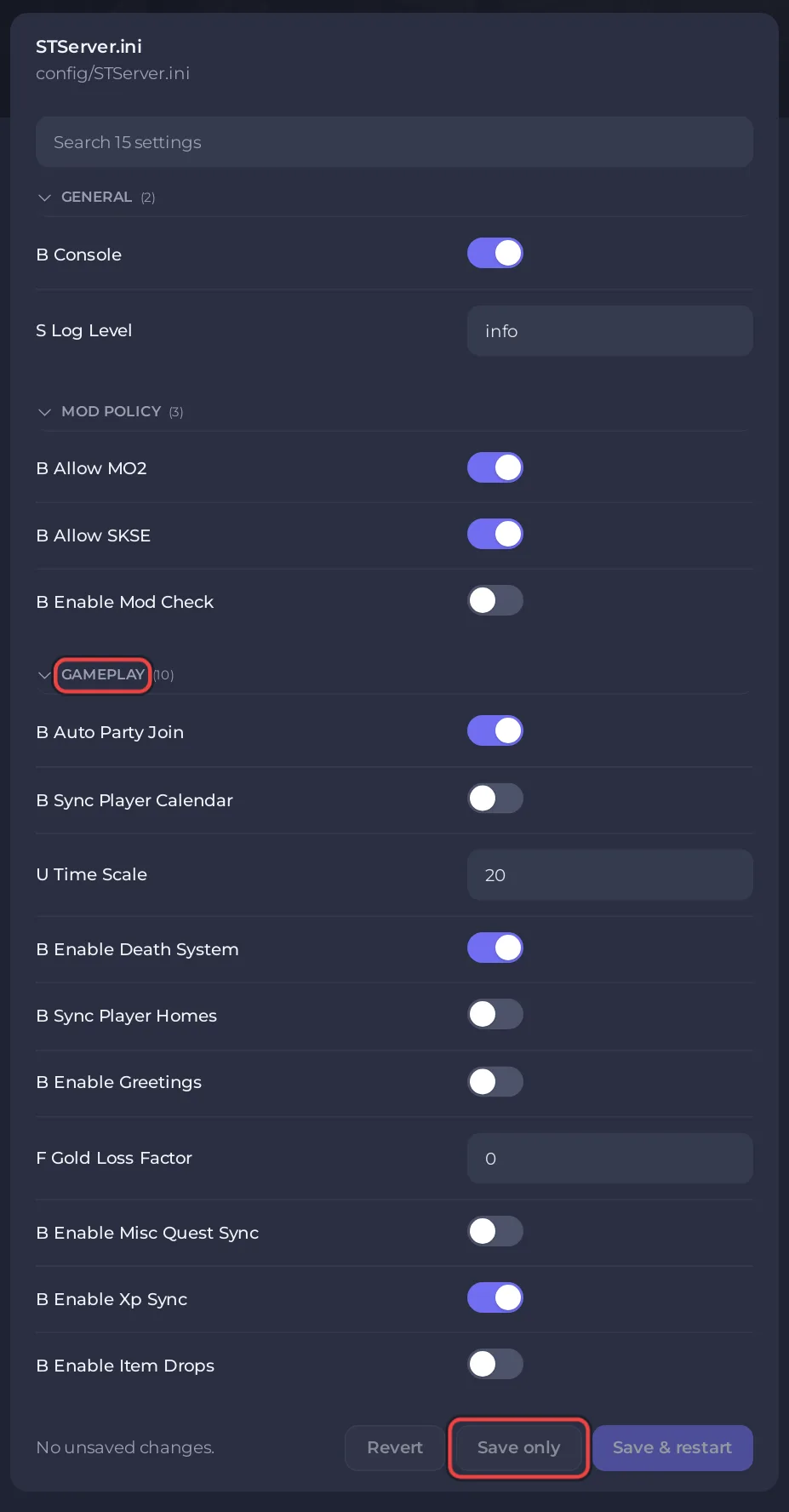
To change advanced gameplay options on a Skyrim Together Reborn server on PlayNHost, stop the server, open Settings, Config files, STServer.ini, change the row, click Save only and start the server. Stop it first, as the official configuration page asks: a running Skyrim Together server can write its own settings back into STServer.ini.
How do I change an option?
- Open your server in the panel and click Stop. Wait until the badge says Offline.
- Click Settings. Under Config files, click STServer.ini.
- Find the row. The rows keep the file's own names, split into words:
uTimeScaleshows as U Time Scale,bEnableXpSyncas B Enable Xp Sync. The search box above the list finds a row by name. - Change it. True or false options are switches; numbers are number boxes.
- Click Save only. The panel says
Saved. Changes take effect the next time the server starts. - Click Start on Overview.
Why must the server be stopped?
The official server configuration page says: "For changes in the STServer.ini to take effect, the server needs to be shutdown, otherwise none of the changes will apply and will be overridden with the settings the server know of, when it shuts down again." In the Skyrim Together Reborn 1.8.4 code, a running server writes its settings into the file when a Console command follows a /set command, and when it is stopped with /quit, which would undo an edit saved while it runs. With the server Offline, nothing can overwrite your change. PlayNHost has not tested Save & restart on a running Skyrim Together server, so use Save only on a stopped one.
What does each option do?
The rows below are the ones the list shows. Server name, passwords, player limit, tick rate, listing, difficulty and PvP are not in this list: they are on Game Settings, and the panel writes them into this file at every start. See How to change your Skyrim Together server settings.
GAMEPLAY
| Row | File name | New server | What it does |
|---|---|---|---|
| U Time Scale | uTimeScale | 20 | How many seconds pass in game for every real second, 0 to 1000. |
| B Enable Xp Sync | bEnableXpSync | on | Shares combat skill XP within the party. |
| B Enable Death System | bEnableDeathSystem | on | Skyrim Together's own death system: a player who dies respawns instead of loading a save. |
| F Gold Loss Factor | fGoldLossFactor | 0 | Share of gold a player loses on death, 0 to 1. 0 means no loss. |
| B Sync Player Homes | bSyncPlayerHomes | off | Syncs chests and displays in player homes. |
| B Enable Greetings | bEnableGreetings | off | Lets NPCs greet players as they walk past. |
| B Enable Item Drops | bEnableItemDrops | off | Syncs items dropped in the world. |
| B Enable Misc Quest Sync | bEnableMiscQuestSync | off | Tries to sync miscellaneous quests too. Experimental. |
| B Sync Player Calendar | bSyncPlayerCalendar | off | Puts every player on the same date. |
| B Auto Party Join | bAutoPartyJoin | on | Players join the party by themselves when there is only one. |
What the mod team says about the options you are most likely to change:
- Time scale: the server's own description adds: "Changing this can make the game unstable". A value above 1000 is refused at start and set back to 20.
- Death system: the official features page describes the respawn: outside, the player respawns nearby; in a dungeon or other interior, at its entrance. The configuration page says it "should ONLY be turned off if you know what you're doing, and if you have a suitable death mod that replaces the mechanics. Reloading old saves every time you die will cause issues."
- Player homes: off on purpose, "so that players can use their homes to safely dump items in their chests as a form of long term storage."
- Item drops: "Dropping items has caused crashes in the past", so the team recommends keeping it off.
- Calendar: with it on, the Console warns
Calendar sync is enabled. We generally do not recommend that you use this feature.It uses "the date of the player with the furthest ahead date at connection". - Auto party join: it only works on a server that is not listed in Public servers. With Announce Server on, the Skyrim Together Reborn 1.8 server switches it off, and players join the party when the leader invites them from the player list.
MOD POLICY
B Allow MO2, B Allow SKSE and B Enable Mod Check decide which players may join with Mod Organizer 2, Skyrim Script Extender or a different mod list. They have their own guide: How to make everyone use the same mods on your Skyrim Together server.
GENERAL
- B Console: keep it on. The panel's Console and the Grant Admin task on Quick Tasks send commands through it.
- S Log Level: the configuration page says "This option currently does not work."
How do I set gold loss to a decimal like 0.05?
Use Files, not the settings list: the number box for F Gold Loss Factor takes whole numbers only, so a typed 0.05 loses its dot.
- Stop the server and wait for Offline.
- Click Files, open the
configfolder and clickSTServer.ini. - Find the line
fGoldLossFactor=0and change it, for example tofGoldLossFactor=0.05for 5% of a player's gold on each death. - Click Save content, then start the server.
More on the file editor: How to upload, edit and manage your server files.
Can I change these with a command instead?
Skyrim Together has a /set command, and /help lists the setting names it takes. The list in the panel is simpler and shows the value the server will use. The three mod policy rows are locked against commands: /set answers Failed apply value: setting is locked, so they change only in the file. See How to use the Console and commands on your Skyrim Together server.
How do I undo a change?
Set the row back to the value in the New server column above, with the server stopped. A backup from before the change also has the old file: How to back up and restore your Skyrim Together server.


