

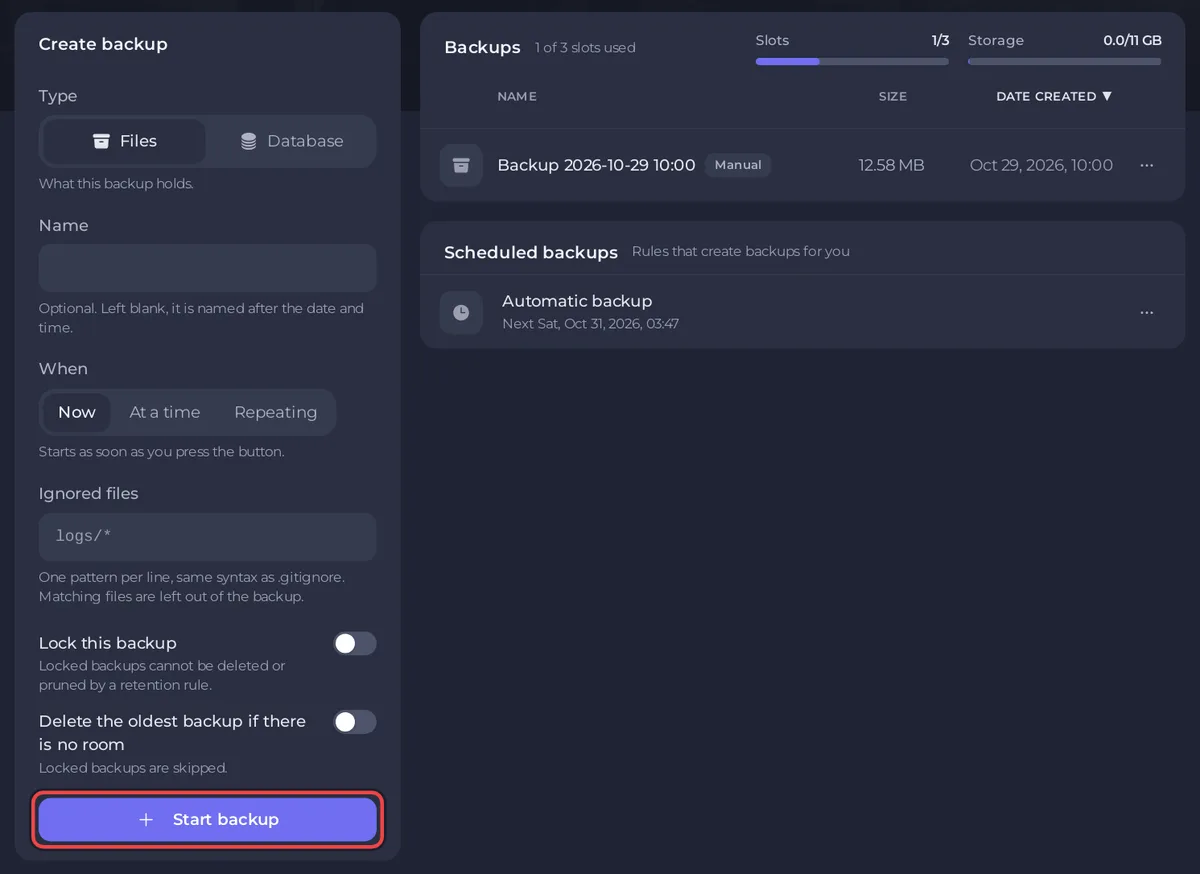
To back up a Skyrim Together Reborn server on PlayNHost, open Backups in the left menu and click Start backup in the Create backup card. A backup holds the server's folder: the server program, STServer.ini with your settings and the Data folder. Characters and quest progress are not in it, because they live in each player's own Skyrim saves.
How do I take a backup now?
- Open your server in the panel and click Backups in the left menu.
- In the Create backup card, give the backup a Name if you like. Left blank, it is named after the date and time.
- Tick Lock this backup if it must never be deleted by the rotation.
- Click Start backup. It appears in the list when it is done.
Take one before you change STServer.ini, or turn on the mod check. Update and reinstall takes a backup by itself, named "Automatic - before update and reinstall".
What is in a Skyrim Together backup?
The whole server folder:
- the Skyrim Together server program, at the version your server runs,
config/STServer.ini, with every setting, including the extra options such as time scale and the death system,- the
Datafolder, withloadorder.txtif you use the mod check, - the server's
logsfolder.
Not in it: characters. The Skyrim Together server stores no characters, inventories or quests. Each player's progress is in the Skyrim saves on their own PC, so each player backs up their own saves. The official play guide advises to "save often" and to leave auto saving on, especially before scripted events and before finishing a quest.
Does the server back itself up?
Yes, when your plan has backup slots. The panel adds an Automatic backup schedule, which "Takes a full backup of your server every night". It runs once a night, also when the server is stopped. When your backup slots are full, the oldest unlocked backup makes room for the new one. Choose Lock in a backup's menu to keep it for good.
You can change when it runs on Backups, under Scheduled backups, with Edit. It also shows on Quick Tasks, under Schedules. More: How to schedule tasks and automatic backups.
How do I restore a backup?
- On Backups, open the menu of the backup you want.
- Click Restore to server.
- Leave Delete files that are not in the backup on, unless you are recovering a single file.
- Click Restore backup.
The server stops while the files are replaced, and players are disconnected. When it is done, start the server and check the settings. A restore puts back the server's settings, mod list file and server version from the day of the backup. It does not touch anyone's characters.
Can I download a backup?
Yes: Download in the backup's menu saves it to your PC as one archive. More on all backup actions: How to create, download and restore backups.
Can I move my existing Skyrim Together server to PlayNHost?
There is no world to move. To keep your old settings, copy the values from your old STServer.ini into Game Settings and STServer.ini in the panel, as shown in How to change your Skyrim Together server settings and How to change advanced gameplay options on your Skyrim Together server. Players keep playing with their own saves. You can also upload your old STServer.ini into the config folder under Files while the server is stopped: at the next start the panel writes its own port, player limit and Game Settings values over those rows, and the other rows keep your old values.


