

 MINECRAFT HOSTING
 GAME SERVERS
 Game Panel
Payments are made inside the panel, by card or by a wallet such as Apple Pay or Google Pay. Card details are entered in a secure form from our payment provider, Stripe, and never touch PlayNHost servers.
Pay for an order
- Finish the steps in How to order your first game server. On the review page, under How you will pay, choose your account balance, a saved card, or A different card or wallet.
- Click Place order and pay. A payment window opens. If you have no saved card, it shows Apple Pay and Google Pay where your device supports them, and the card fields: card number, expiry date, security code and country.
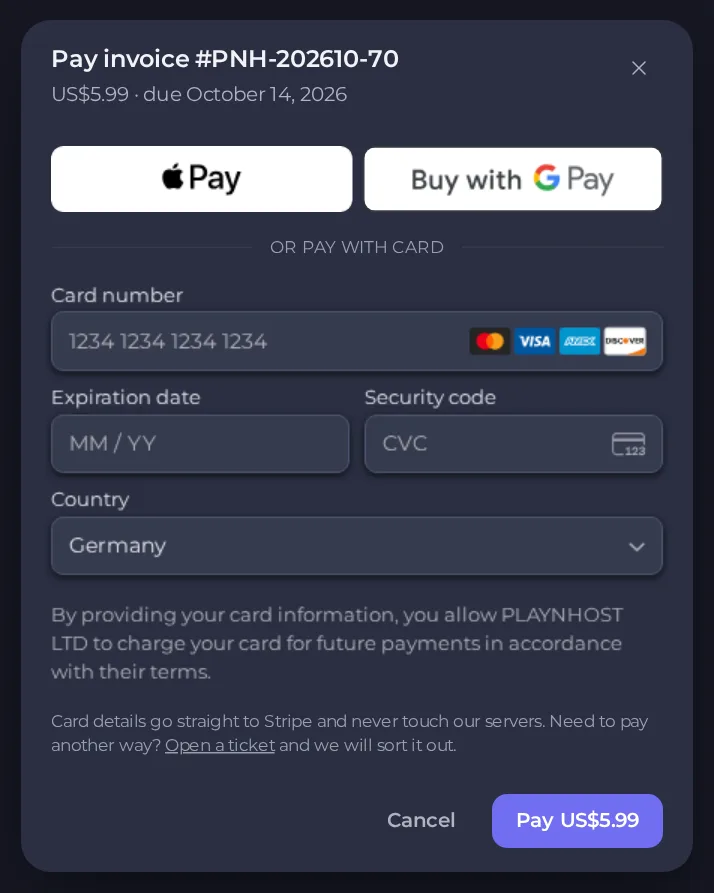
- Click Pay. The button shows your total. Do not close the window until it confirms.
Cards and wallets you pay with here are kept for your renewals, and the form tells you so. Renewals then pay themselves on the due date. You can remove a saved method under Account, then Payment methods. If you close the payment window, the order page keeps a Pay button and the invoice stays on the Billing page, so you can pay later.
What happens after payment
- The panel follows your order and shows its progress.
- Your server is created and its game is installed. This is usually quick. Games with very large downloads take longer.
- You receive an email saying your server is ready. It will also appear on the My servers page.
- Open the server. If its status badge says Offline, press Start to boot it.
Next, find your address in How to join your server.
If something looks wrong
- The payment succeeded but no server appears. Wait a few minutes and refresh My servers. If the order page still shows no server after a good while, open a ticket with your invoice number. See How to open a support ticket.
- The payment was declined. Check the card details and that your bank allows online payments, or try a different card or a wallet.
- You were charged twice. Open a ticket with both invoice numbers and we will look into it.
- You want to pay another way. Open a ticket and we will arrange it.
Where to find your invoice
Every payment creates an invoice. Open Billing in the panel to see and download it. See How to view, pay and download your invoices.





