

 MINECRAFT HOSTING
 GAME SERVERS
 Game Panel
Players join your server with its Server Address. It is shown on the Overview page of your server in the panel and looks like 203.0.113.10:25565: an IP address, a colon and a port number. You do not need to forward any ports or change any router settings. The address is public from the moment the server is running.
Find and copy your address
- Open panel.playnhost.com and click your server.
- Make sure the status badge near the top says Online. If it says Offline, click Start and wait until the console shows the server has finished loading.
- On the Overview page, find Server Address and click the copy icon next to it. The address in the picture below is an example.
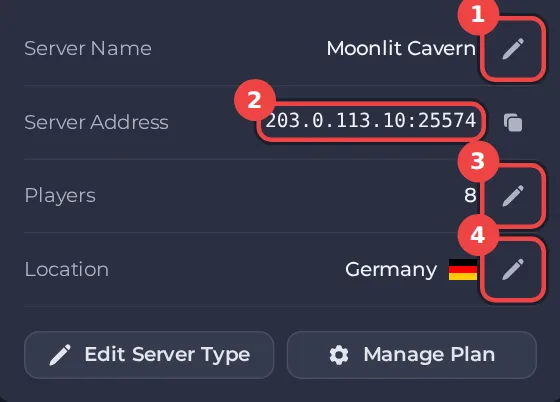
You can also find the same address on the Ports & Network page under "Give this to your players".
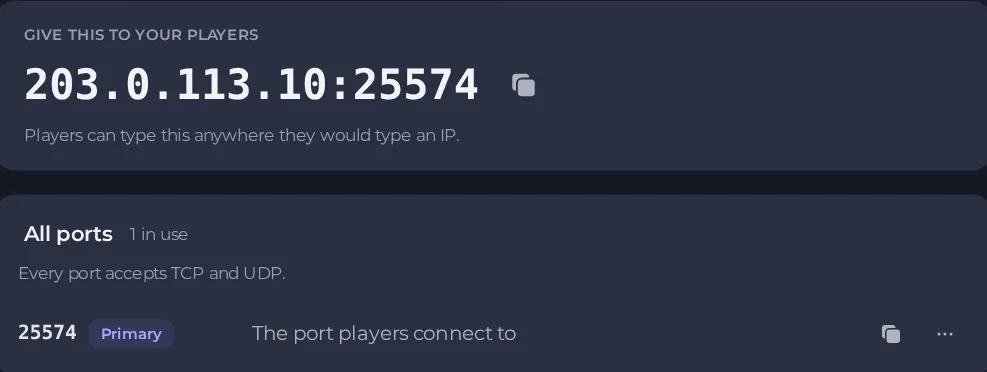
Give it to your players
Send the whole address, including the colon and the port. Players paste it into the game wherever it asks for an IP address or server address. Games differ in where that is, so each game's guide in this knowledge base shows the exact menu. Many games accept the address and port in one box, while others have a separate port field. If a game has two boxes, the number after the colon goes in the port box.
If the server has a password
Set it in the server's Settings, under Game Settings, if the game supports one. Players type it when they join. The setting's name differs between games, so check your game's guide.
If nobody can join
Work through these in order. Most problems are one of the first three.
- The server is offline. Check the status badge. A server that is stopped, starting or crashed cannot be joined.
- The address is wrong. Copy it again from the panel. A missing port or a mistyped digit is the most common cause. If you ever add or remove a dedicated IP, the address changes. See How to find and change your server's ports and IP address.
- The game version does not match. The server and every player must run the same version, and mods must match too. Games that update often, such as Terraria, refuse players on an older build.
- Password or whitelist. Check the password is typed exactly, and that player names are on the whitelist if the game uses one.
- A ban. A player may be on the server's ban list.
- Player limit. Your plan sets how many players can be connected at once.
- Restart once. Stop the server, wait until it is offline, then start it again. See How to start, stop, restart and force-stop your server.
Still stuck? Open a ticket and include the last lines of your console. See How to open a support ticket.





