

Most of what you want to change on an Enshrouded server is on one page of the panel.
Open Game Settings
- Open your server in the panel and click the Settings tab.
- Click Game Settings.
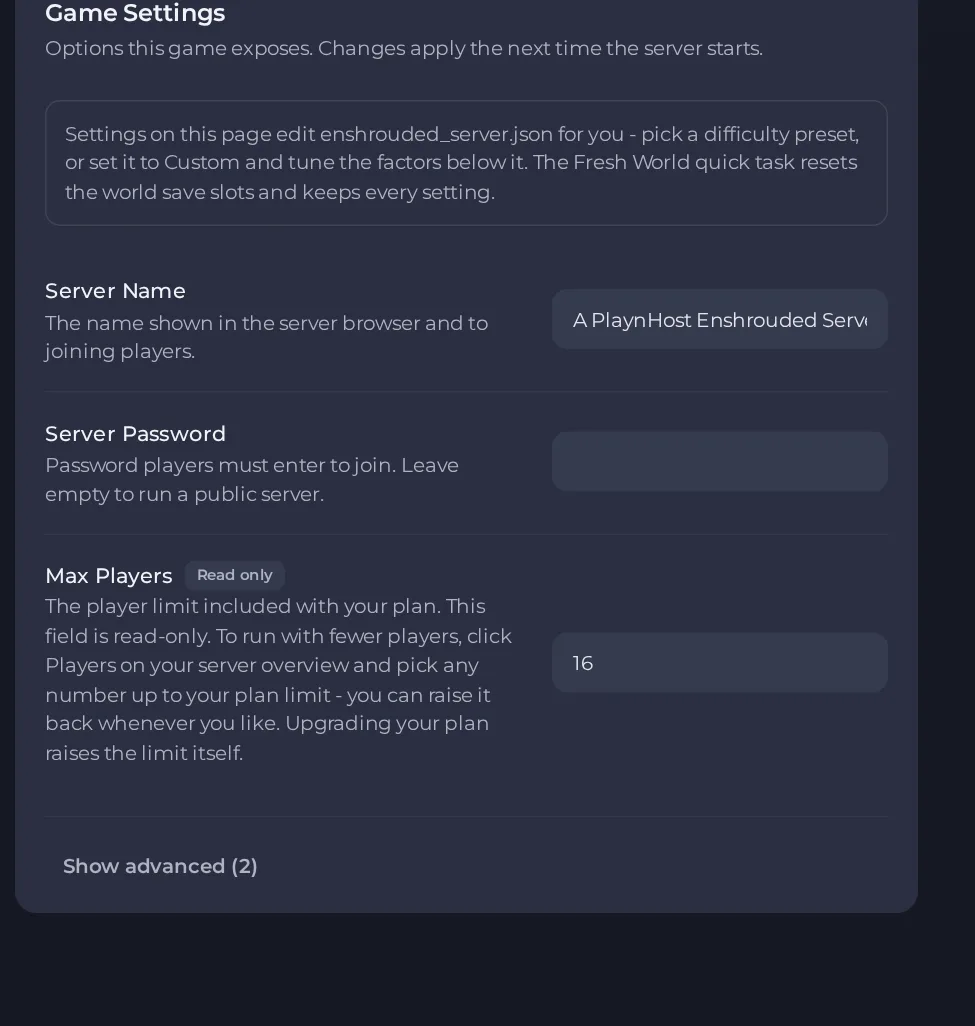
- Change a value and click outside the field, or press Enter. The panel saves it. Switches save as soon as you flip them.
- Restart the server so the change takes effect. See How to start, stop, restart and force-stop your server.
Options most owners change first
- Server Name. The name shown in the server browser and to joining players; pick something other players can find easily and that is not offensive, since everyone can see it.
- Server Password. A password set here lets players in with Friend permissions. Admin rights come only from the Admin role password in enshrouded_server.json in Files. Leave it empty if you want players to use the role passwords only.
- Max Players. Read-only and set to your plan's limit; the game allows 1 to 16 slots. To run with fewer players use Players on the server Overview page (this restarts your server), and upgrade the plan to raise the limit itself.
- Auto Update. Updates the game files from Steam each time the server starts.
- Validate. Re-checks every server file against Steam on the next start; slower to start, use it if files look corrupted.
- Difficulty preset (config file). The game's own difficulty presets are Default, Relaxed, Hard and Survival. Set gameSettingsPreset in enshrouded_server.json to one of them. Choosing Custom unlocks a long list of individual gameplay settings such as enemy health and damage, day and night length, resource gain and tombstone mode, which then go in the gameSettings block of the same file. These are edited in the config file, not in the panel's settings.
- Voice and text chat (config file). Voice chat and text chat are both off by default. In enshrouded_server.json, set enableVoiceChat and enableTextChat to true to switch them on. voiceChatMode can be Proximity or Global.
Server Name, Server Password, Max Players and the ports are written into the server's config file every time the server starts, so change them in the panel and restart. Anything you type over those values in the file is overwritten at the next start. Edit the other settings in the config file (enshrouded_server.json in Files) only while the server is stopped, then start it again.
Every option is listed in Enshrouded server settings: every option explained.





