

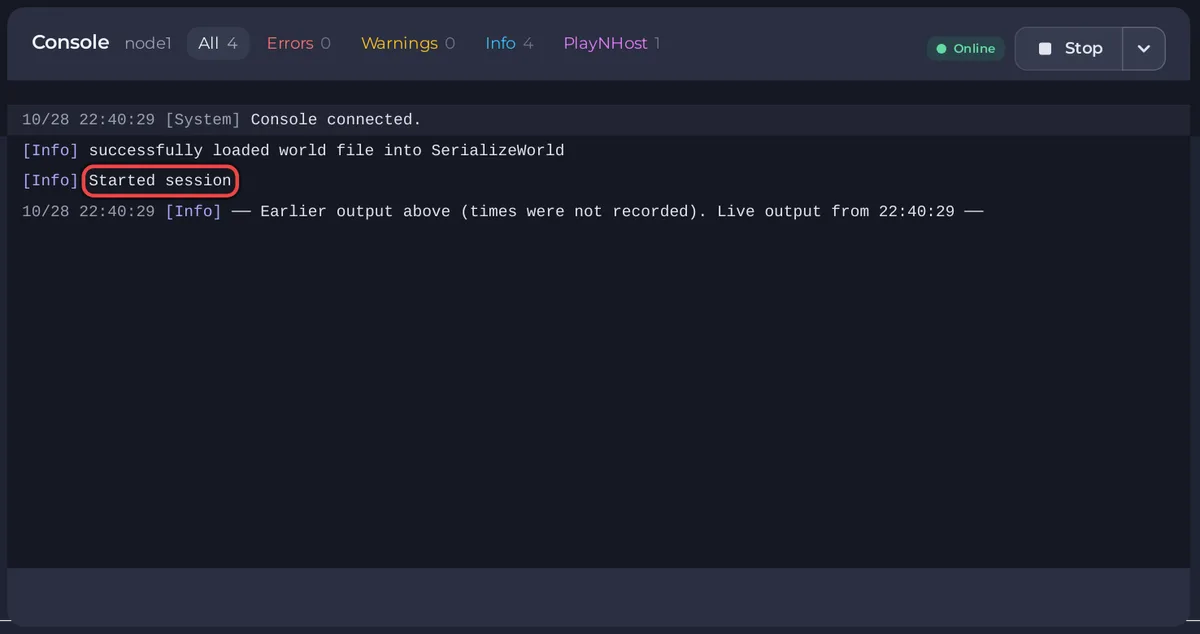
The Console tab of a PlayNHost Core Keeper server shows the game's log as the server writes it. Use it to see when the server is ready, when players join and leave, and what went wrong. The panel shows no command box there for Core Keeper, because its server reads no console input.
Which Console lines matter?
| Line contains | What it means |
|---|---|
Started session | The server is up. The badge turns Online, and the Steam Game ID row shows on Overview. |
[userid: and a number | A line about a player, for example joining or leaving. |
On the first start, the game also prints the Game ID it made. The easier place to copy it is Overview: How to find your Core Keeper Game ID.
The panel leaves out most of the game's technical lines, so the Console stays readable.
How do I find a line in the Console?
- Click the Console tab of your server in the panel.
- Click Errors or Warnings to narrow the output.
- Type a word in Search output..., for example
useridfor player lines orStarted sessionfor the ready line. - Use Download log or Share log in the console's menu to save the log or make a link to send to support.
General help for other games: How to use the console and run commands.
Why is there no command box in the Console?
The Core Keeper server reads no console input, so the Console tab only shows the log and Quick Tasks does not offer Send Command for it. Admin actions, such as banning a player, are done in the game's pause menu: How to kick and ban players on your Core Keeper server.
What do I send support when something is wrong?
- Copy the last 50 to 100 lines into a ticket: How to open a support ticket.
- The server never gets to
Started session: Your Core Keeper server is stuck on starting.


