

 MINECRAFT HOSTING
 GAME SERVERS
 Game Panel
Two-factor authentication (also called two-step verification) asks for a code from an app on your phone each time you sign in, on top of your password. A stolen password alone is then no use to anyone.
What you need
- A phone with an authenticator app, such as Google Authenticator, Microsoft Authenticator, Authy or 1Password
- Your account password
Turn it on
- Open the panel, click Account, then Security in the left menu.
- Next to Two-factor authentication, click Set Up.
- The window Enable two-step verification shows a QR code. Open your authenticator app and scan it. If you cannot scan, the window also shows the same secret as text that you can type into the app.
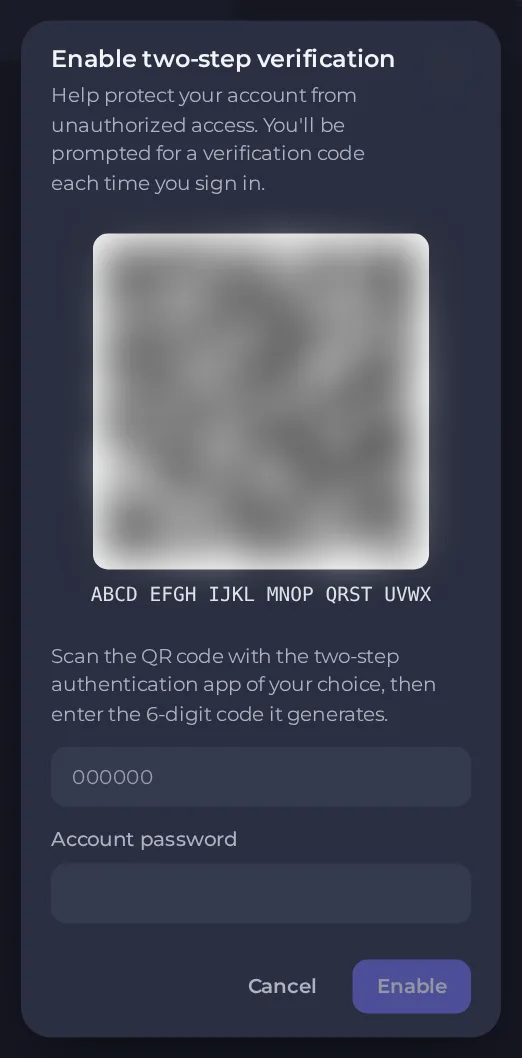
- Your app now shows a 6-digit code that changes every 30 seconds. Type the current code into the field.
- Enter your Account password.
- Click Enable.
Save your recovery codes
After you enable it, a window titled Two-step authentication enabled shows a set of backup codes.
These codes are shown once and cannot be shown again. Store them somewhere safe, such as a password manager, before you click Done.
If you lose your phone, you can use one of these codes instead of an app code to sign in.
Sign in with two-factor
- Sign in with your email and password as usual.
- When asked, type the 6-digit code from your app. Use a recovery code instead if you do not have your phone.
If you lose your phone and your recovery codes
Open a ticket in the category Account & login from another device you are signed in on, or contact support with the email address of the account. We will ask you to prove it is yours before we remove two-factor. See How to open a support ticket.
Because losing both can lock you out, saving the recovery codes is the most important part of setting this up.
Require two-factor for people you invite
If you share a server, you can require everyone on the team to use two-factor as well. See How to invite friends and give them access.
Good to know
- Your authenticator codes depend on your phone's clock being right. If codes are rejected, set the phone's time to automatic.
- Moving to a new phone? Transfer the app's accounts before you wipe the old phone, or use a recovery code.





