

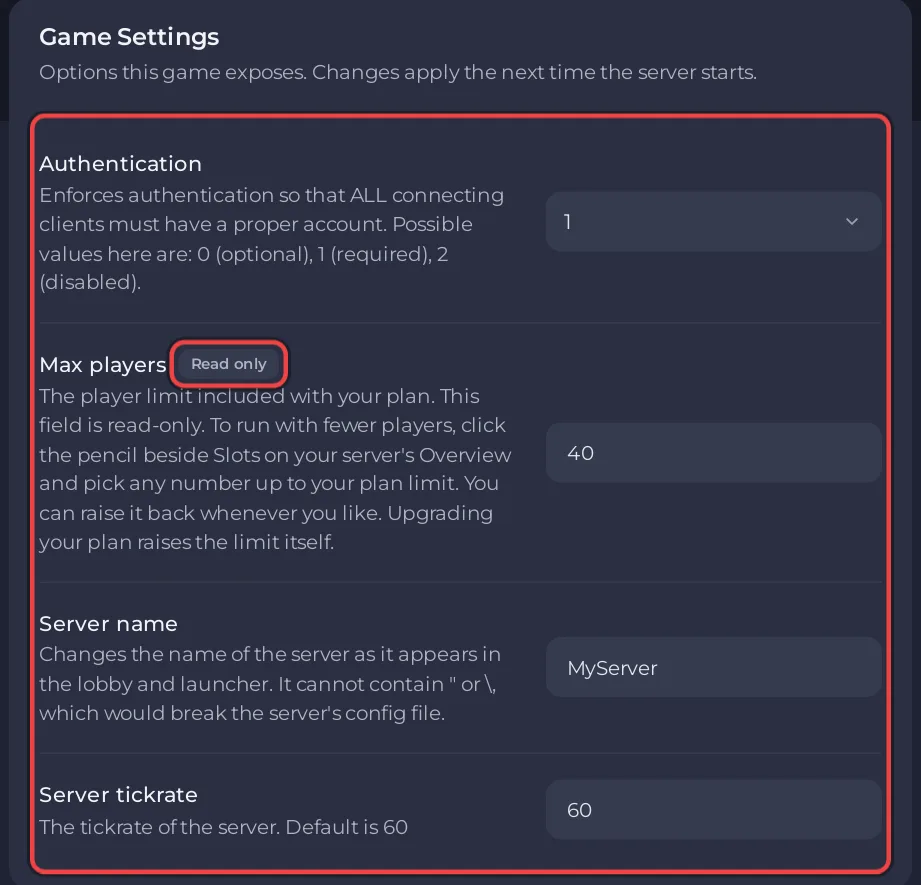
A Space Station 14 server on PlayNHost has four settings under Settings, Game Settings: Authentication, Max players, Server name and Server tickrate. The panel writes them into server_config.toml before every start. Everything else lives in that same file, which you edit under Files, and the server reads it when it starts.
What is on the Game Settings page?
- Open your server in the panel and click the Settings tab.
- Click Game Settings in the list on the left.
- Change a value. A text or number field saves when you press Enter or click elsewhere; a dropdown saves as soon as you pick.
- Click Restart now when the panel asks, so the server reads the new values.
| Setting | Default | Allowed values | Line in server_config.toml |
|---|---|---|---|
| Authentication | 1 | 0 optional, 1 required, 2 disabled (anyone can use any username) | mode under [auth] |
| Max players | your plan's cap | Read only here: change it with Slots on the Overview page | max_connections under [net] and soft_max_players under [game] |
| Server name | MyServer | up to 48 characters, without " or \ | hostname under [game] |
| Server tickrate | 60 | 1 to 80 | tickrate under [net] |
The panel also writes your server's port into port under [net]. Those six lines are rewritten before every start, so change them here, not in the file. The description under Max players says: "To run with fewer players, click the pencil beside Slots on your server's Overview and pick any number up to your plan limit."
More on each: How to control who can join your Space Station 14 server, How to change the player limit on your Space Station 14 server, How to change your Space Station 14 server name and description.
What tick rate should I use?
30. The official config file says "30 is what most servers on the hub use and going higher has minimal effect", and the official hosting guide says that lowering it to 30 "is basically unnoticeable but reduces server, client and network load dramatically". A new PlayNHost server starts at 60, so setting Server tickrate to 30 is a good first change.
What are Startup Parameters and Launch Details?
- Startup Parameters: Space Station 14 takes no extra launch flags. The panel says "This game does not take extra launch flags. Its start command is fixed and is built from your Game Settings, so change those instead."
- Launch Details: shows the Start command,
./Robust.Server, and the Docker image, Dotnet 10. It is the only runtime offered for Space Station 14, because current builds need .NET 10, so there is nothing to pick.
Why does server_config.toml say it is not editable here yet?
Under Config files on the Settings page, server_config.toml shows "server_config.toml is not editable here yet". Edit it in the file manager:
- Click the Files tab.
- Click
server_config.tomlin the main folder. - Change the line you want, then click Save content.
- Click the arrow next to Stop and choose Restart.

Text values go between double quotes, true and false do not, and each line stays under its [section] header. The official guide also notes that the config file is the only thing you can change on an official server build.
Which lines of server_config.toml can I change?
These lines are in the official file that comes with the server (build of 27 October 2026), with its own defaults:
| Section | Line | Official file | What it does (official file's words, shortened) |
|---|---|---|---|
[net] | upnp | false | Automatic port forwarding. Not needed: your server's port is already open. |
[game] | desc | "Just another server, don't mind me!" | Description shown in the server list |
[game] | soft_max_players | 30 | Most players who can join, admins excluded. The panel sets it from Slots before every start, so change Slots instead |
[game] | lobbyduration | 150 | Lobby timer, in seconds |
[game] | role_timers | true | Restricts roles based on playtime |
[game] | ipintel_enabled | false | Checks players' IPs against the IPIntel service to stop VPN and proxy connections |
[ic] | flavor_text | false | Allows character descriptions |
[admin] | see_own_notes | false | Lets players see their own admin notes |
[admin] | admins_count_for_max_players | false | Whether admins count toward the player cap |
[admin] | admins_count_in_playercount | false | Whether admins show in the player count |
[server] | id | "unknown_server_id" | Keeps your changelog and rules "last seen" date separate from other servers |
[events] | enabled | true | Station events such as meteors |
[shuttle] | emergency_early_launch_allowed | false | Lets command staff launch the emergency shuttle early |
[shuttle] | auto_call_time | 90 | Minutes after round start when the emergency shuttle is called; 0 turns it off |
[console] | login_host_user | "" | A username that gets full admin on join |
[whitelist] | enabled | false | Only whitelisted players can join |
[chat] | motd | "" | Message of the day shown when players connect |
[hub] | advertise | false | Shows the server on the public server list |
[hub] | tags | "" | Comma separated tags for the server list |
[infolinks] | website, wiki, forum and others | "" | Links shown in the launcher |
[discord] | ahelp_webhook, round_update_webhook | "" | Discord webhooks for admin help messages and round restarts |
[log] | level | 2 | How much the server logs: 0 verbose to 5 fatal |
Leave [database] and [status] as they are: the server keeps its data in a built-in SQLite file, and the status address is what the launcher connects to. The official file ends with links to the full list of options in the game's source code.
Admin: How to become admin on your Space Station 14 server. Hub: How to list your Space Station 14 server on the public hub. Editing files: How to upload, edit and manage your server files.


