

To move a Space Station 14 server to PlayNHost, copy two things from the old server: the data folder, which holds the database with characters and playtime, and your settings in server_config.toml. Zip the data folder, upload it under Files on PlayNHost, unzip it in the main folder, copy your settings across, and start the server.
The official hosting guide names the same two for moving "saved data such as characters and playtime": "the data folder and server_config.toml".
Before you start
- Official build only. PlayNHost installs the official Space Wizards build. If your old server ran a fork with its own code, its data may not match the official game.
- SQLite only. This works when the old server keeps its data in the built-in SQLite file, the default (
engine = "sqlite"under[database]). A server set topostgreskeeps its data in a separate PostgreSQL database instead of thedatafolder. - Stop the old server before you copy, so the database file is complete.
How do I move the data folder?
- On the old server, stop it and find the
datafolder next toRobust.Server(orrun_server.baton Windows). - Zip the
datafolder on your computer, so the zip contains the folderdataitself. - Open your PlayNHost server in the panel. Click Stop and wait for Offline.
- Click the Files tab. If a
datafolder already exists, open its menu and click Delete folder, so old and new files do not mix. - In the main folder, click Upload and pick your zip. Folders cannot be uploaded directly: "Folder uploads are not supported at this time."
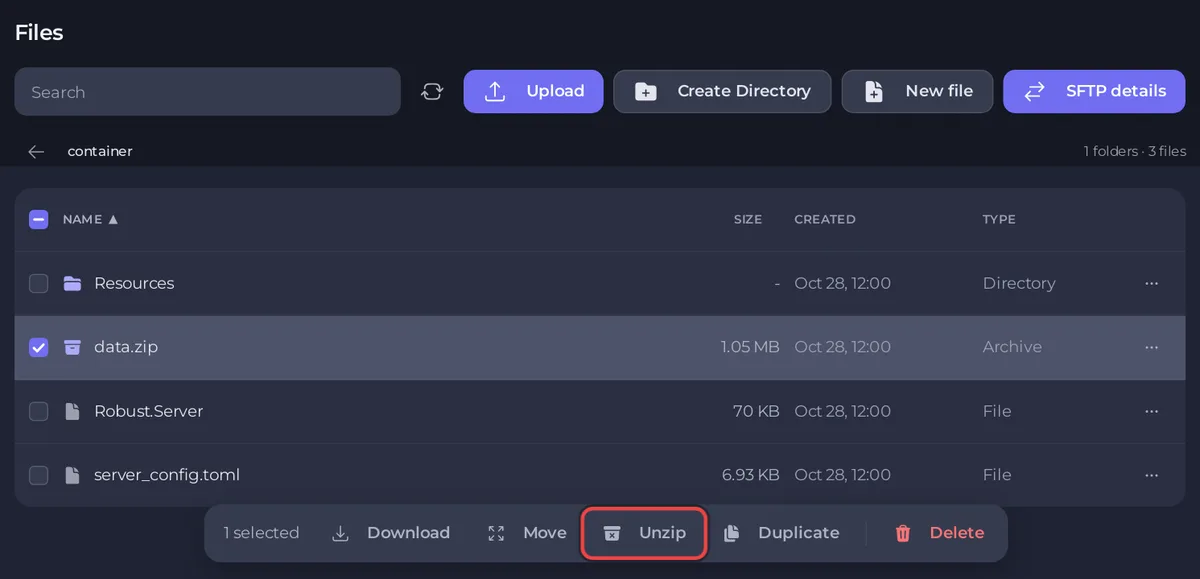
- Tick the box next to the zip and click Unzip. Check that a
datafolder now sits next toserver_config.toml, withpreferences.dbinside. - Delete the zip: in its menu, click Delete file.
How do I bring my settings across?
Copy your changed lines, not the whole file. The PlayNHost file has an [auth] section the panel needs, and six lines the panel writes before every start.
- Open your old
server_config.tomlon your computer. - On PlayNHost, click
server_config.tomlunder Files. - For each line you changed on the old server, such as
login_host_user,motdor the[hub]lines, change the same line in the PlayNHost file. - Set the name, tick rate and authentication on the panel instead: Settings, Game Settings, Server name, Server tickrate, Authentication. The player limit is Slots on the Overview page, which the panel writes into both
max_connectionsandsoft_max_players. - Click Save content.
- Click Start and wait for the
Server Version ... -> Readyline in the Console.
Every line and where it is set: Space Station 14 server settings reference.
What do my players need to do?
Give them the new Server Address from the Overview page: How to invite friends to your Space Station 14 server. If your old server was on the public hub, turn advertising on again: How to list your Space Station 14 server on the public hub.
For moving servers in general: How to move your existing server to PlayNHost.


