

To back up a Rising World server on PlayNHost, run Save World in Quick Tasks, then open Backups in the left menu and click Start backup. A backup holds the whole server folder: your worlds in Worlds, server.properties and the game files. Servers whose plan has backup slots also get a nightly Automatic backup.
How do I take a backup now?
- Open your server in the panel and click Quick Tasks in the left menu.
- Find Save World under Default tasks and click Run. It sends Rising World's
saveallcommand. Give it up to a minute. - Click Backups in the left menu.
- Under Create backup, type a Name if you like, for example
before new season. - Click Start backup. The backup appears in the list when it is done.
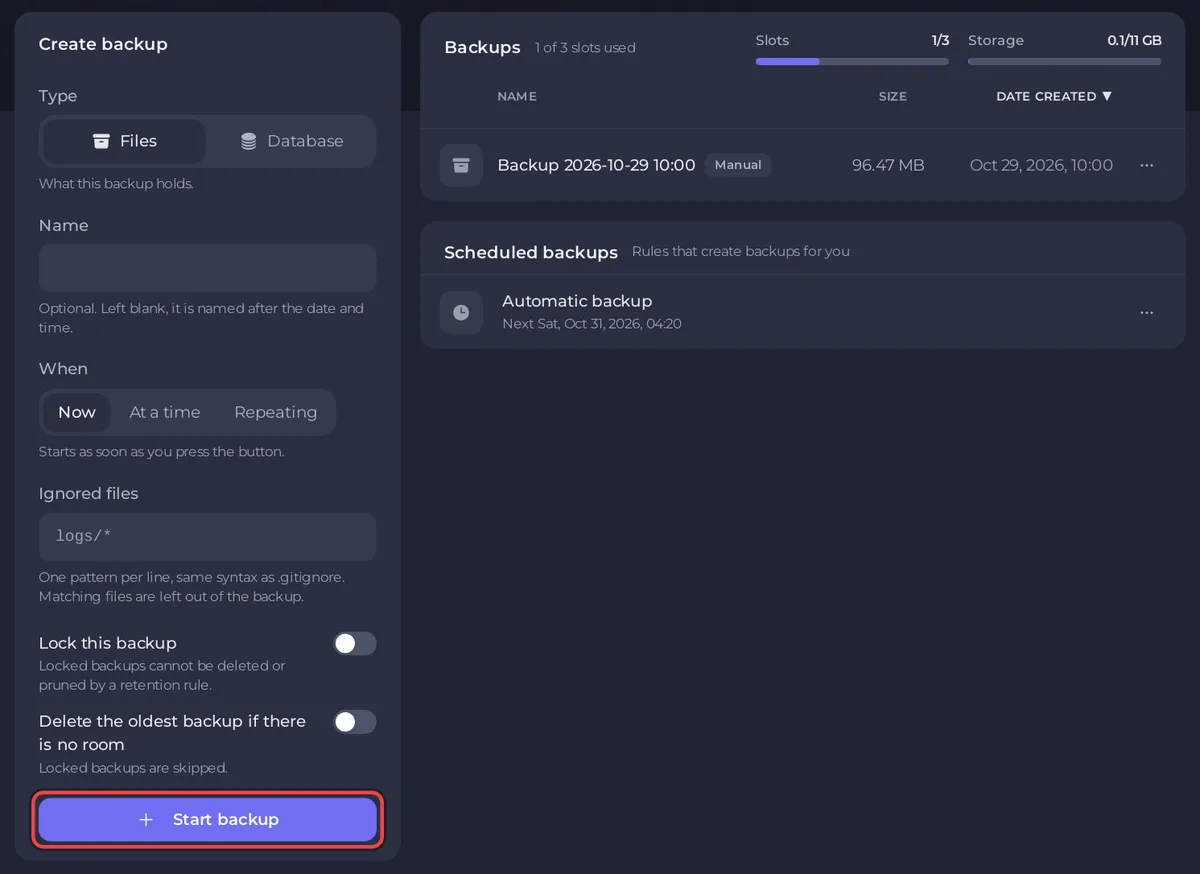
Rising World also saves world changes on its own, "usually ... automatically every few seconds", according to the developer's list of server console commands. Save World makes sure the last few seconds are on disk too.
What does the Automatic backup do?
When your plan has backup slots, a new server comes with an Automatic backup schedule. It "Takes a full backup of your server every night. Once your backup allowance is full the oldest one makes room for the newest, so you always have your most recent saves. Lock a backup to keep it out of that rotation." It runs whether the server is online or not, at an early-morning hour that differs from server to server.
To change its time, open Backups, find it under Scheduled backups and click Edit. To keep one backup for good, open its ... menu and choose Lock.
How do I restore the whole server?
A restore replaces your server's files with the backup. Anything changed since then, including your world, is lost. Take a fresh backup first if you may want the current state back.
- On Backups, open the ... menu of the backup you want.
- Choose Restore to server.
- Read the warning: the server stops while files are replaced and players are disconnected.
- Leave Delete files that are not in the backup on, unless you have a reason not to.
- Click Restore backup. When it is done, click Start.
How do I restore only my world?
- On Backups, open the ... menu of the backup and choose Restore some files....
- On Files and folders, open
Worldsand tick your world's folder. - Click Restore selected.
Your settings and the rest of the server stay as they are. Details: How to restore only some files, or one area of your map, from a backup.
How do I keep a copy on my own computer?
Open the backup's ... menu and choose Download. To download only the world, open Files, then Worlds, and choose Download folder in the world folder's ... menu. To put a world on another server: How to upload your own Rising World world.
What about the game's own Backups folder?
Since update 0.9.1 (22 December 2025), the Rising World game keeps the backups you make in single-player in a "Backups" folder in the game directory on your PC. Those are separate from your PlayNHost backups.
More about backups, slots and storage: How to create, download and restore backups.


