

 MINECRAFT HOSTING
 GAME SERVERS
 Game Panel
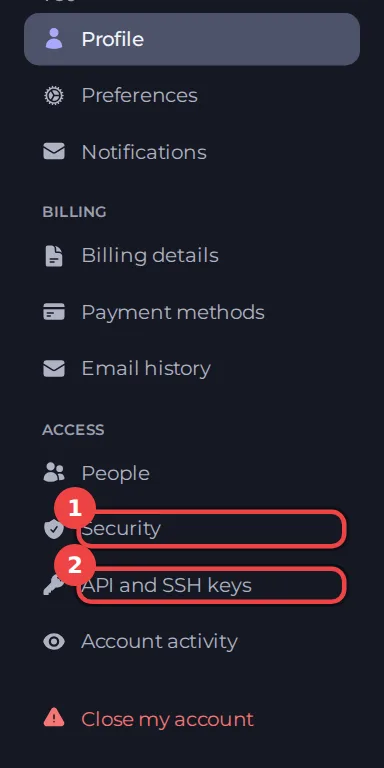
Both kinds of key live on one page: Account, then API and SSH keys.
API keys
An API key lets a script or tool use the panel on your behalf, for example to start a server from a bot or to read its status. Treat it like a password: anyone who has it can do what it allows.
API keys stop working 30 days after you create them. Create a new key and update your script before then. You can have up to 25 keys.
Create a key
- Open the panel, click Account, then API and SSH keys.
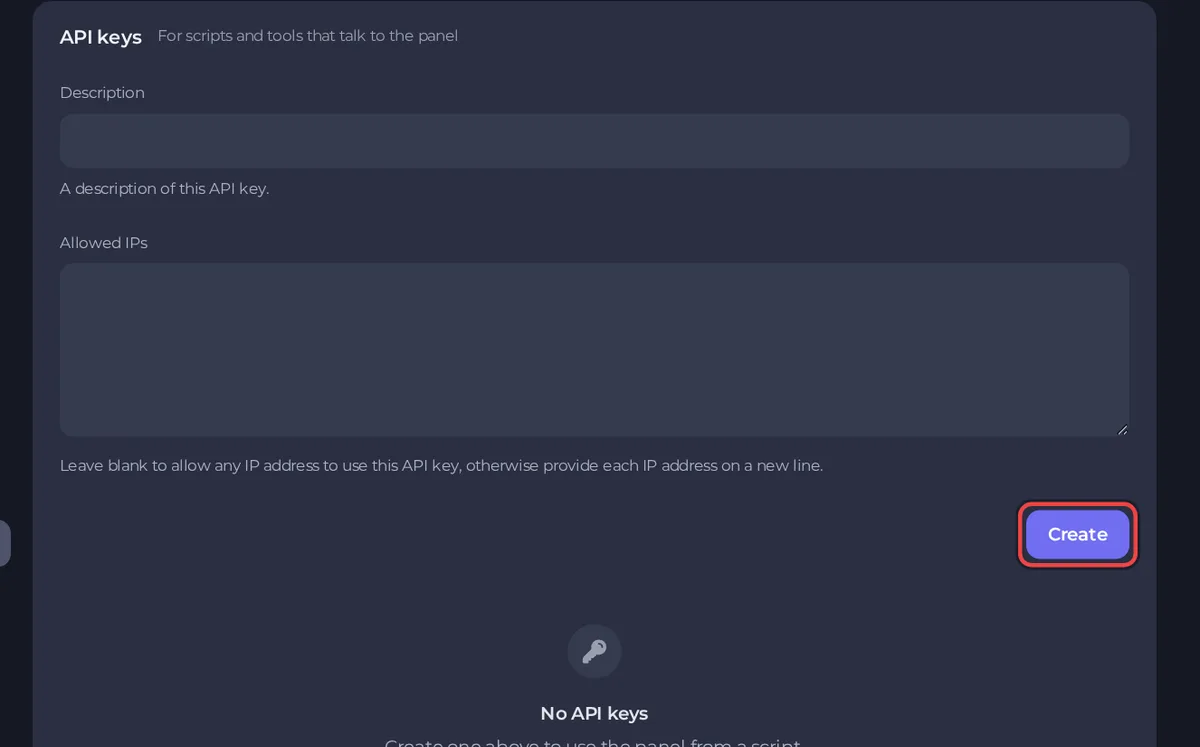
- Under API keys, type a Description of at least 4 characters so you remember what the key is for, such as "Discord restart bot".
- In Allowed IPs, list the IP addresses that may use the key, one per line. Leave it blank to allow any address. A restricted key is safer, so use it whenever you know where the script runs.
- Click Create.
- The window Your API key shows the key. It is shown once and cannot be retrieved again. Copy it into your password manager or your script's secret store before you close the window.
Remove a key
Find the key in the list below the form and delete it. Anything using it stops working at once. Delete keys you no longer use, and any key you think has leaked.
SSH keys
An SSH key lets you connect over SFTP without typing your password.
Add a key
- Create a key pair on your computer if you do not have one. Most systems can do this with the
ssh-keygencommand. Never share the private key file. - Open the API and SSH keys page.
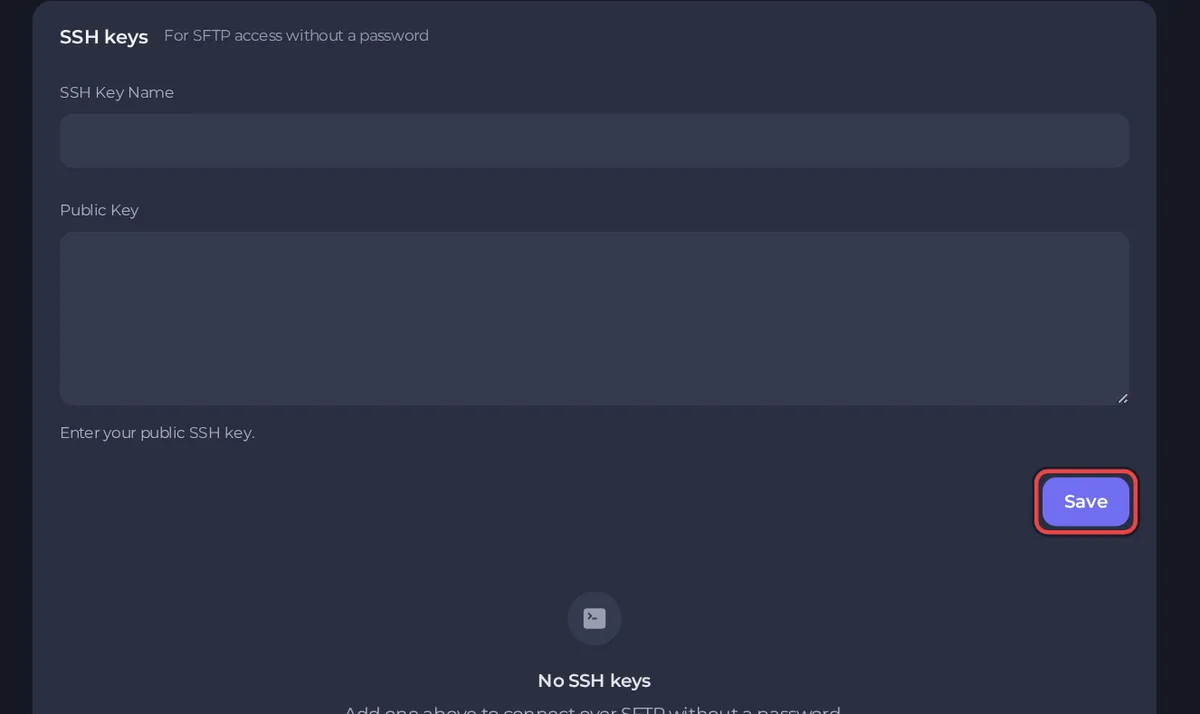
- Under SSH keys, type an SSH Key Name, such as "Home PC".
- Paste your public key into Public Key. It is one line and starts with the key type, for example
ssh-ed25519. DSA keys are not accepted, and RSA keys must be at least 2048 bits. - Click Save.
Use it
In FileZilla or WinSCP, choose your private key file instead of a password when you connect. See How to connect to your server files with SFTP.
Good to know
- You will see a security notice when an API key is created or deleted. See How to manage notifications and preferences.
- Keys act as you. If a person leaves your team, remove their access from the server instead of sharing a key. See How to invite friends and give them access.





