

To update every mod on a PlayNHost Satisfactory server, click Update mods on the Modding tab and restart: each mod moves to its newest release for your game version. To remove a mod, click the remove icon next to it in Your mod list and restart. Either way, tell your players, because their mods must match.
Update every mod
- Open your server in the panel and click the Modding tab.
- On the Your mod list card, click Update mods.
- Read the window Update every mod? and click Update at next restart. The button now says Update at next restart.
- Restart the server. The Console says
Resolving mods at their newest releases (Update mods was asked for on the Modding page). - When it has started, click Copy the list on Your players need these mods and send it to your players. They update the same mods in Satisfactory Mod Manager, or they cannot join until they do.
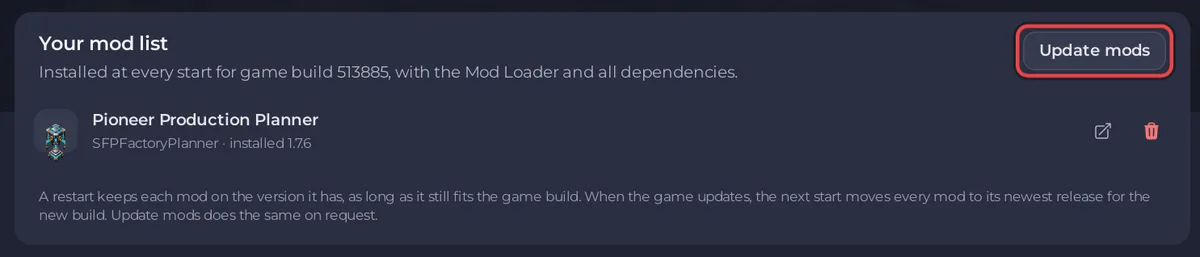
A plain restart does not update mods. It keeps each one on the version it has, as long as it still fits the game build, so your players' mods keep matching.
If Update mods is missing on a server that has mods, and your account can change startup settings, the server was installed before this button existed. Reinstalling the server brings the current mod installer and keeps your saves; take a backup first.
What happens when the game updates
When the server starts on a new game build, it moves every mod to its newest release for that build by itself. The Console says Resolving mods at their newest releases (the game updated to build ...).
If a mod has no release for the new build yet, the start keeps the mods you had and the Mods page says The last start could not apply the mods. The game itself still starts. You can wait for the mod's author, or remove that mod. See Your Satisfactory mods were not applied at the last start.
Remove a mod
Removing a mod can take away what it built in your world. Take a backup first: How to back up and restore your Satisfactory world.
- On the Modding tab, find the mod in Your mod list.
- Click its remove icon.
- Read the window and click Remove from the list.
- Click Restart now. The mod is taken out at the start, with any dependency nothing else needs.
When the list is empty, the next start removes every mod the installer put there, and the Console says Mods removed. The server is running the stock game.
Folders you uploaded into FactoryGame/Mods yourself are marked Uploaded by hand in In FactoryGame/Mods now and are never removed by this. Delete them in Files.


