%7B.s%7Banimation%3Ab%201.5s%20ease-out%20both%7D.d%7Banimation-delay%3A.16s%7D%7D%40keyframes%20b%7B0%25%7Bfill%3A%23F4F6FA%7D18%25%7Bfill%3A%23FFE08A%7D34%25%2C70%25%7Bfill%3A%23FF8A1F%7D80%25%7Bfill%3A%23FFE08A%7D100%25%7Bfill%3A%23FF8A1F%7D%7D%3C%2Fstyle%3E%3Cg%20transform%3D%22translate(143%20428.93)%20scale(3.885906)%22%3E%3Cg%20transform%3D%22translate(0%202)%22%20fill%3D%22%23706EF0%22%3E%3Cpath%20d%3D%22M0%200%20H48%20A40%2040%200%200%201%2048%2080%20V100%20H0%20Z%22%2F%3E%3Cpath%20transform%3D%22translate(91.75%200)%22%20d%3D%22M0%200%20L48%200%20L48%2050%20L76%2050%20L76%20100%20L0%20100%20Z%22%2F%3E%3Cpath%20transform%3D%22translate(173%200)%22%20d%3D%22M0%20100%20L58%20-4%20L116%20100%20Z%22%2F%3E%3Cpath%20transform%3D%22translate(264.25%200)%22%20d%3D%22M0%200%20L104%200%20L76%2050%20L76%20100%20L28%20100%20L28%2050%20Z%22%2F%3E%3Cg%20transform%3D%22translate(375%200)%22%3E%3Cpath%20d%3D%22M0%200%20L50%2038%20L50%200%20L100%200%20L100%20100%20L0%20100%20Z%22%20fill%3D%22%23F4F6FA%22%2F%3E%3Crect%20class%3D%22s%22%20x%3D%2247%22%20y%3D%2263%22%20width%3D%2219%22%20height%3D%2230%22%2F%3E%3Crect%20class%3D%22s%20d%22%20x%3D%2274%22%20y%3D%2263%22%20width%3D%2219%22%20height%3D%2230%22%2F%3E%3C%2Fg%3E%3Cpath%20transform%3D%22translate(484.75%200)%22%20d%3D%22M0%200%20L48%200%20L48%2037%20L52%2037%20L52%200%20L100%200%20L100%20100%20L52%20100%20L52%2063%20L48%2063%20L48%20100%20L0%20100%20Z%22%2F%3E%3Cpath%20transform%3D%22translate(588.5%200)%22%20d%3D%22M0%2050%20A53%2053%200%201%200%20106%2050%20A53%2053%200%201%200%200%2050%20Z%22%2F%3E%3Cpath%20transform%3D%22translate(698.25%200)%22%20d%3D%22M25%200%20H102%20V50%20H77%20A25%2025%200%200%201%2077%20100%20H0%20V50%20H25%20A25%2025%200%200%201%2025%200%20Z%22%2F%3E%3Cpath%20transform%3D%22translate(804%200)%22%20d%3D%22M0%200%20L90%200%20L90%2050%20L69%2050%20L69%20100%20L21%20100%20L21%2050%20L0%2050%20Z%22%2F%3E%3C%2Fg%3E%3C%2Fg%3E%3C%2Fsvg%3E)


Open Quick Tasks in the left menu, find Ready-made for Rust, click Add next to the wipe you want, then switch the new schedule on. Every ready-made wipe warns players in the game, stops the server, makes a backup, wipes onto a new map and starts the server again. The new map is the next one of your map rotation, or a new random seed if you have none.
Pick the schedule
| Schedule | When it runs | What it wipes |
|---|---|---|
| Force wipe (map only) | First Thursday of the month | The map. Players keep their blueprints. |
| Force wipe (map and blueprints) | First Thursday of the month | The map and every blueprint. Only for a month when Facepunch announces a blueprint wipe. |
| Map wipe | Every Thursday | The map. Players keep their blueprints. |
| Full wipe | The 1st of every month at 18:50 panel time | The map, blueprints and every record of a player. |
Choose one. Never switch on both force wipes in the same month, and if you use Map wipe, which already runs on every Thursday including the first Thursday of the month, leave the two force wipes off. See How to get your Rust server ready for forced wipe day for the monthly one.
Add and switch on a schedule
- Open your server in the panel and click Quick Tasks in the left menu.
- In Schedules, find the list Ready-made for Rust. Each row says when it runs.
- Click Add next to the schedule you want. The panel says it was added and switched off. The row says Arrives off.
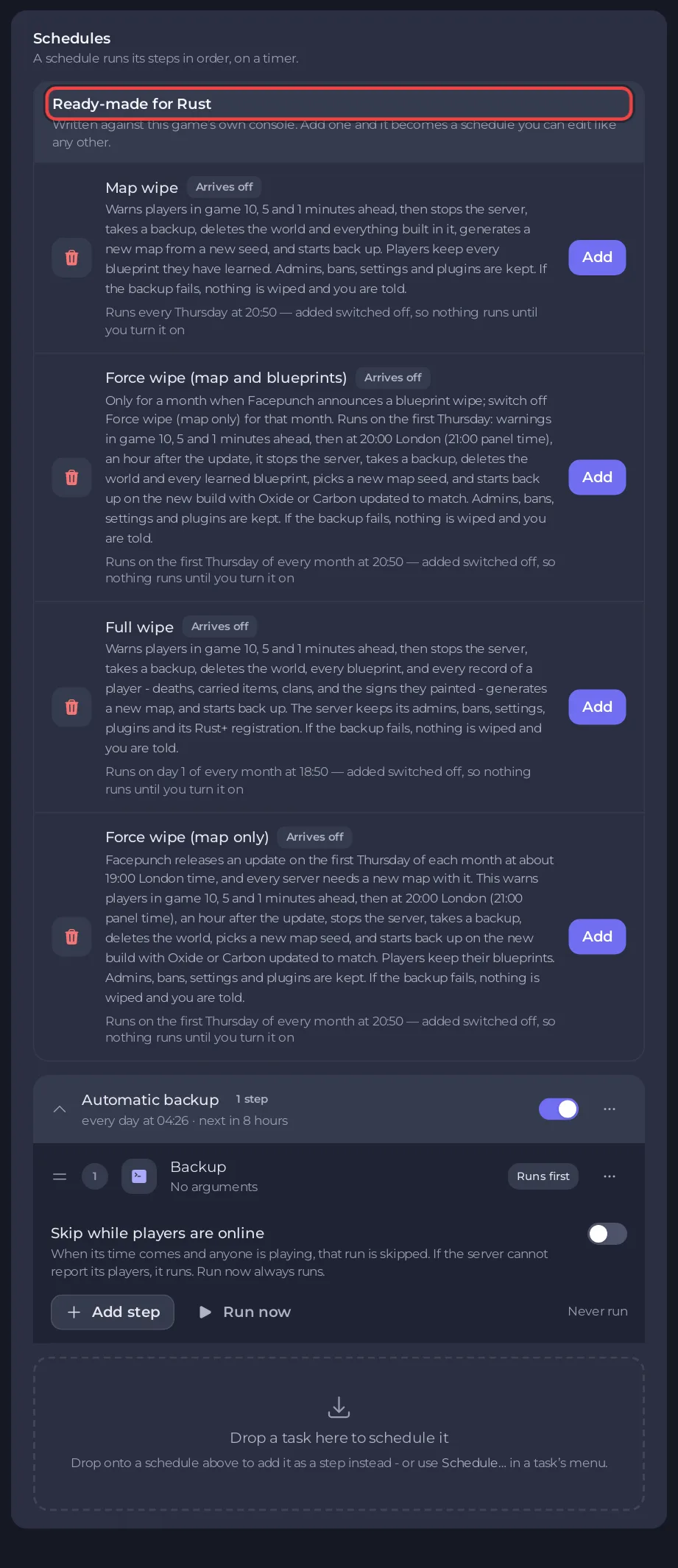
- Find the new schedule under Schedules and use its switch to turn it on. The row then shows when it runs next.
- Check the Wipe page. Your next scheduled wipe now shows the date and the name of the schedule, in your own time zone.
What every ready-made wipe does
The times are counted from the start. For the force wipes the schedule starts at 20:50 panel time, which is 19:50 London time: panel time is one hour ahead of London time all year.
- Starts 10 minutes ahead and says in the game:
Map wipe in 10 minutes. - 5 minutes later:
Map wipe in 5 minutes. - 4 minutes after that:
Map wipe in 1 minute. The server is saving and stopping. - 1 minute later, stops the server. For the force wipes this is 21:00 panel time, which is 20:00 London time, an hour after Facepunch's update.
- A minute after the stop, makes a backup named Before wipe with the date, and wipes only once the backup has finished. The wipe uses the map marked Next in your map rotation and moves the mark on, or picks a new random seed if you have no rotation.
- Then starts the server again. The start installs the new Rust build and the latest Oxide or Carbon.
The messages say Map and blueprint wipe or Full wipe for those schedules. If the backup fails, nothing is wiped and you are told. A scheduled backup does not need a free slot: when every slot is used, the oldest backup that is not locked makes room.
Things to know
- Your own maps. Without a map rotation, a scheduled wipe picks a new random seed. To have it use maps you chose, with your own sizes and seeds or custom map links, set up a rotation: How to set up a map rotation on your Rust server. If the rotation cannot be used, the wipe stops before the server is stopped or anything is deleted.
- Leave Skip while players are online off. That switch makes a schedule skip its run when anyone is playing, so a wipe would not happen. If you turn it on, the list under it, When players are online, can be set to a wait such as
Wait up to 2 hours for the server to emptyinstead of Skip that run: the wipe then runs as soon as nobody is on, and anyway when the wait is over, later than planned. - Run now is a real wipe. It starts the whole sequence straight away, warnings included, whatever the time.
- The time cannot be edited on a ready-made schedule. If your community wipes at another time, switch it off and wipe by hand at that time on the Wipe page.
- To turn a schedule off, use its switch. To remove it, open the ... menu on the schedule and choose Delete schedule.
- After a wipe, the Activity log says
Ran a map wipe. See How to see what happened on your server. - If a wipe did not happen: Your Rust server did not wipe.
For how schedules work in general, see How to schedule tasks and automatic backups.





