%7B.s%7Banimation%3Ab%201.5s%20ease-out%20both%7D.d%7Banimation-delay%3A.16s%7D%7D%40keyframes%20b%7B0%25%7Bfill%3A%23F4F6FA%7D18%25%7Bfill%3A%23FFE08A%7D34%25%2C70%25%7Bfill%3A%23FF8A1F%7D80%25%7Bfill%3A%23FFE08A%7D100%25%7Bfill%3A%23FF8A1F%7D%7D%3C%2Fstyle%3E%3Cg%20transform%3D%22translate(143%20428.93)%20scale(3.885906)%22%3E%3Cg%20transform%3D%22translate(0%202)%22%20fill%3D%22%23706EF0%22%3E%3Cpath%20d%3D%22M0%200%20H48%20A40%2040%200%200%201%2048%2080%20V100%20H0%20Z%22%2F%3E%3Cpath%20transform%3D%22translate(91.75%200)%22%20d%3D%22M0%200%20L48%200%20L48%2050%20L76%2050%20L76%20100%20L0%20100%20Z%22%2F%3E%3Cpath%20transform%3D%22translate(173%200)%22%20d%3D%22M0%20100%20L58%20-4%20L116%20100%20Z%22%2F%3E%3Cpath%20transform%3D%22translate(264.25%200)%22%20d%3D%22M0%200%20L104%200%20L76%2050%20L76%20100%20L28%20100%20L28%2050%20Z%22%2F%3E%3Cg%20transform%3D%22translate(375%200)%22%3E%3Cpath%20d%3D%22M0%200%20L50%2038%20L50%200%20L100%200%20L100%20100%20L0%20100%20Z%22%20fill%3D%22%23F4F6FA%22%2F%3E%3Crect%20class%3D%22s%22%20x%3D%2247%22%20y%3D%2263%22%20width%3D%2219%22%20height%3D%2230%22%2F%3E%3Crect%20class%3D%22s%20d%22%20x%3D%2274%22%20y%3D%2263%22%20width%3D%2219%22%20height%3D%2230%22%2F%3E%3C%2Fg%3E%3Cpath%20transform%3D%22translate(484.75%200)%22%20d%3D%22M0%200%20L48%200%20L48%2037%20L52%2037%20L52%200%20L100%200%20L100%20100%20L52%20100%20L52%2063%20L48%2063%20L48%20100%20L0%20100%20Z%22%2F%3E%3Cpath%20transform%3D%22translate(588.5%200)%22%20d%3D%22M0%2050%20A53%2053%200%201%200%20106%2050%20A53%2053%200%201%200%200%2050%20Z%22%2F%3E%3Cpath%20transform%3D%22translate(698.25%200)%22%20d%3D%22M25%200%20H102%20V50%20H77%20A25%2025%200%200%201%2077%20100%20H0%20V50%20H25%20A25%2025%200%200%201%2025%200%20Z%22%2F%3E%3Cpath%20transform%3D%22translate(804%200)%22%20d%3D%22M0%200%20L90%200%20L90%2050%20L69%2050%20L69%20100%20L21%20100%20L21%2050%20L0%2050%20Z%22%2F%3E%3C%2Fg%3E%3C%2Fg%3E%3C%2Fsvg%3E)


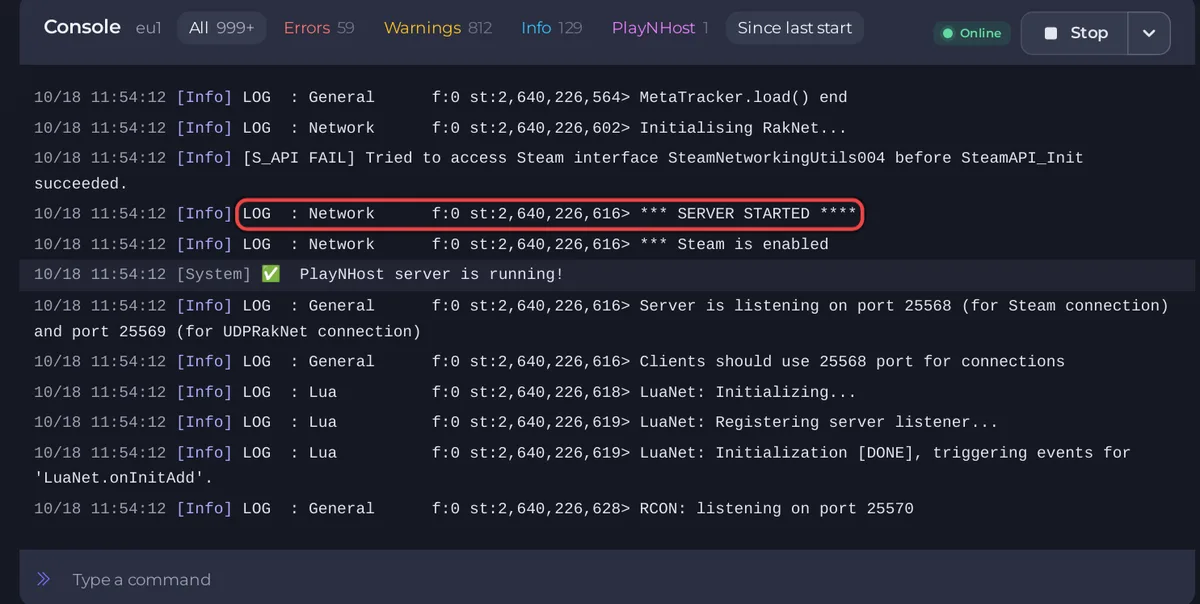
The first start of a Project Zomboid server takes longer than later ones, because the game creates your world, your settings files and your admin account. The server is ready when the badge says Online and the Console prints *** SERVER STARTED ****. Wait for that line before you try to join.
What you do
- Open your server in the panel. If it is still installing, the page says so: wait until the install has finished.
- Click Start.
- Open the Console tab and watch the output. The checklist on the Overview, Get your server ready, ticks Server started by itself.
What the Console shows
The start has three parts.
- The panel's own lines. Lines that begin with
[playnhost]show the settings the panel applied:MaxPlayers,PVP, the zombie settings, the Workshop items and the mods. A fresh server has no mods, so those lines are empty. - The game starting. You will see
version=,server name is "..."with your Server Name, then the game loading its data. Many lines in capitals such asERRORorWARNappear here on a healthy server. They are normal: Project Zomboid console lines that look like errors but are normal. - The ready lines.
*** SERVER STARTED ****, thenServer is listening on port ... Clients should use ... port for connections, thenRCON: listening on port .... The badge turns Online whenSERVER STARTEDappears.
How long it takes
A first start usually takes one to two minutes after the install. The game spends most of that time loading its data and building the world. It takes longer when you add Workshop mods, because the server downloads them at every start, and after a game update with Steam Auto Update on. The Console may print If the server hangs here, set UPnP=false. followed by a message that no gateway was found. That is the game looking for a router, which it does not need on PlayNHost. It gives up after a few seconds and carries on.
What a new server contains
- A world named after Server Name (
PlayNHostunless you changed it), in.cache/Saves/Multiplayer/<Server Name>/under Files. - A settings file
.cache/Server/<Server Name>.iniand a sandbox file.cache/Server/<Server Name>_SandboxVars.lua, which the two editors under Settings show once they exist. - A player database
.cache/db/<Server Name>.dbwith your admin account, created from Admin Username and Admin Password under Settings, then Game Settings. - Defaults: PVP on, Zombie Population Normal, Zombie Respawn None, Loot Respawn 0 (never). See Project Zomboid server settings: every option explained.
Next steps
- Join the server yourself: How to join your Project Zomboid server.
- Send the invite message to your friends: How to invite friends to your Project Zomboid server.
- Make a backup before anyone builds: How to back up and restore your Project Zomboid world.
If the badge never says Online, see Your Project Zomboid server is stuck on starting.





