%7B.s%7Banimation%3Ab%201.5s%20ease-out%20both%7D.d%7Banimation-delay%3A.16s%7D%7D%40keyframes%20b%7B0%25%7Bfill%3A%23F4F6FA%7D18%25%7Bfill%3A%23FFE08A%7D34%25%2C70%25%7Bfill%3A%23FF8A1F%7D80%25%7Bfill%3A%23FFE08A%7D100%25%7Bfill%3A%23FF8A1F%7D%7D%3C%2Fstyle%3E%3Cg%20transform%3D%22translate(143%20428.93)%20scale(3.885906)%22%3E%3Cg%20transform%3D%22translate(0%202)%22%20fill%3D%22%23706EF0%22%3E%3Cpath%20d%3D%22M0%200%20H48%20A40%2040%200%200%201%2048%2080%20V100%20H0%20Z%22%2F%3E%3Cpath%20transform%3D%22translate(91.75%200)%22%20d%3D%22M0%200%20L48%200%20L48%2050%20L76%2050%20L76%20100%20L0%20100%20Z%22%2F%3E%3Cpath%20transform%3D%22translate(173%200)%22%20d%3D%22M0%20100%20L58%20-4%20L116%20100%20Z%22%2F%3E%3Cpath%20transform%3D%22translate(264.25%200)%22%20d%3D%22M0%200%20L104%200%20L76%2050%20L76%20100%20L28%20100%20L28%2050%20Z%22%2F%3E%3Cg%20transform%3D%22translate(375%200)%22%3E%3Cpath%20d%3D%22M0%200%20L50%2038%20L50%200%20L100%200%20L100%20100%20L0%20100%20Z%22%20fill%3D%22%23F4F6FA%22%2F%3E%3Crect%20class%3D%22s%22%20x%3D%2247%22%20y%3D%2263%22%20width%3D%2219%22%20height%3D%2230%22%2F%3E%3Crect%20class%3D%22s%20d%22%20x%3D%2274%22%20y%3D%2263%22%20width%3D%2219%22%20height%3D%2230%22%2F%3E%3C%2Fg%3E%3Cpath%20transform%3D%22translate(484.75%200)%22%20d%3D%22M0%200%20L48%200%20L48%2037%20L52%2037%20L52%200%20L100%200%20L100%20100%20L52%20100%20L52%2063%20L48%2063%20L48%20100%20L0%20100%20Z%22%2F%3E%3Cpath%20transform%3D%22translate(588.5%200)%22%20d%3D%22M0%2050%20A53%2053%200%201%200%20106%2050%20A53%2053%200%201%200%200%2050%20Z%22%2F%3E%3Cpath%20transform%3D%22translate(698.25%200)%22%20d%3D%22M25%200%20H102%20V50%20H77%20A25%2025%200%200%201%2077%20100%20H0%20V50%20H25%20A25%2025%200%200%201%2025%200%20Z%22%2F%3E%3Cpath%20transform%3D%22translate(804%200)%22%20d%3D%22M0%200%20L90%200%20L90%2050%20L69%2050%20L69%20100%20L21%20100%20L21%2050%20L0%2050%20Z%22%2F%3E%3C%2Fg%3E%3C%2Fg%3E%3C%2Fsvg%3E)


The Listing and joining group decides who can join your Project Zomboid server and how it shows up in the game's server list. It holds the Join password, the switch that closes the server to new accounts, and the checks that remove players with a slow connection or the wrong files.
Open the editor
- Open your server in the panel and click the Settings tab.
- In the list on the left, under Config files, click Server Settings. The file name is shown at the top.
- If the list says No config files yet, start the server once. The game writes its settings file the first time it runs.
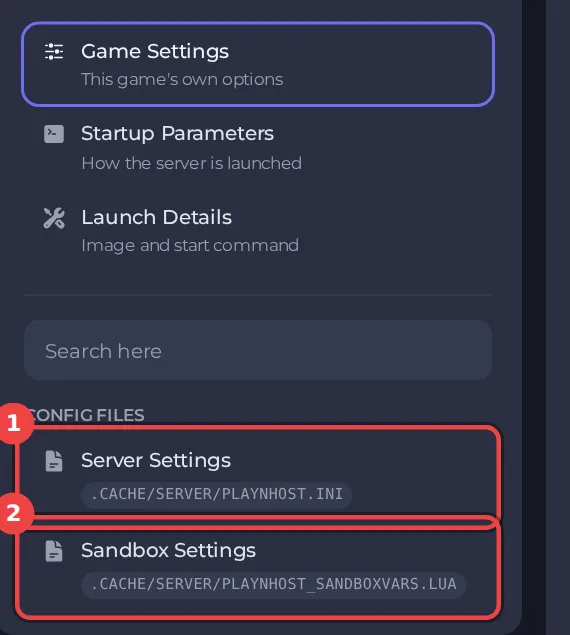
The editor only saves while the server is stopped, because the game writes this file while it runs. Stop the server, change the settings below, then click Save only or Save & start. The full steps are in How to change Project Zomboid server settings in the panel. Headings such as Listing and joining appear in capitals in the editor, and the search box at the top finds any setting by its name.
Every setting in Listing and joining
| Setting | What it does | Values |
|---|---|---|
| Show in the in-game server list | Lists the server in Project Zomboid's own server browser. Servers always appear in the Steam server browser either way. | On or off |
| Server name in the list | The name players see in the in-game and Steam server browsers. This does not rename your save; the Server Name setting on the Settings page does that. | Text |
| Server description | The description shown in the in-game server browser. | Text |
| Join password | Players must type this password to join. Leave it empty for no password. | Text (the field shows dots) |
| Anyone can make an account | On: new players create their account by joining. Off: whitelist only, so an admin must add each player first (for example with the adduser command). | On or off |
| Welcome message | Shown in chat when a player joins. <LINE> starts a new line and <RGB:1,0,0> colours the text after it. | Text |
| Accounts per Steam user | How many accounts one Steam user may create on this server. 0 means no limit. | A whole number from 0 to 2147483647 |
| Non-Latin usernames | Allows characters such as Cyrillic in usernames. | On or off |
| Remove dead players from the whitelist | Deletes a player's account when their character dies, so on a whitelist-only server they cannot make a new one. | On or off |
| Ping limit (ms) | Players whose ping is higher than this are kicked. 0 turns it off. | A whole number from 0 to 2147483647 |
| Check game files | Kicks players whose game or mod files do not match the server's. | On or off |
The settings most owners change
- Join password: How to set a join password on your Project Zomboid server.
- Anyone can make an account: turn it off for a whitelist-only server, see How to run a whitelist-only Project Zomboid server.
- Show in the in-game server list, Server name in the list and Server description: How to make your Project Zomboid server public or private.
- Ping limit (ms) and Check game files can kick players: Players are kicked from your Project Zomboid server.
Good to know
- Settings you change here apply at the next start. A sandbox rule or server rule that is not in this editor can still be edited under Files, with the server stopped.
- These settings belong to the save named by Server Name under Settings, then Game Settings. A new Server Name starts a world with its own settings files: How to switch between Project Zomboid worlds on your server.
- Back up first if a change could affect players' progress: How to back up and restore your Project Zomboid world.





