

A PlayNHost Palworld server updates itself when it starts: with Auto Update on, which is the default, every start asks Steam for the newest Palworld version and installs it. To update after a patch, restart the server. The ready-made Daily restart also restarts it early every morning, so a server left running picks up updates by itself.
Update now
- Open your server in the panel.
- Click Restart. The panel saves the world first.
- Open the Console.
Checking for game server updates...appears, then Steam downloads the update if there is one. - Look for
Game version isand the version number, thenRunning Palworld dedicated server on.
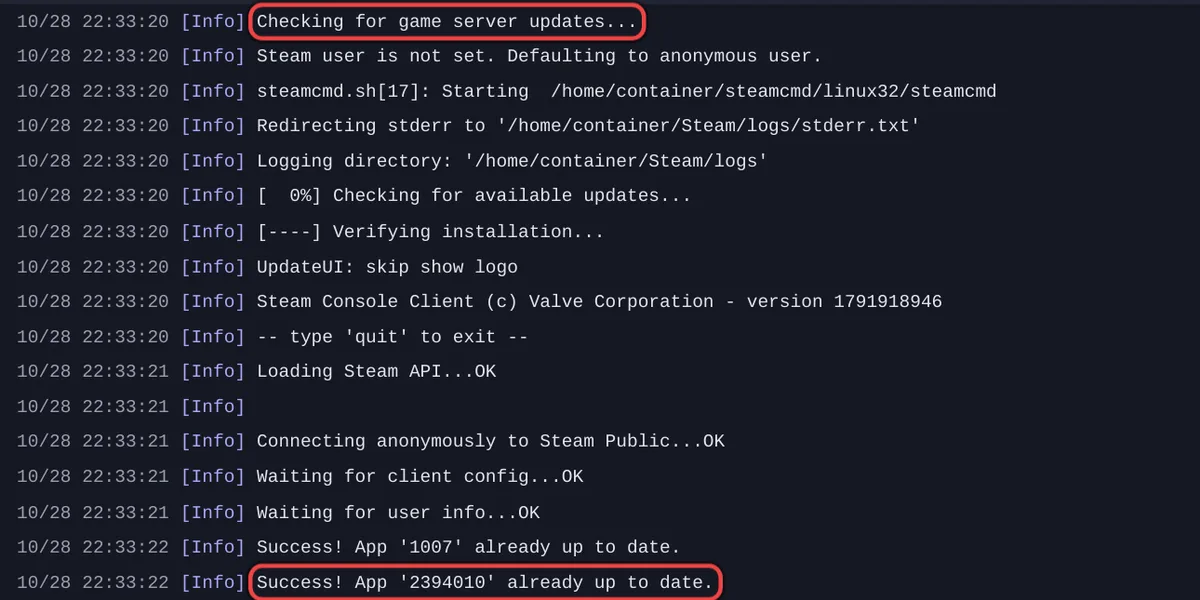
When the server is already up to date, Steam answers Success! App '2394010' already up to date. and the start goes straight on.
Check the version
- In the Console, each start prints
Game version isand the version, for examplev1.0.5.102999. - Type
infoin the Console: the game answersWelcome to Pal Server[and the version.
Players need the same version. If someone cannot join right after a Palworld patch, either their game has not updated yet, or the server has not restarted yet. Ask them to restart Palworld, and restart the server.
Auto Update
Auto Update is under Settings, Game Settings: "Auto update the server on start." Leave it on. With it off, the server keeps its current version, and players whose game has updated cannot join until you switch it back on and restart.
Your world and settings across updates
An update replaces Palworld's own files only. Your worlds, PalWorldSettings.ini, the ban list and the whitelist stay. A reinstall keeps PalWorldSettings.ini too. Take a backup before a big Palworld update anyway: How to back up and restore your Palworld world.
Updates and restarts
The Daily restart is there for updates and memory: How to restart your Palworld server with warnings. If you switch it off, restart after every patch yourself.


