

To change how many players your Palworld server accepts, click Edit slots on the Active players card of the Overview page, pick a number up to your plan's limit and click Update. The server restarts to apply it, so warn players first.
Change the slots
- Open your server in the panel. You land on Overview.
- On the Active players card, click Edit slots. The pencil next to Slots on the server card at the top opens the same window.
- The window Edit Player Slots says
Your plan allows up toand your limit, thenThis will restart your server. - Type a number or use the arrows, then click Update.
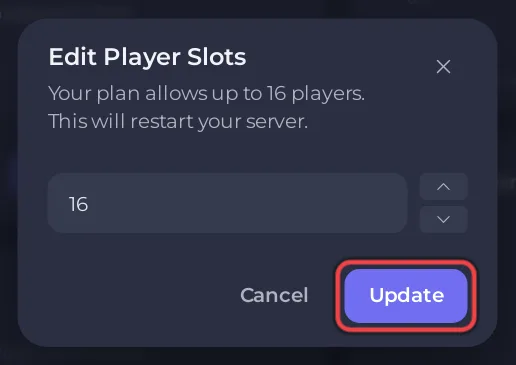
The new number shows beside Active players, for example 0 / 8, and in Max Players under Settings, Game Settings.
Why Max Players is read only
Max Players on the Game Settings page shows the slots your server runs with, at most your plan's limit, and cannot be typed into. Its description says: "To run with fewer players, click the pencil beside Slots on your server's Overview and pick any number up to your plan limit." The pencil is on the Slots row of the server card at the top; Edit slots on the Active players card opens the same window. The panel writes the number into Palworld's settings at every start, so editing the file by hand does not stick.
What else changes with the number of slots?
- The panel accepts 1 to 32 slots for Palworld: How many players can a Palworld server have?
- Fewer slots does not make a server use less memory by itself. What uses memory is what players build and do: How to make your Palworld server run smoother.
- To keep strangers out rather than limit numbers, use a password or the whitelist: How to make your Palworld server private with a whitelist.


