

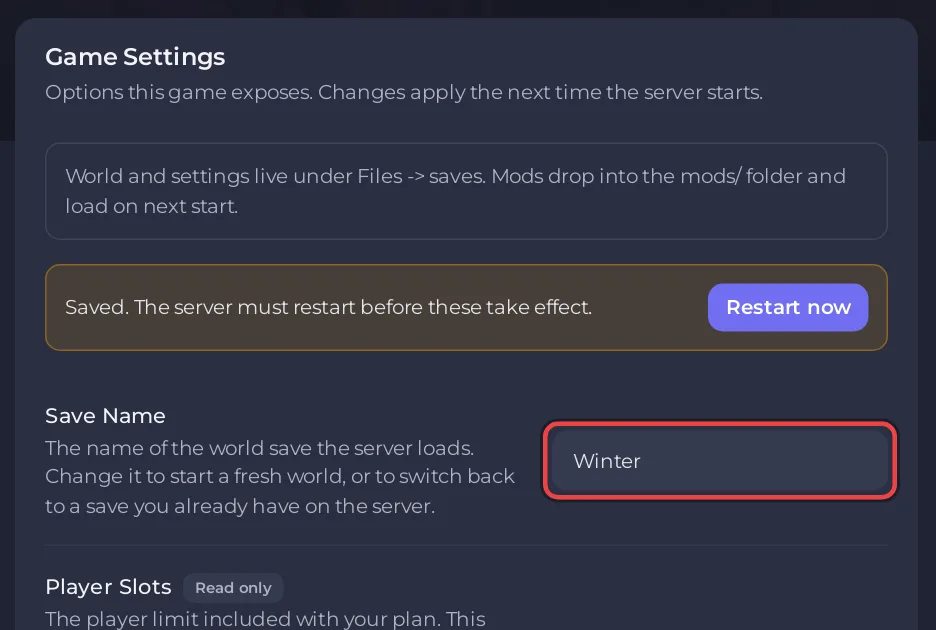
To start a new Necesse world on a PlayNHost server, type a name that is not in the saves folder into Save Name under Settings, Game Settings, and restart the server. Necesse makes a fresh world with that name. Your old world stays in its own zip until you delete it.
Start the new world
- Open your server in the panel and click the Settings tab.
- In Save Name, type a new name of up to 20 characters with no spaces, slashes, quotes,
*or?, for exampleSeason2, and press Enter. - Click Restart now in the message "Saved. The server must restart before these take effect."
- Watch the Console. Making a new world takes longer than a normal start. The line
Started server using port ... on world "Season2.zip"shows the new world is up, andType help for list of commands.that players can join.
Your old world is untouched. To go back to it, type its name in Save Name again: How to switch between Necesse worlds on your server.
How do I delete the old world for good?
- Take a backup, or download the zip, in case you change your mind: How to download your Necesse world.
- On the Files tab, open
saves. - Delete the old world's zip, for example
Save1.zip. Do not delete the zip of the world that Save Name points to while the server runs.
Deleting the zip removes every building, item and settlement in that world. Only a backup can bring it back.
What stays the same in the new world?
Everything in Game Settings and cfg/server.cfg: password, slots, message of the day, world border, settlement limits. Mods in mods load too. Player permission levels set with permissions set may need setting again in the new world: check with permissions list in the Console. Difficulty and the other world settings start fresh: How to change the difficulty of your Necesse server.
Can I reset the world on a schedule?
Not with a ready-made schedule: Quick Tasks has none for Necesse. Changing Save Name by hand, as above, is the safe way.


