

To add a mod to a Necesse server on PlayNHost, upload the mod's .jar file to the mods folder and restart the server. Necesse loads every jar in that folder when it starts, with nothing to switch on. To remove a mod, delete its jar and restart.
Add a mod
- Get the mod's
.jarfile on your computer. Steam Workshop items for Necesse are client side, so take the jar out of the Workshop item's files, or download it from the mod's author. - Take a backup first: adding a mod changes what your world loads with. See How to back up and restore your Necesse world.
- Open your server in the panel and click the Modding tab. The card Necesse mods says Installed.
- Next to Where its add-ons go (
mods), click Open Files, then open themodsfolder. - Click Upload and choose the
.jarfile. Upload one file per mod, and keep it as a jar: do not unzip it. - Click Restart and wait for Online.
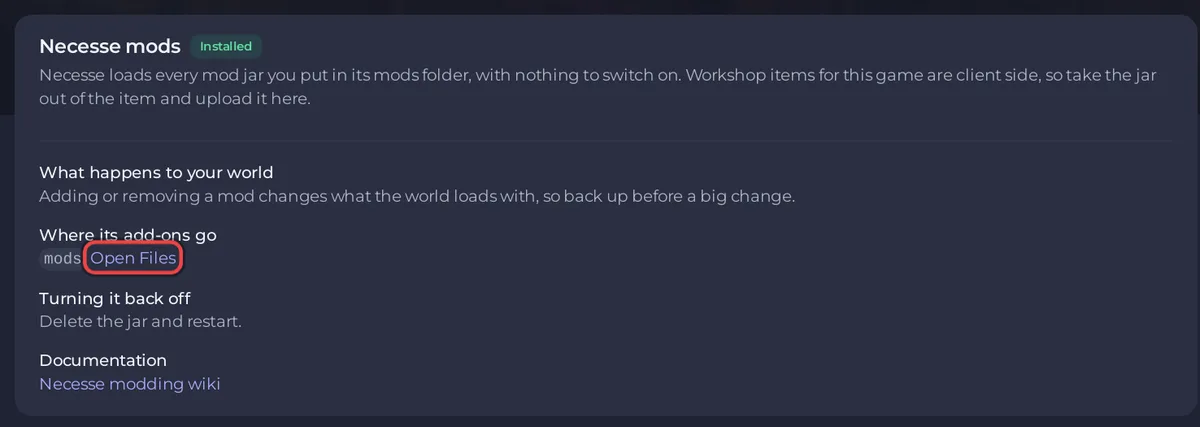
The mods folder also holds MODS-README.txt, a note from PlayNHost that repeats these rules. Leave it there or delete it, it does not matter to Necesse.
Where do Necesse mods come from?
"Modders usually share their mods on the Steam Workshop", says the Necesse modding wiki. It also says "For dedicated servers to have mods, they must find and download the mod jar file", and that "ONLY the jar file is needed for the mod to be active". So a server never subscribes to Workshop items: it only needs the jar.
Do players need the mod too?
That depends on the mod. The modding wiki says a mod marked clientside in its mod.info lets players connect "without the server needing the mod and vice versa". For any other mod, check the mod's page, and install it on every player's game when it says so.
How do I remove a mod?
- Take a backup.
- On the Files tab, open
modsand delete the mod's.jar. - Restart the server.
The Modding page says the same under Turning it back off: "Delete the jar and restart."
What if a mod does not load?
- The file must be the
.jaritself, directly inmods, not a zip and not inside a subfolder. - The server reads the folder only when it starts: restart after every change.
- Read the Console during the start for errors.
- If a mod stops working after a Necesse update, check the mod's page for a version made for the new game version: How to update your Necesse server.
Large files are easier with SFTP: How to connect to your server files with SFTP.


